This update is led by a brand new dashboard, built around the question most clerks open Civic.ly to answer: what needs doing, and where. Alongside it, schedules can now follow a weekday of the month, task screens are tidier, and a handful of filters and repeating jobs behave the way you would expect. Everything below is live now.
New: a dashboard you arrange yourself
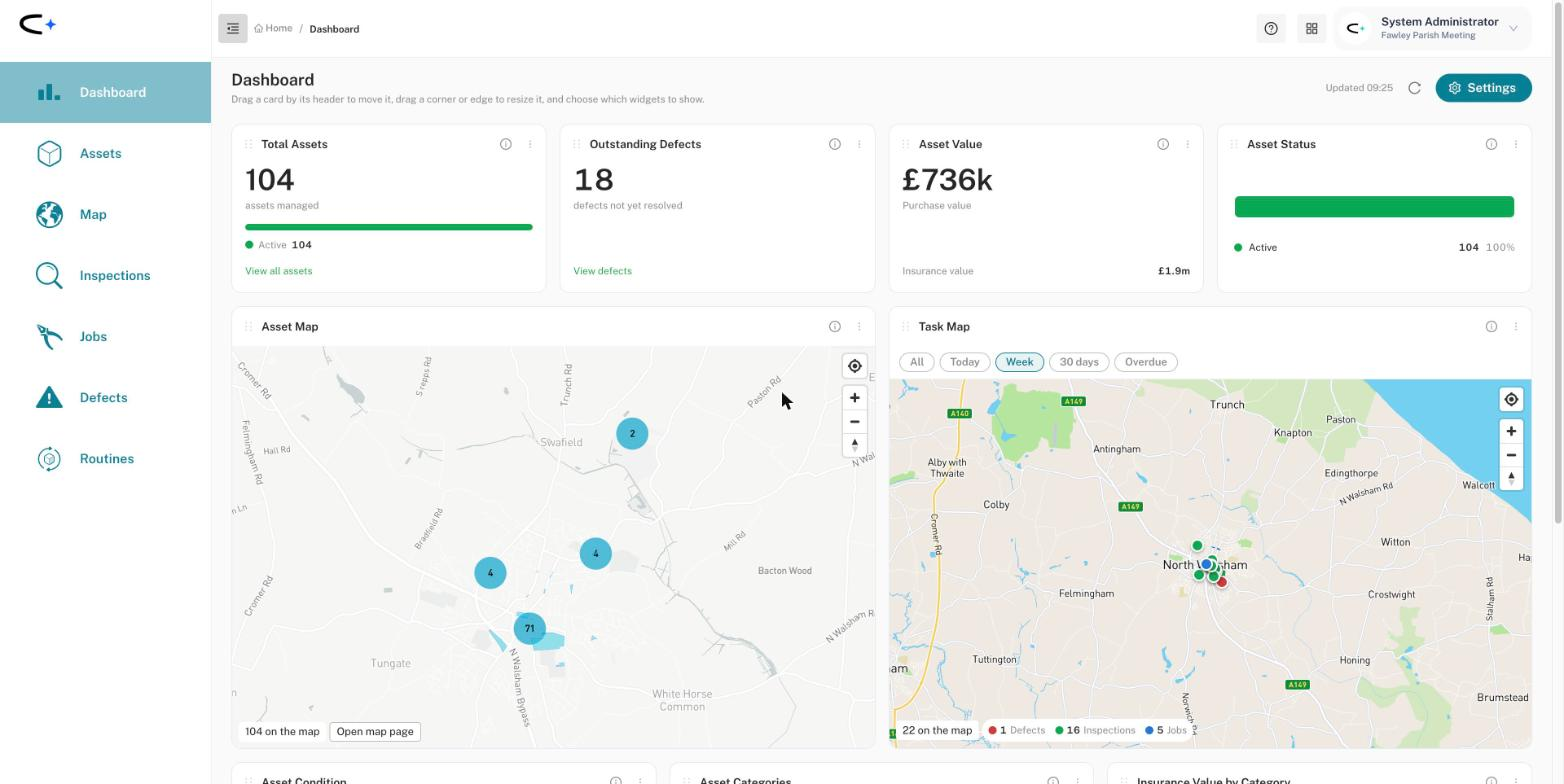
The dashboard has been rebuilt from the ground up. It is now made of widgets, and you decide which ones you see and where they go.
- Move, resize and hide. Drag a card by its header to move it, and drag a corner or edge to resize it. The ⋮ menu on each card hides it.
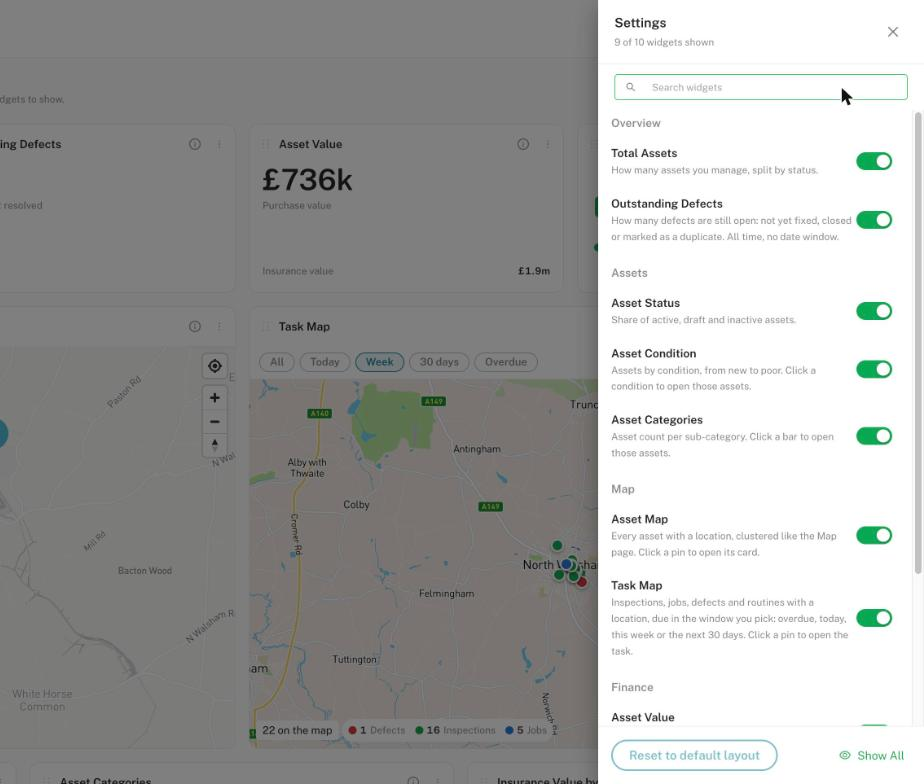
- Settings. The Settings button, top right, lists every widget with a one-line description of what it shows. Switch them on or off, search for one, or use Reset to default layout to start again.
- Your layout is yours. Each person arranges their own dashboard, so a clerk and a groundsperson can each see what matters to them.
The Task Map is the one to try first. It plots your inspections, jobs and defects that have a location, coloured by type: red for defects, green for inspections and blue for jobs. Pick a window across the top: All, Today, Week (Monday to Sunday), 30 days or Overdue. Click a pin to open the task. It remembers the window you last chose.
The other widgets:
- Total Assets and Asset Status: how many assets you manage, split by status.
- Outstanding Defects: every defect not yet fixed, closed or marked as a duplicate, with a link straight to the list.
- Asset Value: the purchase value of your whole register, with its insurance value underneath.
- Asset Map: every asset with a location, clustered like the Map page.
- Asset Condition and Asset Categories: click a condition or a category bar to open those assets.
- Insurance Value by Category: insurance value held in each main category.
- Inspections Summary: compliance and operational inspection totals. Hidden by default; switch it on in Settings.
New: repeat on a weekday of the month
Some work is booked by the calendar, and some by the day of the week. A monthly check that has to happen on the third Tuesday, or a quarterly clean that should never land on a weekend, could not be set up properly until now.
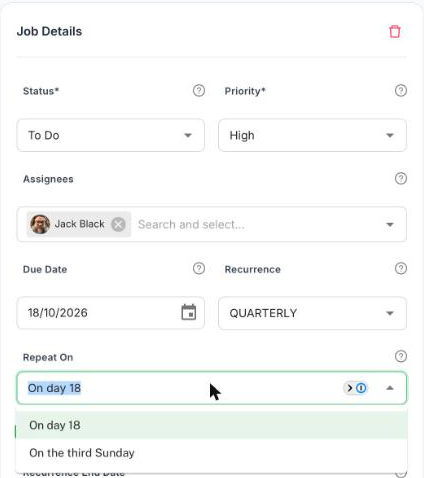
Tasks that repeat monthly, every two months, quarterly or twice a year now have a Repeat On setting under Recurrence. It gives you two choices, worked out from the due date:
- On day 18: the same date each time, as before.
- On the third Sunday: the same weekday of the month each time.
Your existing schedules are unchanged. They keep repeating on the date they always have until you choose otherwise.
Cleaner task screens
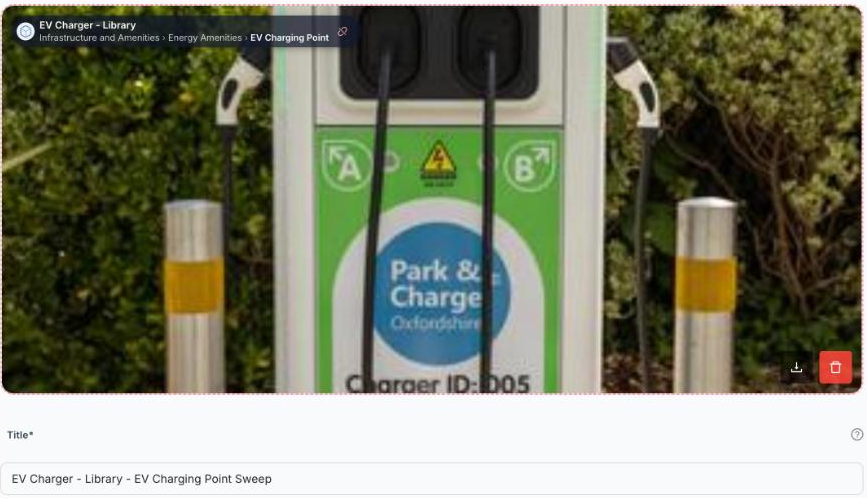
The asset a task belongs to, and its classification, now sit together in the label on the task's photo: the asset's name on the first line, and its main category, sub-category and type on the second. The separate classification panel above the photo has gone, so the title and the fields you actually edit sit higher up the screen.
The classification is still read-only on a task, because it comes from the asset. To change it, edit the asset.
Document Upload: in beta with selected councils
We have started a beta of Document Upload with a small number of councils. Upload a certificate, report or contract to an asset, and Civic.ly reads it, records what kind of document it is, picks up its issue and expiry dates, and suggests the jobs, defects and renewal reminders it calls for. You review the suggestions and create the ones you want.
It is not switched on for everyone yet. If you would like to be part of the beta, email hello@civic.ly.
Improvements and fixes
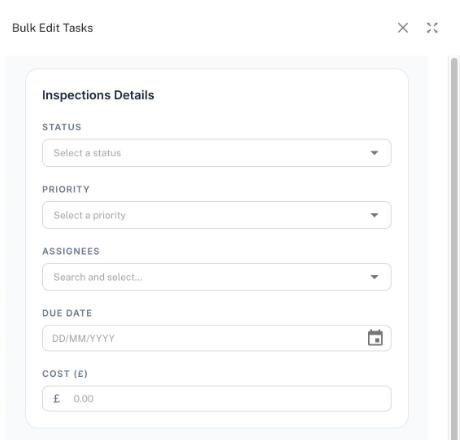
- Bulk Edit Tasks is simpler. It now offers Status, Priority, Assignees, Due Date and Cost, plus Title, Description and Notes. Asset type and category have gone, because they come from each task's asset.
- The Recurrence filter works. Filtering the task lists by recurrence now returns the right tasks for every frequency, including the longer ones (every two, three, four, five and ten years). None finds one-off tasks, and clearing the filter chip clears the filter.
- The Defects quick filter stays put. Hide Completed no longer resets when you click Defects in the side menu again or go back in your browser.
- Repeating jobs keep their due date. A repeating job needs a due date to generate the next one, and it was possible to clear it and quietly stop the series. Now you will see "Due date is required for recurring tasks." and the change is not saved. One-off jobs can still be left without a date.
- Photos load faster. Task photos now load at the right size instead of the full original, and team members' profile photos show reliably, especially in the mobile app.
Behind the scenes
The overnight job that creates upcoming tasks for every council is now more robust: one badly set up schedule can no longer hold up everyone else's. We have also tidied a lot of the code underneath the web app and the services behind it, so that saving a change either goes through completely or not at all.
In your hands
Everything above is live now. Refresh your browser to pick it up. Keep the ideas coming at ideas.civic.ly, or email hello@civic.ly.
Common Questions
No. Each person arranges their own. Moving or hiding a widget changes only your view.
Open Settings on the dashboard and switch it back on, or use Show All. Reset to default layout puts everything back where it started.
Week runs Monday to Sunday, so midweek it includes anything due on the days already gone. Use Today or 30 days to look forward only, and Overdue for what has slipped.
No. Existing schedules keep their date. Open the task and change Repeat On if you want it to follow a weekday instead.
The due date is what tells Civic.ly when to create the next one. Without it the series stops. If the job is no longer needed, set its recurrence to none or cancel it instead.