Short answer
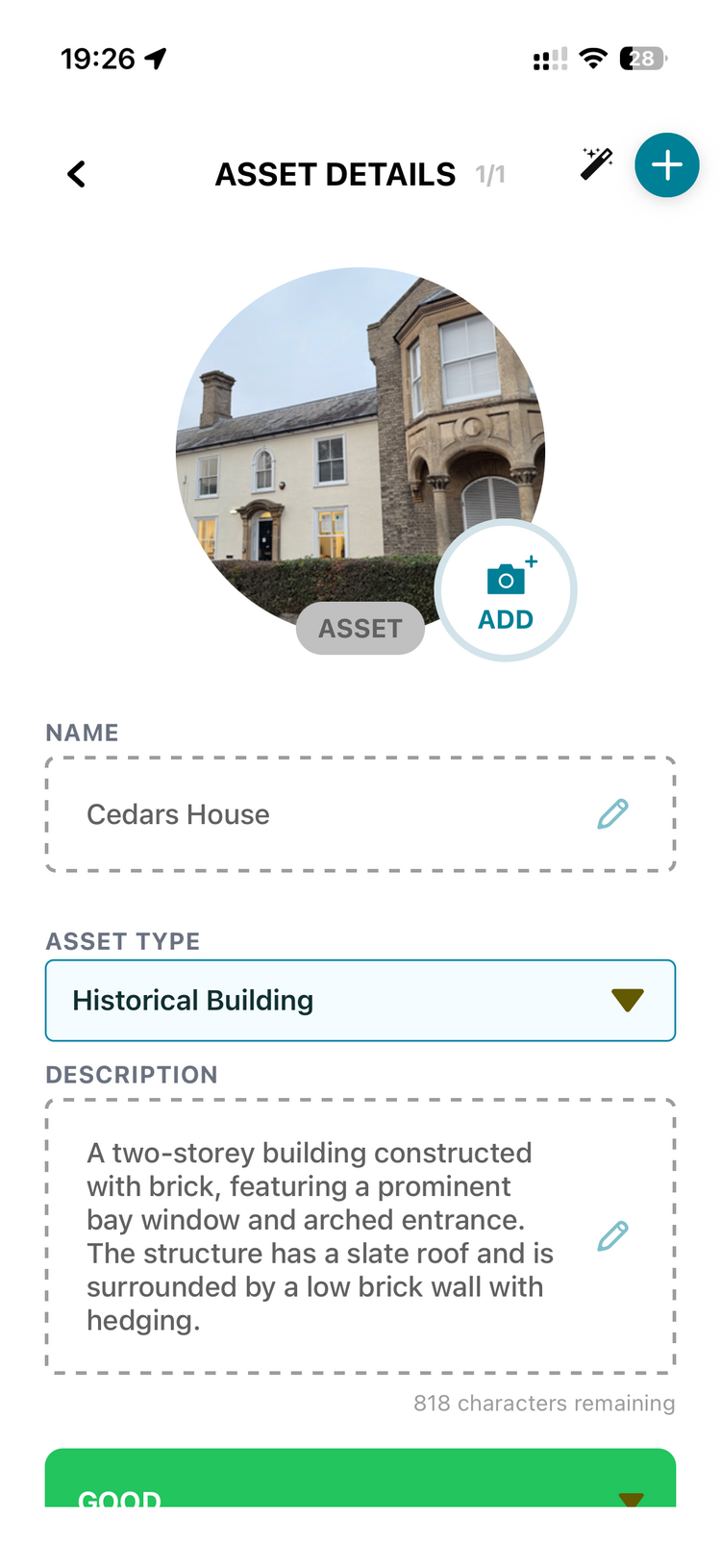
It reads the asset's photo and fills in four things for you: the asset type, a name, a description, and a first-pass condition.
The asset type is the one that matters most, because everything else keys off it. It also runs on its own when you add an asset from a photo, so most of the time you are not pressing a button, you are checking what it decided.
One thing to know before you run it in bulk: it replaces the Description. If you have typed descriptions yourself, move them into Notes first, because Notes is never touched.
Why the asset type is the important one
Setting the type is not just tidiness. Choosing an asset type also fills in Main Category, Sub Category and Est. Life (months), and, more importantly, it decides which checklists you can use on that asset. Checklists are mapped to asset types, so a swing typed as a bench will not offer you the swing checks.
If a checklist you expect is missing, the asset type is the first thing to look at. See How to Use a Checklist and the Checklist Library.
When it runs
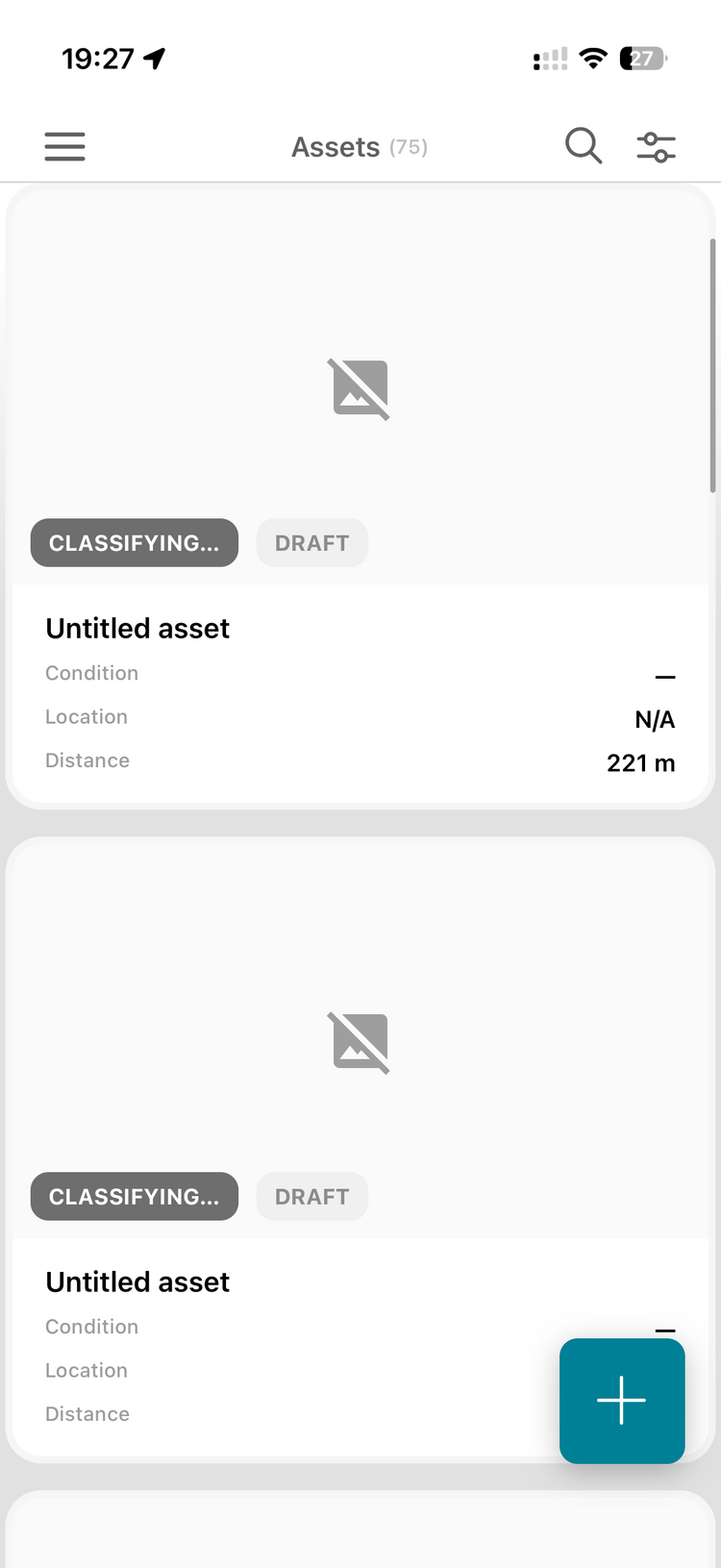
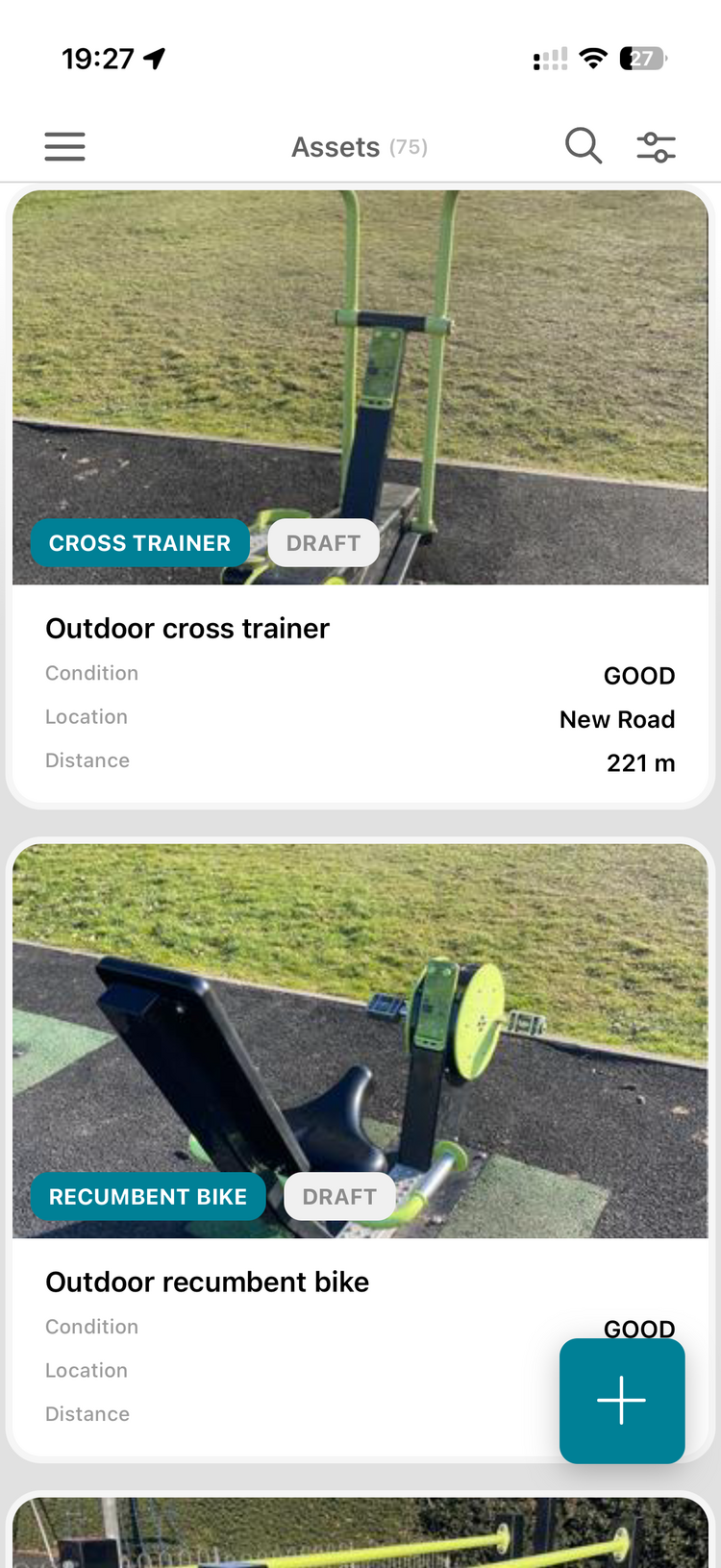
- Automatically, on upload. Add an asset by photo from the mobile app and classification starts by itself. You will see "Classifying…" on the mobile list, or N/A in the web app, for a few seconds.
- On one asset. Open the asset, and at the bottom of the Asset Details panel click AI Classify.
- On many at once. Tick the assets in the list, then click the robot icon in the bar at the bottom: Auto Detect Assets. Same thing, applied to the whole selection.
What it changes, and what it leaves alone
| Field | What happens |
|---|---|
| Asset Type | Set from the photo. This is the main event. |
| Name | Replaced with a generic name for that type, e.g. "Green Litter Bin". |
| Description | Replaced. Anything you typed here yourself is lost unless you moved it first. |
| Condition | Filled with a first-pass assessment from the photo. |
| Notes | Never touched. This is the safe place for anything you want to keep. |
| Location, location tag, status | Not touched. |
| Purchase, current, insurance and replacement values | Not touched. |
| Date acquired, date installed, warranty expiry | Not touched. |
Watch-outs
- Always check the result. It is usually right about the type and often wrong about the name. Both are worth a glance before you move on, and the name matters more than it looks: it becomes the task title your team sees on the phone. See How does an asset name flow into the task title?.
- Description gets overwritten. Before classifying in bulk, open the asset, cut the text out of Description, paste it into Notes, save, then classify.
- Local names get lost. The AI does not know your council calls something "the BruBowl" or "the Mugger". Do a quick pass afterwards to put the local name back where it helps the person in the field.
- Identical items can come back classified differently. Ten of the same hedge trimmer can be read ten ways if the photos vary. The fix is the photo: a clean, isolated shot of the item with nothing else in frame. Clutter and nearby kit confuse it.
- Sometimes it fails. Usually a poor photo, a missing photo, or something unusual the model does not recognise. Re-run it on a better picture. If something is plainly wrong and you cannot see why, send us a link to the asset and we will look at improving it.
- Give it a moment. Processing is normally well under a minute. If a new asset shows "Classifying…" or N/A, refresh the list. Only worth investigating if it never resolves.