You need a Civic.ly account. If you have not set one up yet, follow Set Up Your Account first.
This article covers two things: the camera permissions needed to add new assets with GPS, and the location and photo permissions every user needs in the field.
Update your phone first. Make sure your phone is on the latest iOS or Android — we very often find that permission screens are missing or in different places because the phone has not been updated. On iPhone: Settings → General → Software Update. On Android: Settings → System → Software update. Install any pending update before continuing.
Who needs what. Not everyone needs everything on this page.
- If you will be adding or photographing assets (clerks, grounds staff, contractors doing the initial capture): you need the camera permissions for your device and the Civic.ly app permissions. You need GPS embedded in your photos so Civic.ly can place each asset on the map automatically.
- If you will only be doing inspections, jobs, or defects (most grounds staff, councillors, volunteers): you only need the Civic.ly app permissions section near the end.
When your camera embeds GPS data into photos, Civic.ly automatically places every asset on the map the moment you upload it. Without it, you have to find and position each asset by hand — tedious when you are adding dozens of benches, bins, and lampposts. And when the Civic.ly app knows your location, you can sort assets, inspections, jobs, and defects by nearest, and get directions straight from the app.
Install the Civic.ly mobile app. Download for iPhone / iPad or Android. Look for the green star icon — there is a US education app with a similar name. Install, open, and log in with the same email and password you used for the web app. If the app hangs on first login, double-check your password including upper- and lowercase letters.
Camera Permissions — iPhone or iPad
Skip this section if you will not be adding or photographing assets.
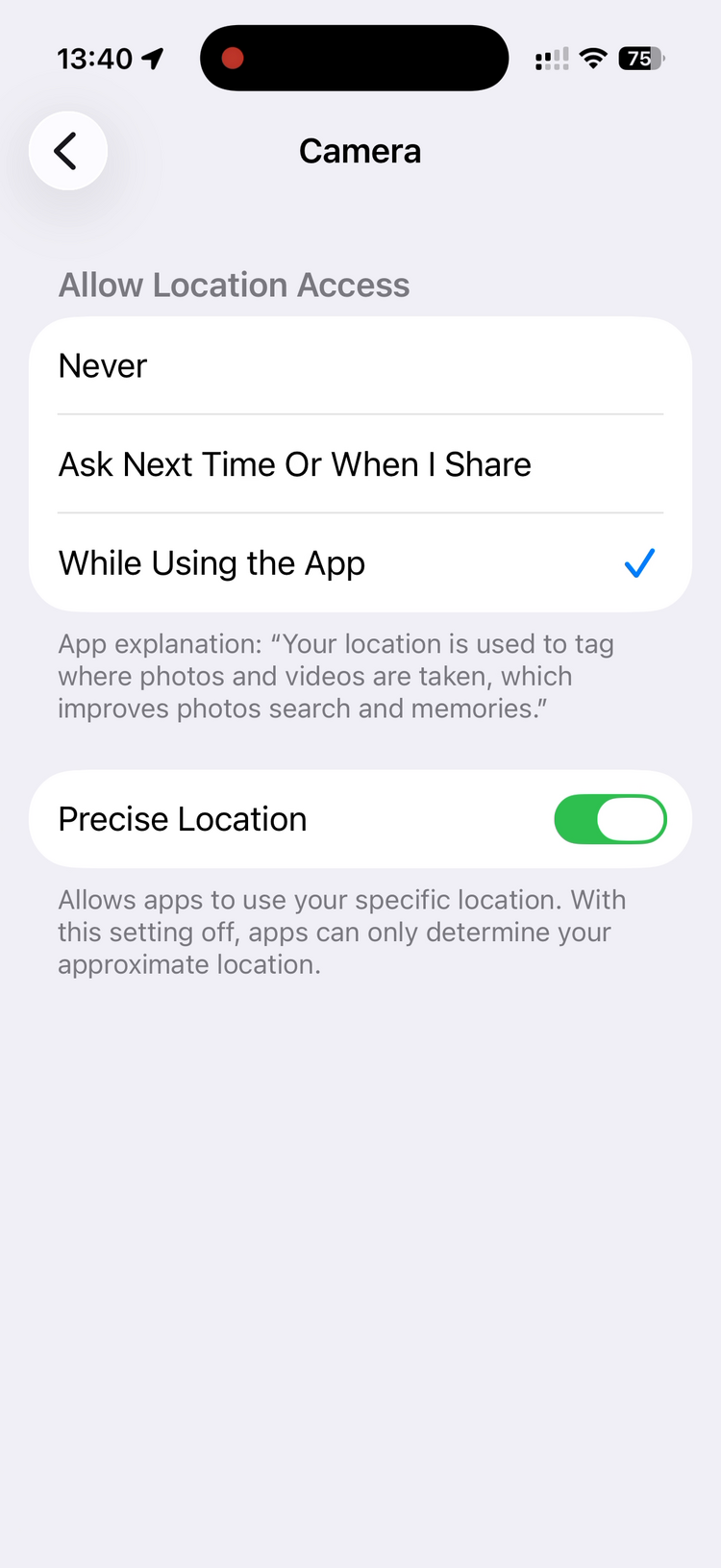
Your iPhone needs to embed GPS coordinates into every photo. iPhone does this automatically once the Camera has location permission — there is no separate "save location" toggle.
- Open the Settings app.
- Tap Privacy & Security, then tap Location Services. Make sure it is toggled on at the top.
- Scroll down the app list, tap Camera, and select While Using the App.
- Turn Precise Location on.
Camera Permissions — Samsung Galaxy
Skip this section if you will not be adding or photographing assets.
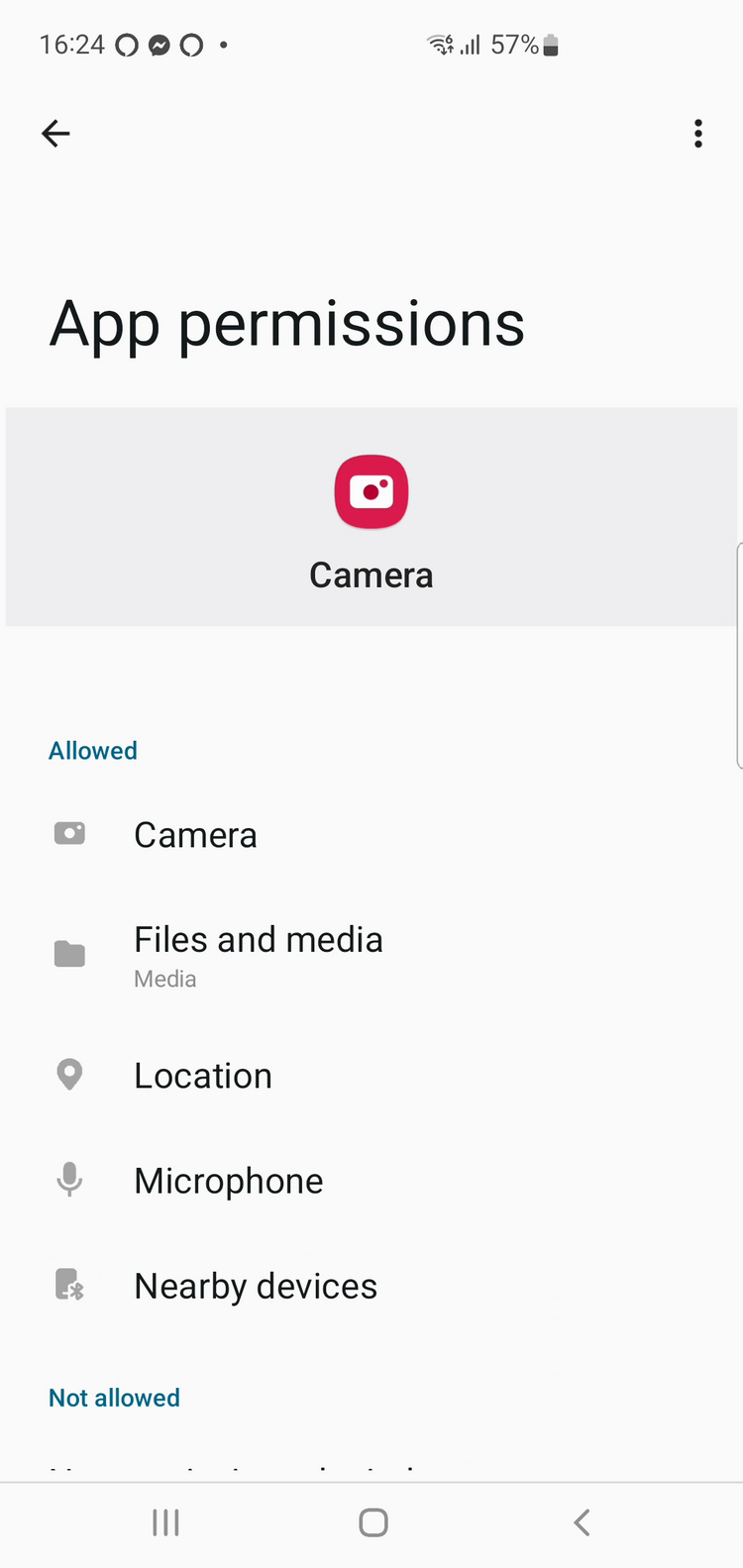
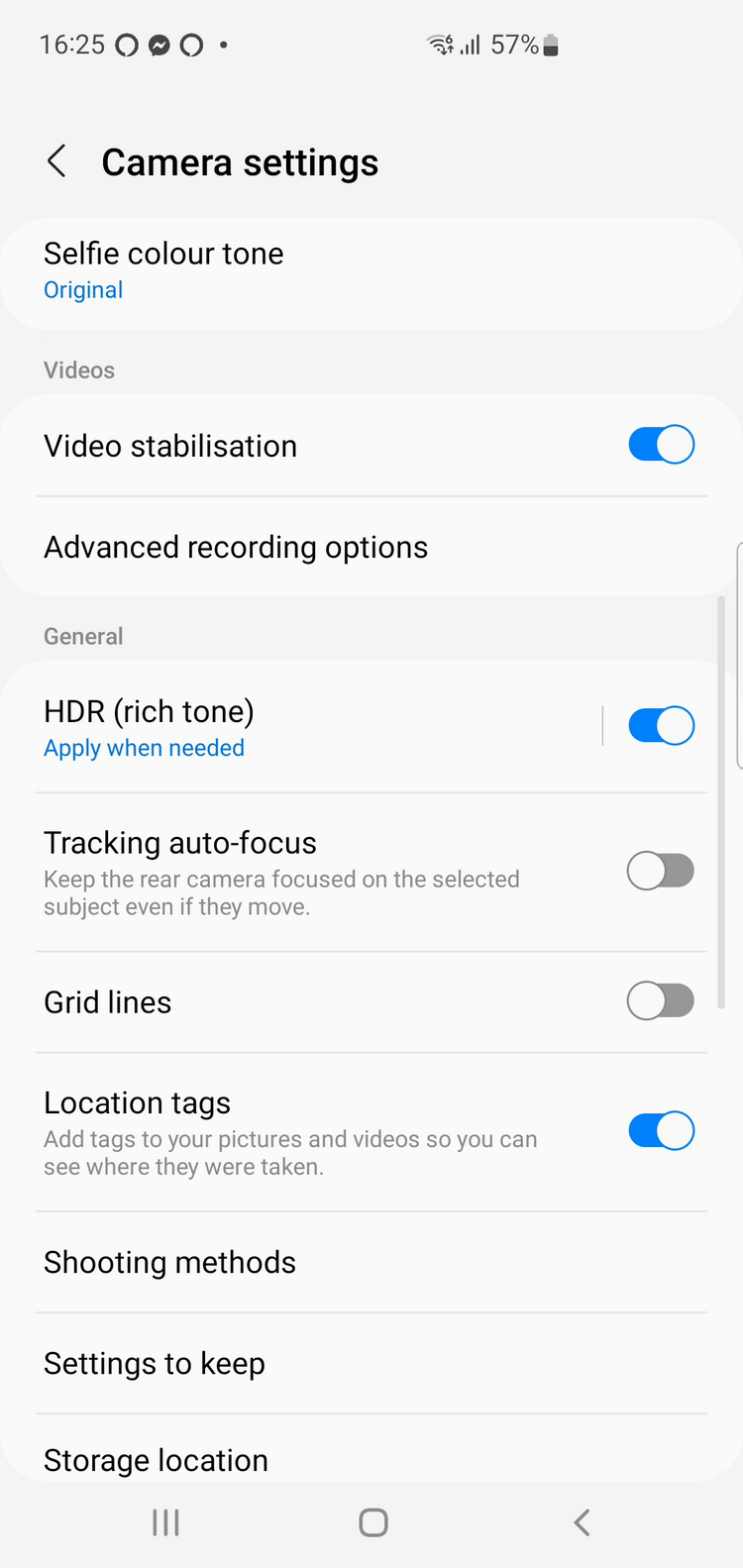
Samsung splits this into two settings — a system permission for the Camera, then a toggle inside the Camera app itself. You need both. Step A on its own is not enough: it only allows GPS use, while Step B tells the Camera to actually save GPS data into your photos.
Step A — Location permission for the Camera: Settings → Apps → Camera → Permissions → Location → Allow all the time, and turn Use precise location on.
Step B — Location tags inside the Camera: Open the Camera app → tap the Settings cog → scroll to Location tags and turn it on.
Camera Permissions — Google Pixel
Skip this section if you will not be adding or photographing assets.
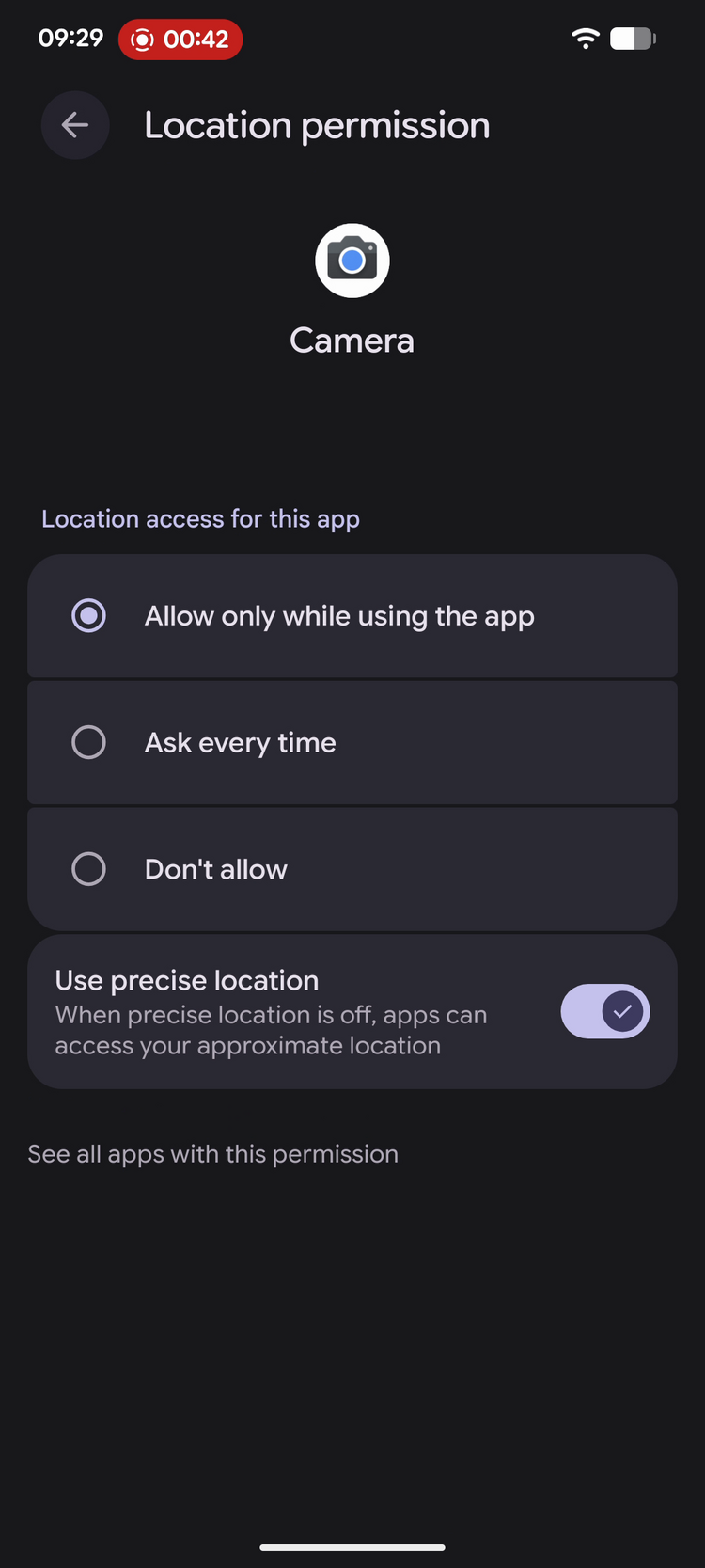
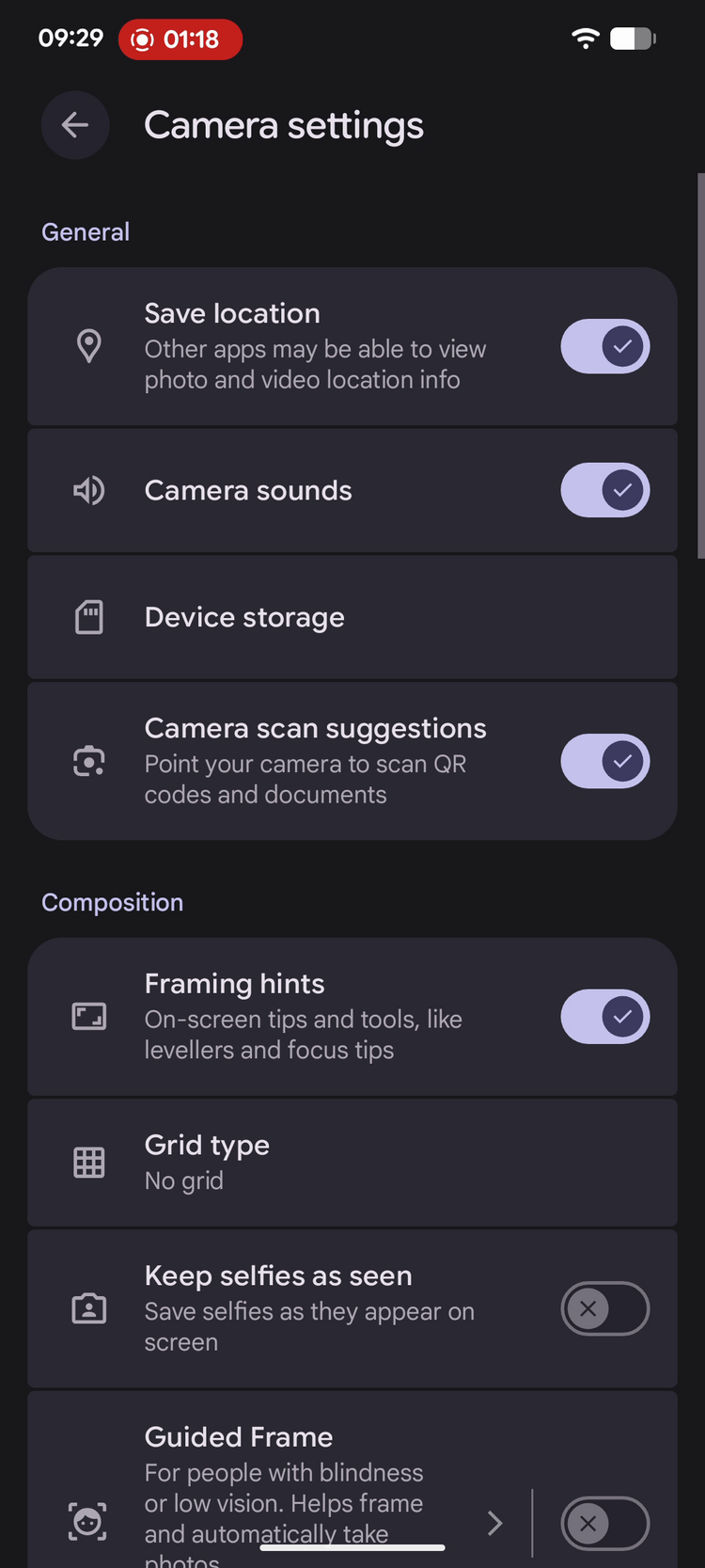
Pixel also splits this into two settings — a system permission and a toggle inside the Camera app. You need both.
Step A — Location permission for the Camera: Settings → Apps → See all apps → Camera → Permissions → Location → Allow only while using the app, and turn Use precise location on.
Step B — Save location inside the Camera: Open the Camera app → open Camera Settings → under General, turn Save location on.
Camera Permissions — Xiaomi
Skip this section if you will not be adding or photographing assets.
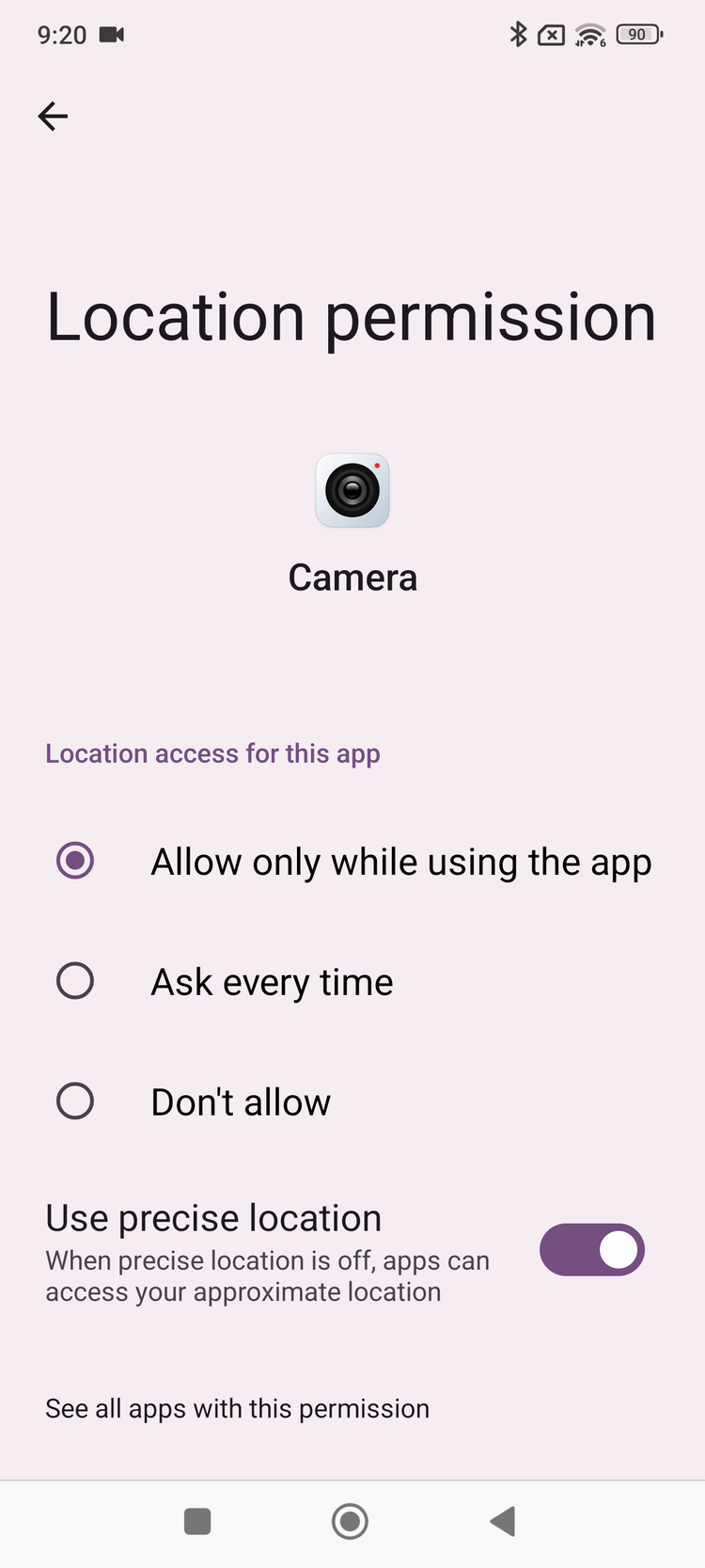
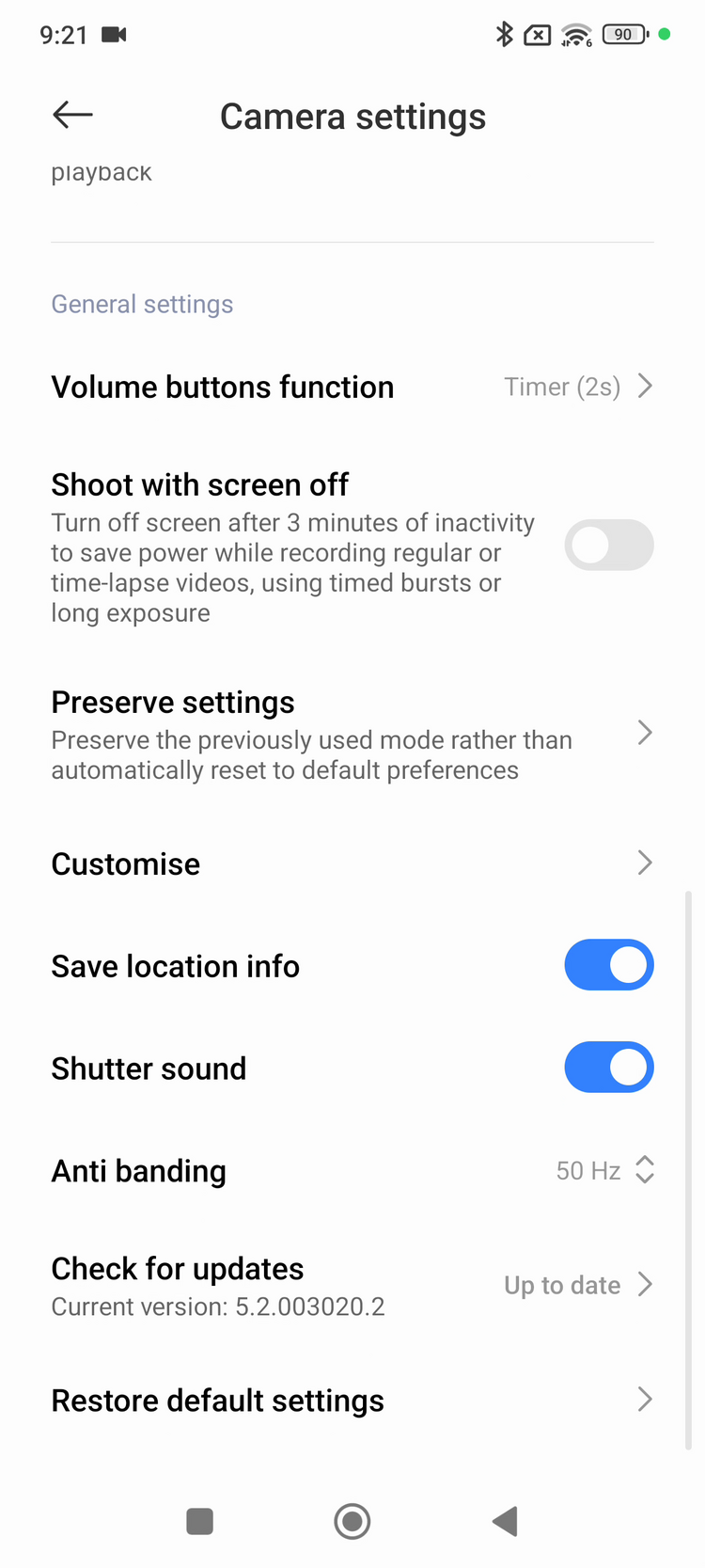
Xiaomi also needs both — a system permission and a toggle inside the Camera app.
Step A — Location permission for the Camera: Settings → Apps → Manage apps → Camera → App permissions → Location → Allow only while using the app, and turn Use precise location on.
Step B — Save location info inside the Camera: Open the Camera app → open Camera Settings → scroll to General settings and turn Save location info on.
Other Android Phones
Other Android brands (Honor, OnePlus, Motorola, Huawei) work the same way as Samsung, Pixel, and Xiaomi — a Location permission under Settings → Apps → Camera, and a toggle in Camera → Settings called "Location tags", "Save location", "Geotag", or "GPS". Search for "location" inside your camera app's settings menu if you cannot find it.
Civic.ly App Permissions (Everyone)
Every user needs this section, including standard users who only do inspections, jobs, or defects.
When you first open the Civic.ly app it will ask for a few permissions. Two matter — get both right or the app will misbehave in the field.
Location — choose "While using the app". The app uses your location to show where you are on the map, sort by nearest, and give directions. Tap Allow While Using the App (iPhone) or While using the app (Android). Do not pick "Only this time" or "Don't allow".
Photos — choose "Full access", not "Selected photos". Tap Full Access (iPhone) or Allow access to all photos (Android). Do not pick "Selected Photos" or "Limited access" — partial access means Civic.ly cannot see the photo you just took, and uploads will fail or appear blank.
If you tapped the wrong option, fix it manually:
- iPhone: Settings → Civic.ly → set Location to While Using the App and Photos to Full Access.
- Android: Settings → Apps → Civic.ly → Permissions. Set Location to Allow only while using the app and Photos and videos (or Files and media) to Allow all.
Verify Everything is Working
- Asset creators only: take a test photo outdoors, open it in your gallery, and check the details — you should see GPS coordinates or a location name.
- Everyone: open the Civic.ly app and go to the map view. You should see a blue dot for your current location.
- Everyone: attach a photo from inside the Civic.ly app — if the photo picker shows your full camera roll, photos access is set correctly.
- Always upload photos directly from your phone via the Civic.ly app. Transferring photos to a computer first can strip out the GPS data.
- If a photo's GPS is slightly off (common near buildings or trees), you can drag the asset pin to the right spot in Civic.ly later.
- Test every team member's phone before a real data capture session. One council spent an afternoon photographing 150 assets, only to discover the photographer's permissions were not enabled. Every asset mapped to latitude 0, longitude 0 — off the coast of Africa — and had to be redone. A two-minute test upload avoids this.
- Set up your team's phones together. Get everyone in the same room, walk through the permission steps, and have each person do a test upload. Catches issues before anyone heads out.
Common Questions
First, check your phone is on the latest OS — older versions sometimes hide the permission. Then check both the Camera's location permission and the in-camera save-location toggle are on. On Android both are required; on iPhone you just need Location Services enabled for the Camera.
Yes. Partial photo access means Civic.ly cannot see new photos and uploads will appear blank or fail. Switch to Full Access (iPhone: Settings → Civic.ly → Photos) or Allow all (Android: Settings → Apps → Civic.ly → Permissions → Photos and videos).
Setting names vary: Samsung calls it Location tags, Pixel Save location, Xiaomi Save location info, others "Geotag" or "GPS". Search for "location" inside your camera app's settings, or update your phone's OS.
Yes — the app runs well on budget Android devices (tested around £120). The phone just needs to support location services and be on a recent OS version.
GPS accuracy can be affected by buildings, trees, and signal. You can drag and drop the asset pin to the correct position in Civic.ly.
Your device is set up and ready. For a walkthrough of adding your first assets, mapping your areas, and reconciling with your existing register, watch the training webinar.