You need at least one asset in your register. If you have not added one yet, follow Add Your First Asset first.
In this step you will create an inspection in the web app, then switch to the mobile app to complete the checklist. This shows how office staff set up work and field staff carry it out — the core daily workflow in Civic.ly.
Create the Inspection in the Web App
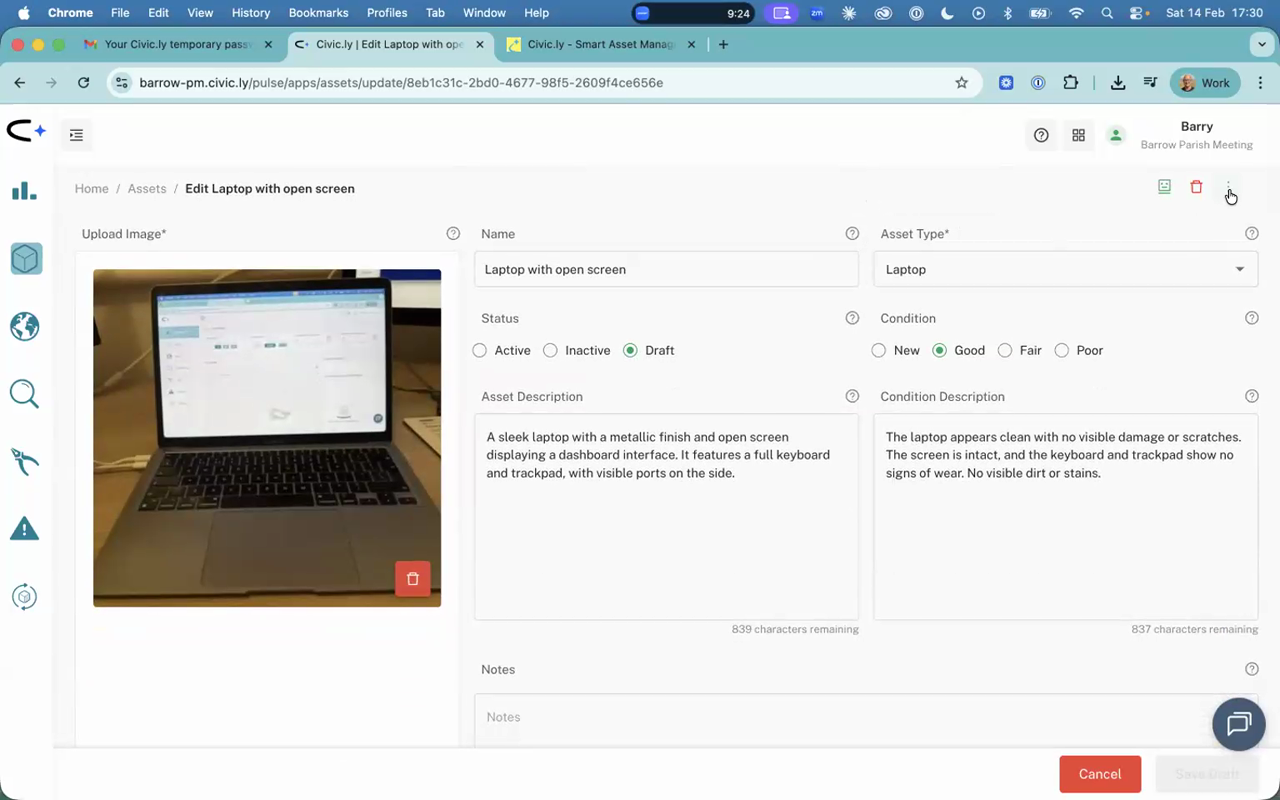
- In the web app, click Assets in the left-hand menu.
- Double-click on your test asset to open the full record.
- In the top right-hand corner, click the three-dot menu (⋮).
- Select Create Inspection.
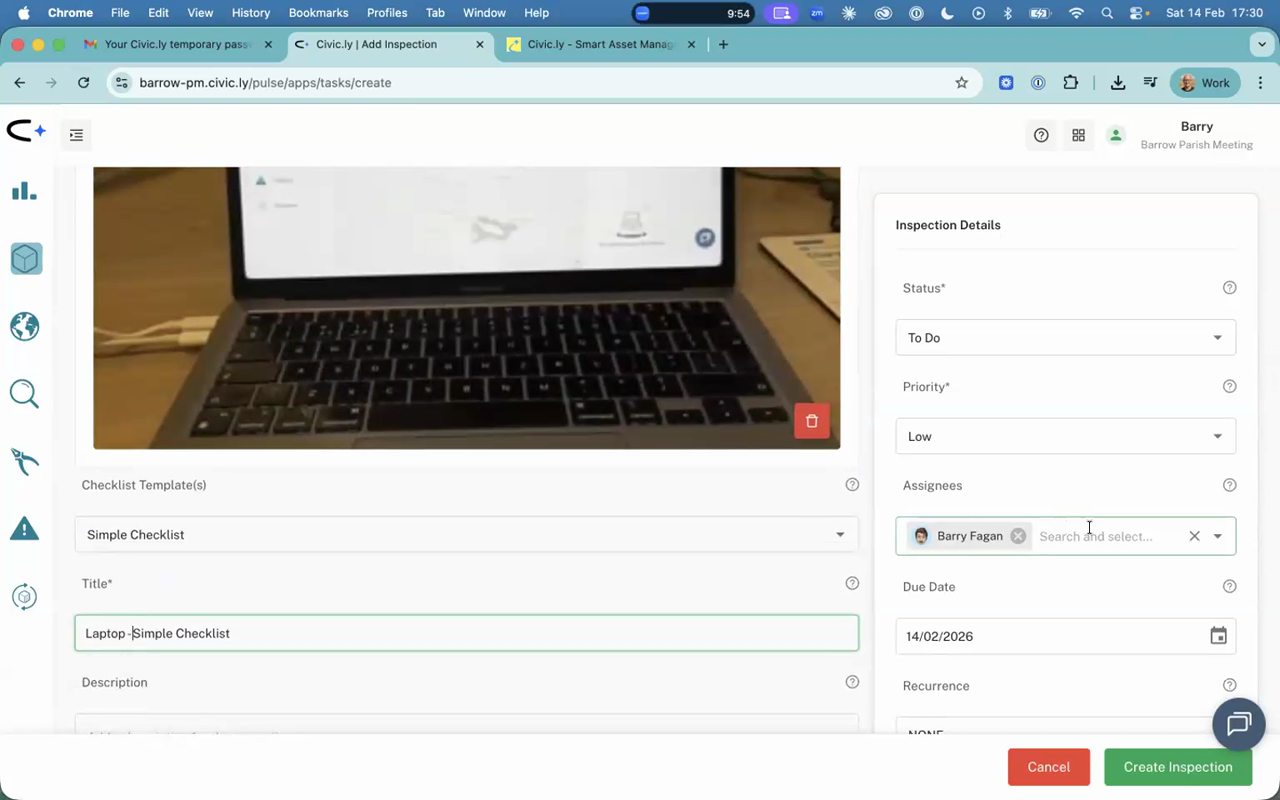
- Choose a checklist — select Simple Checklist for this test.
- Make sure the inspection is assigned to yourself.
- Leave everything else as the default and tap Create.
Your inspection is now created and assigned. Time to switch to your phone.
Complete the Inspection on the Mobile App
- Open the Civic.ly app on your phone.
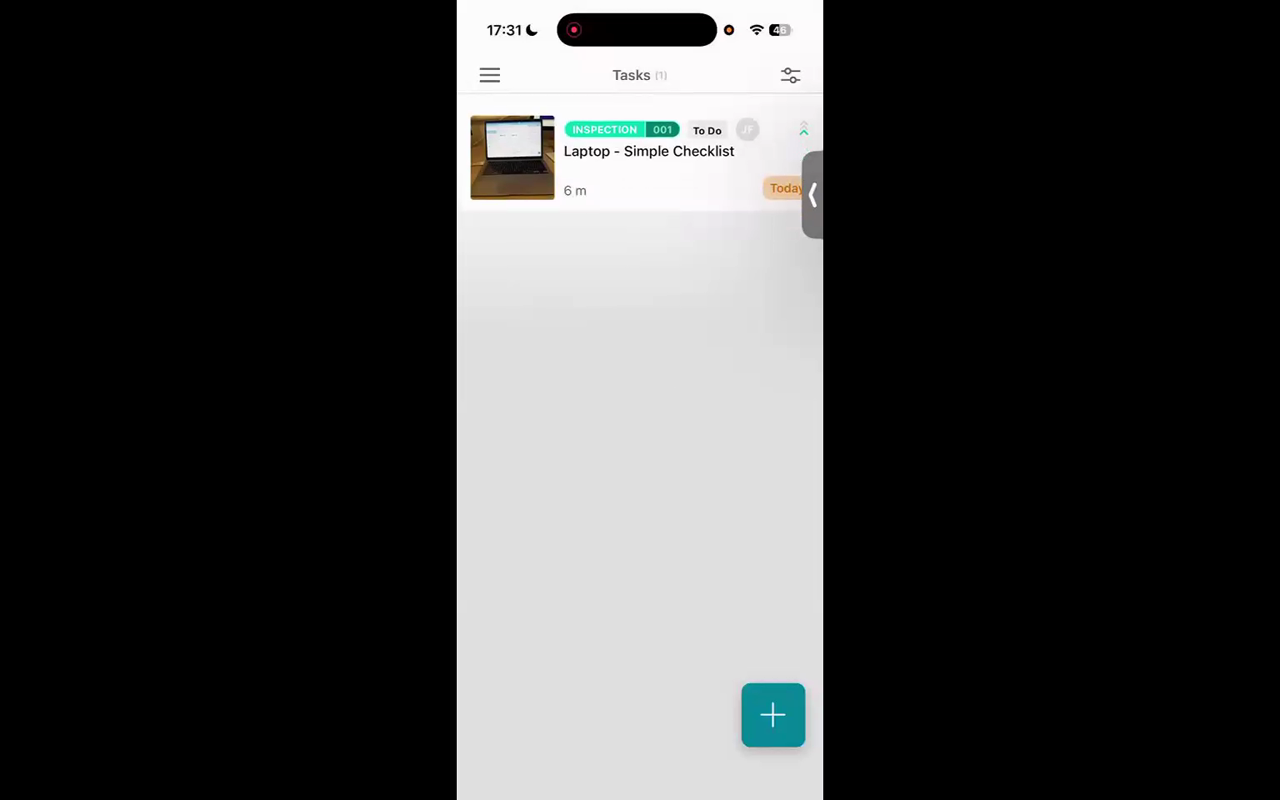
- Tap the filter button in the top right-hand corner.
- Switch from Assets to Tasks and tap Apply.
- You should see your inspection in the task list. If it does not appear, pull down to refresh.
- Tap on the inspection to open it.
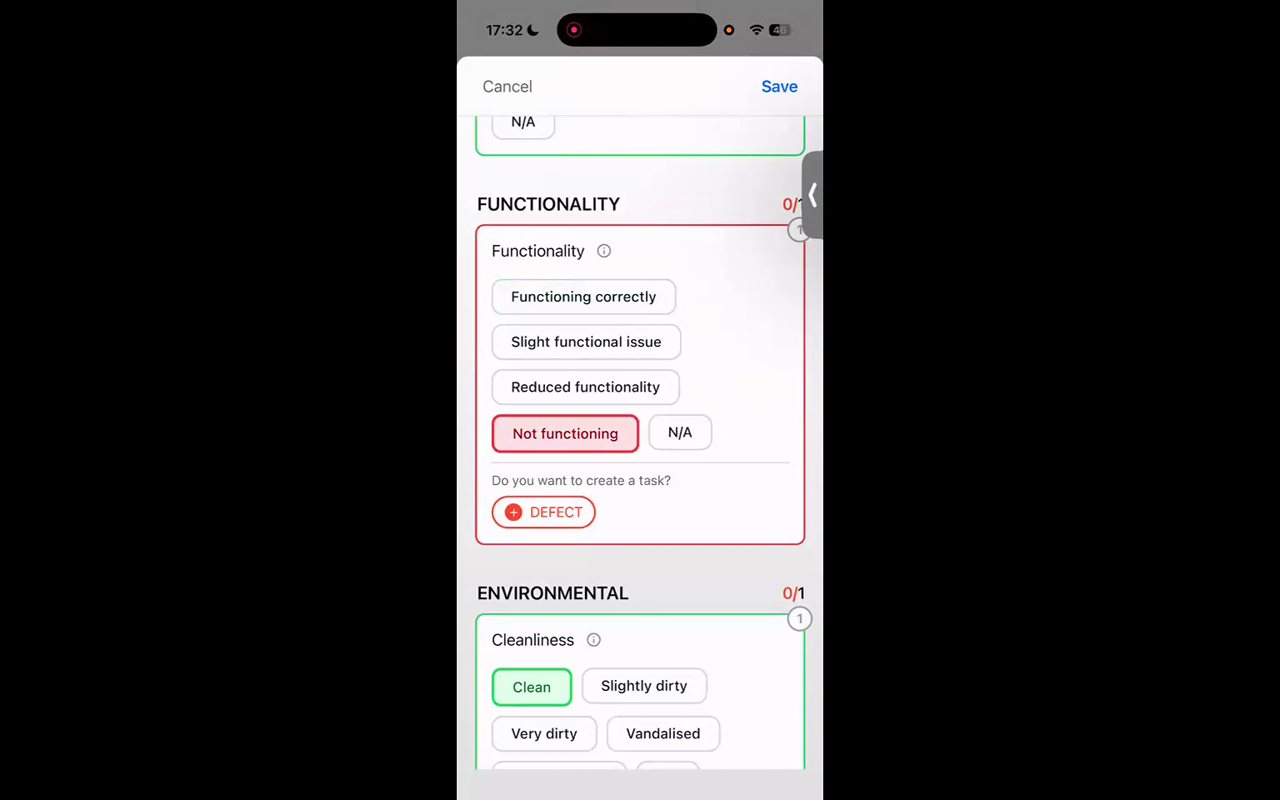
- Tap on the checklist to begin.
- Work through the checklist items, giving each one a response. For this test, mark most items as you wish, but deliberately mark at least one item as poor or failing — you will use this in the next step to create a defect.
Do not complete the inspection just yet if you want to create a defect — we will do that in the next guide.
- If the inspection does not appear on your phone, check that it is assigned to the correct user. You can change the assignment in the web app by opening the inspection and updating the Assigned to field.
- Civic.ly comes with pre-built checklists for dozens of asset types. The Simple Checklist is a good starting point for testing, but when you set up real inspections you can choose checklists tailored to playgrounds, paths, sports facilities, and many more.
Common Questions
Check two things. First, make sure you have switched from the Assets view to the Tasks view using the filter button. Second, check that the inspection is assigned to your user account — open it in the web app and verify the Assigned to field matches your name.
For this quick start we create it in the web app, which is the typical workflow — office staff create and schedule tasks, field staff complete them. You can also create inspections from the mobile app using the + button if needed.
The results sync to the web app immediately. You can view the completed inspection, see which items passed or failed, and review any defects that were raised. All of this creates an audit trail.
You have a checklist with at least one failing item. Now let's raise a defect for it.