You need an invite email from your council's Civic.ly administrator. This contains the invite code you will need to create your account. If you have not received one, ask the person who set up Civic.ly for your council.
This guide walks you through creating your Civic.ly account and logging in for the first time. It only takes a couple of minutes.
Step-by-Step
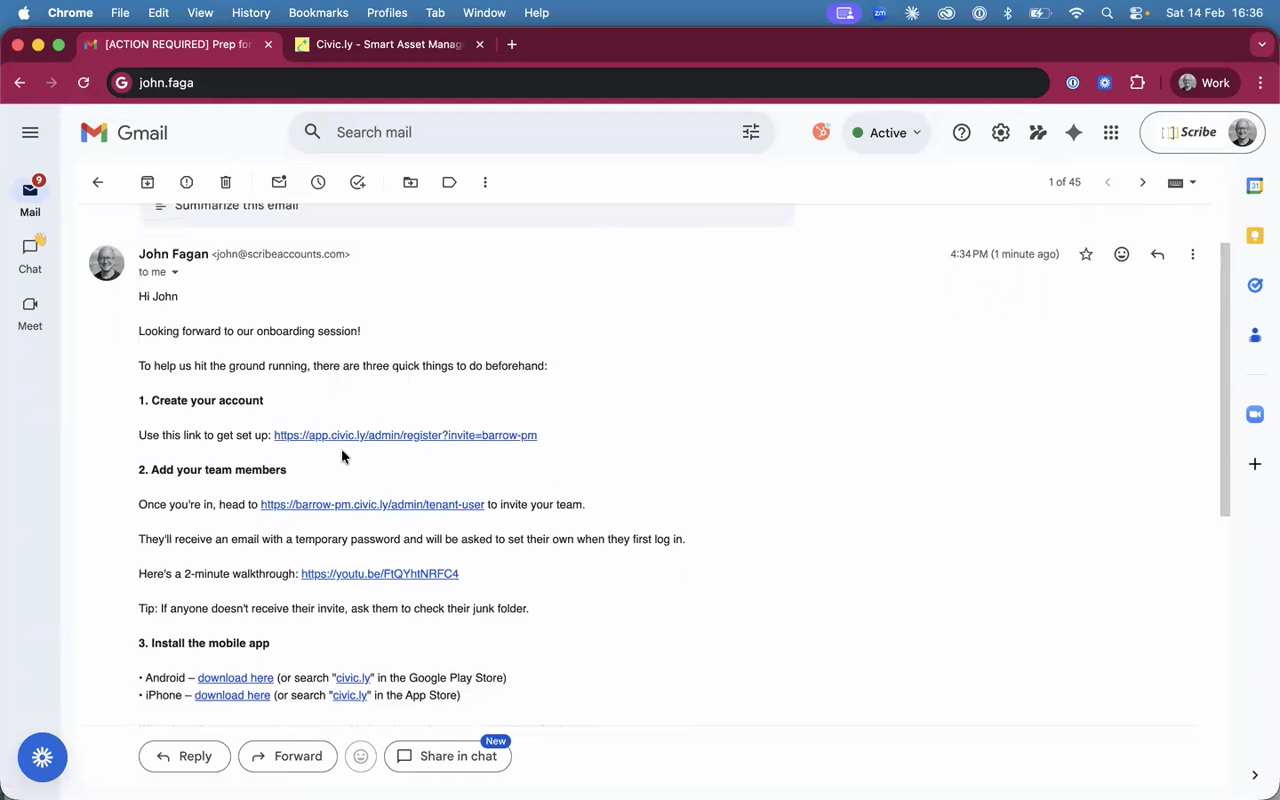
- Find the invite email in your inbox. If you cannot see it, check your junk or spam folder.
- Click the link in the email to open the account creation page.
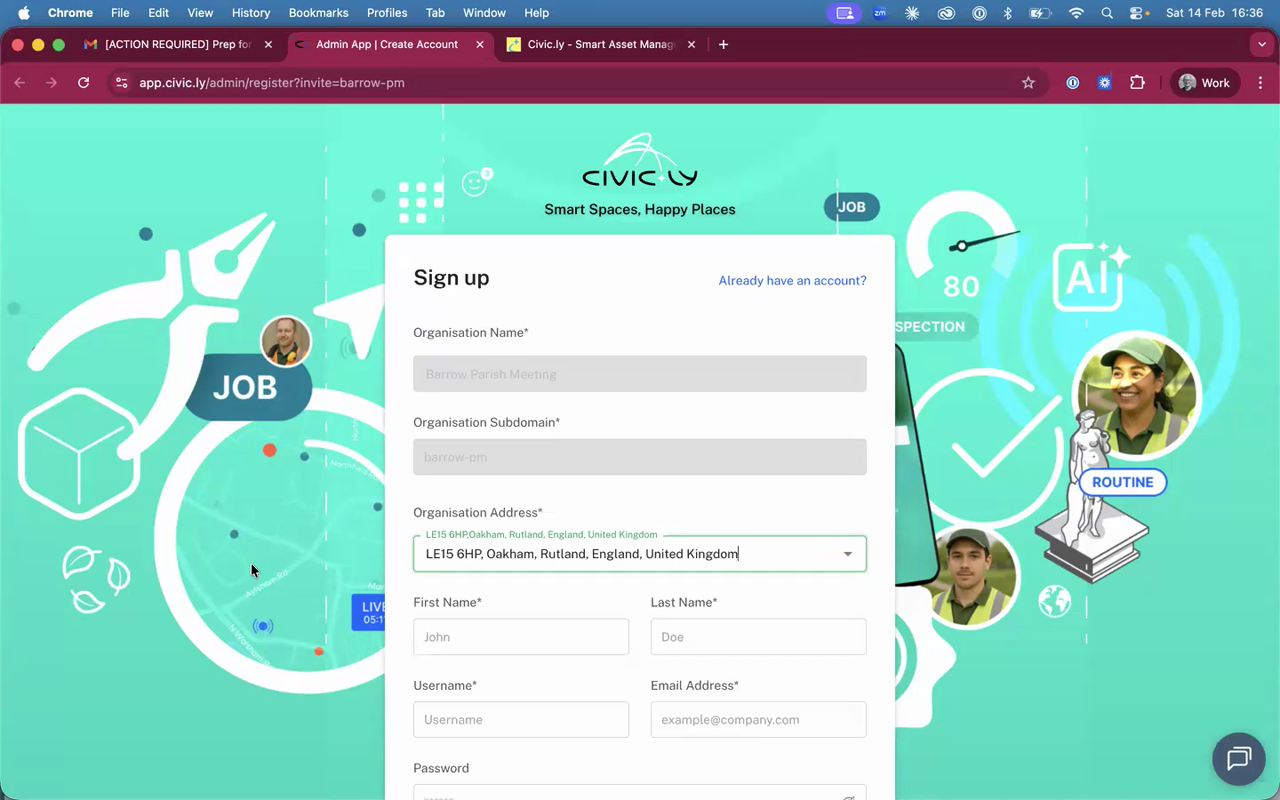
- Confirm your address — Civic.ly will suggest addresses based on your location. Tap the correct one, or type in your postcode or village/town name to find it. This does not need to be exact — it is just for general location and does not affect how the app works.
- Enter your first name and last name.
- Choose a username — this must be unique across Civic.ly.
- Enter your email address.
- Create a password — it must be at least 12 characters long, and include uppercase, lowercase, a digit, and a symbol.
- Tap Create Account.
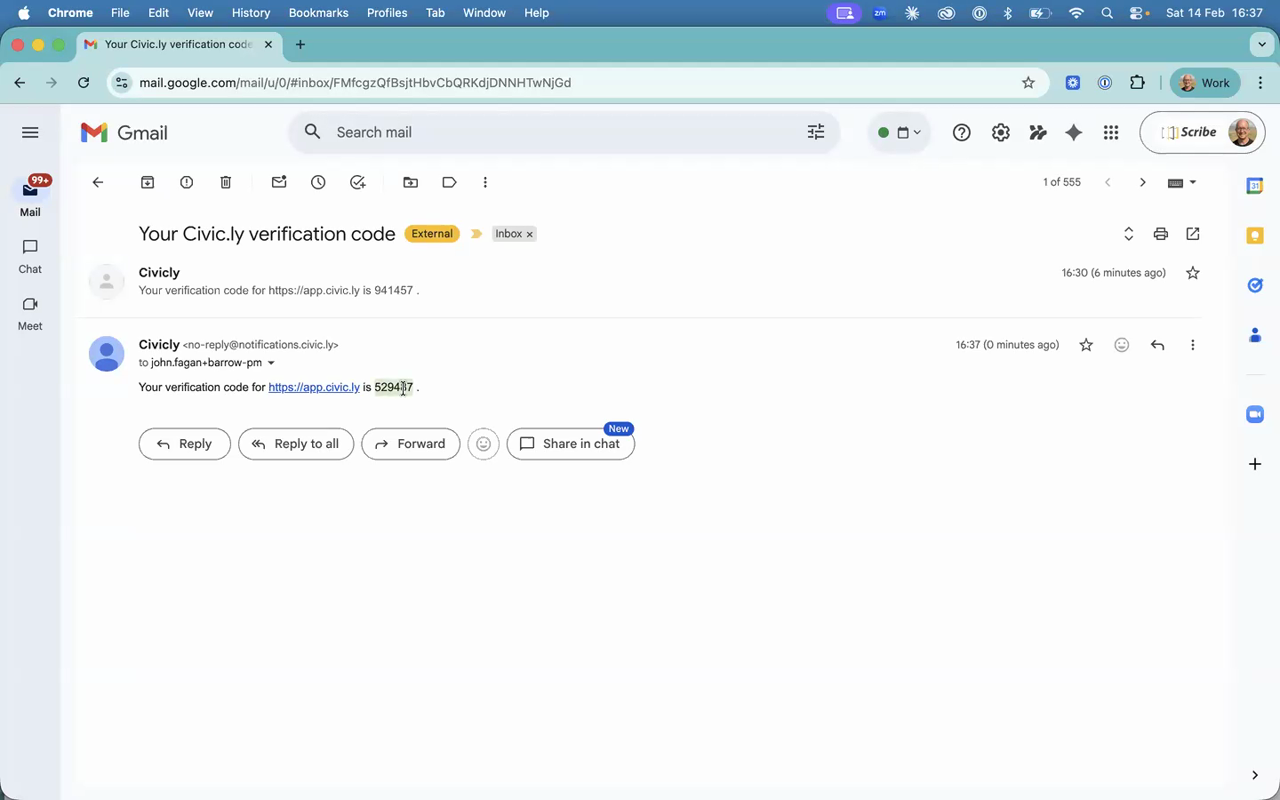
- Check your email for a verification code. Again, if it does not arrive straight away, check your junk folder.
- Copy the verification code, go back to the Civic.ly screen, paste it in, and tap Verify.
- You are all set. Enter your email and password to log in to the web app.
- Save your username and password in a password manager — you will use the same details to log in to the mobile app later.
- The verification email should arrive instantly. If it has not arrived after a minute or two, check your junk folder before requesting a new one.
Common Questions
Check your junk or spam folder first. If it is not there, ask the person who manages Civic.ly for your council to resend the invitation.
Your username is set when you create your account. If you need to change it, contact your Civic.ly administrator.
Your password must be at least 12 characters and include at least one uppercase letter, one lowercase letter, one digit, and one symbol. Try a longer passphrase like "MyCouncil-Park2026!" which is easy to remember and meets all the requirements.
Now that you are logged in, the next step is to install and configure the Civic.ly mobile app.