Make sure you understand how to create an inspection — routines bundle inspections and jobs together, so it helps to be familiar with individual tasks first. The Getting Operational training webinar also walks through creating jobs and routines end to end.
A routine is a group of tasks (inspections or jobs) that are bundled together and scheduled as one. Think of it as a round — a repeating collection of work across multiple assets. Common examples include weekly playground inspections, bin collection rounds, or annual PAT testing across all your electrical assets. This article shows you how to create a routine in the web app.
How Routines Work
When you create a routine, you are bulk-creating tasks for a group of assets in one go. The routine acts as a parent — it holds the schedule and overview, and the individual tasks underneath it inherit that schedule. So if you set a routine to repeat every Monday, all the tasks inside it are created for every Monday too.
Each task in a routine is linked to a specific asset. You choose which assets to include, set the task type (inspection or job), assign people, and put the tasks in the order you want them completed.
Step-by-Step: Selecting Your Assets
- Open the Asset Register from the left-hand menu in the web app.
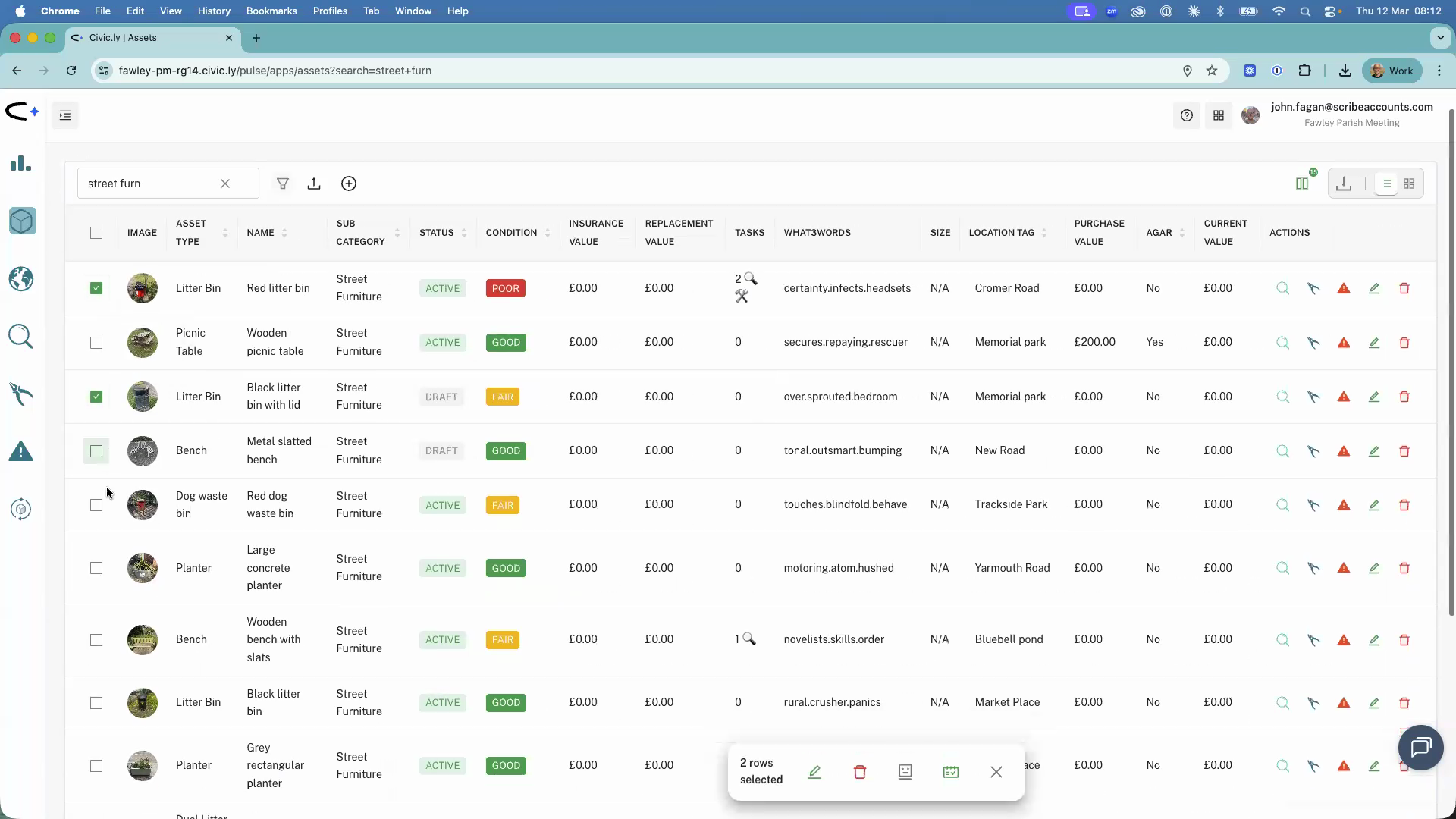
- Use the search bar or filters to find the assets you want to include. For example, type "street furniture" to find your bins.
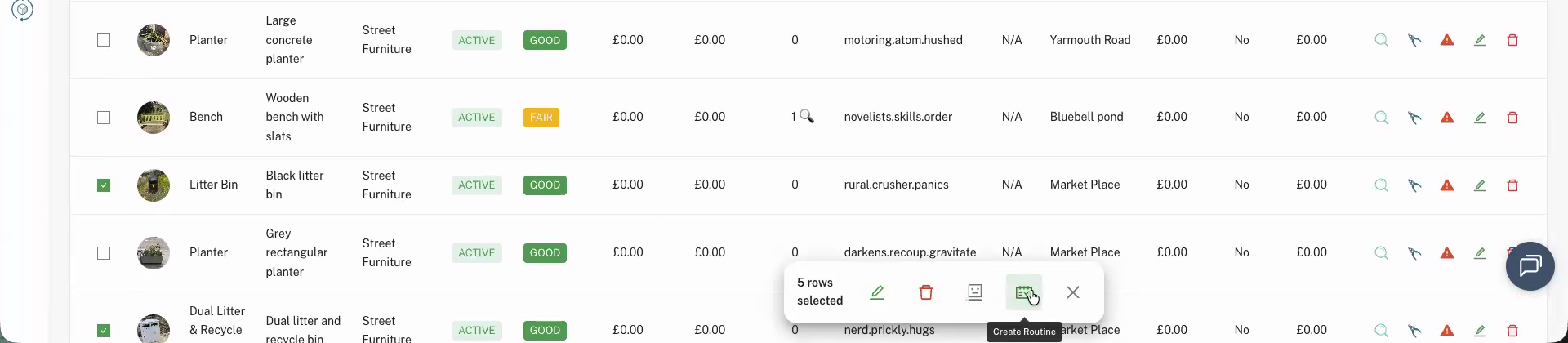
- Select multiple assets by clicking the checkbox next to each one. As you select them, an action bar appears at the bottom of the screen.
- On the right-hand side of the action bar, click Create Routine.
- The routine creation page will load with all your selected assets listed as related tasks.
Step-by-Step: Filling in the Routine Details
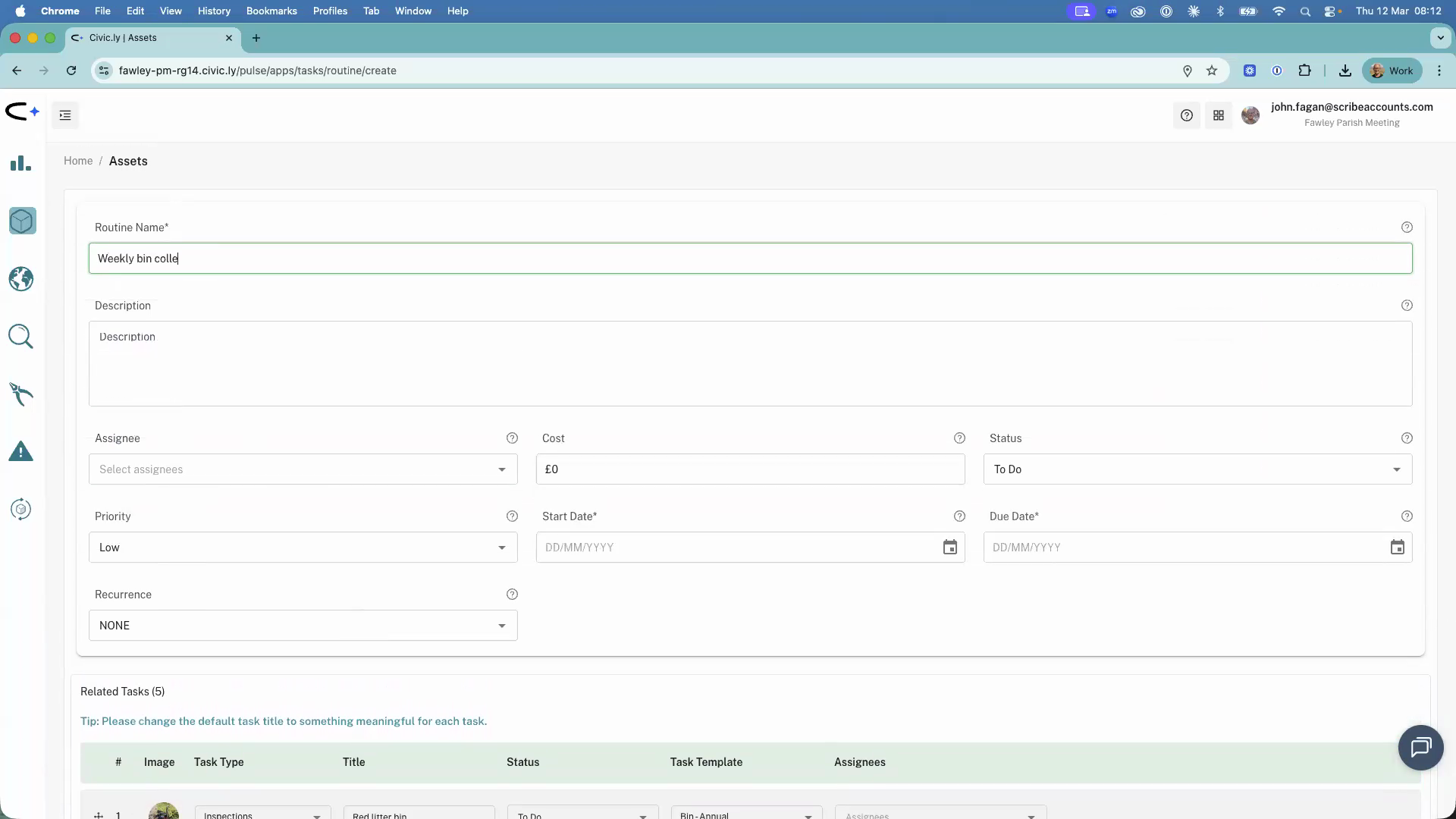
- At the top of the page, type a Name for the routine (for example, "Weekly Bin Collection").
- Add a Description if you want to include any extra details or instructions.
- Choose an Assignee. For routines, this is usually a supervisor or manager who oversees the work, rather than the person physically doing each task.
- Set the Reoccurrence (the schedule). The schedule you set here applies to every task in the routine. For example, if you set it to repeat weekly, all the tasks underneath will be created weekly.
- Set the Start Date — this is the first date the routine will run. Set the Due Date for when the tasks should be completed by. For most routines (like a bin collection round), the start and due dates are the same day.
Step-by-Step: Configuring the Related Tasks
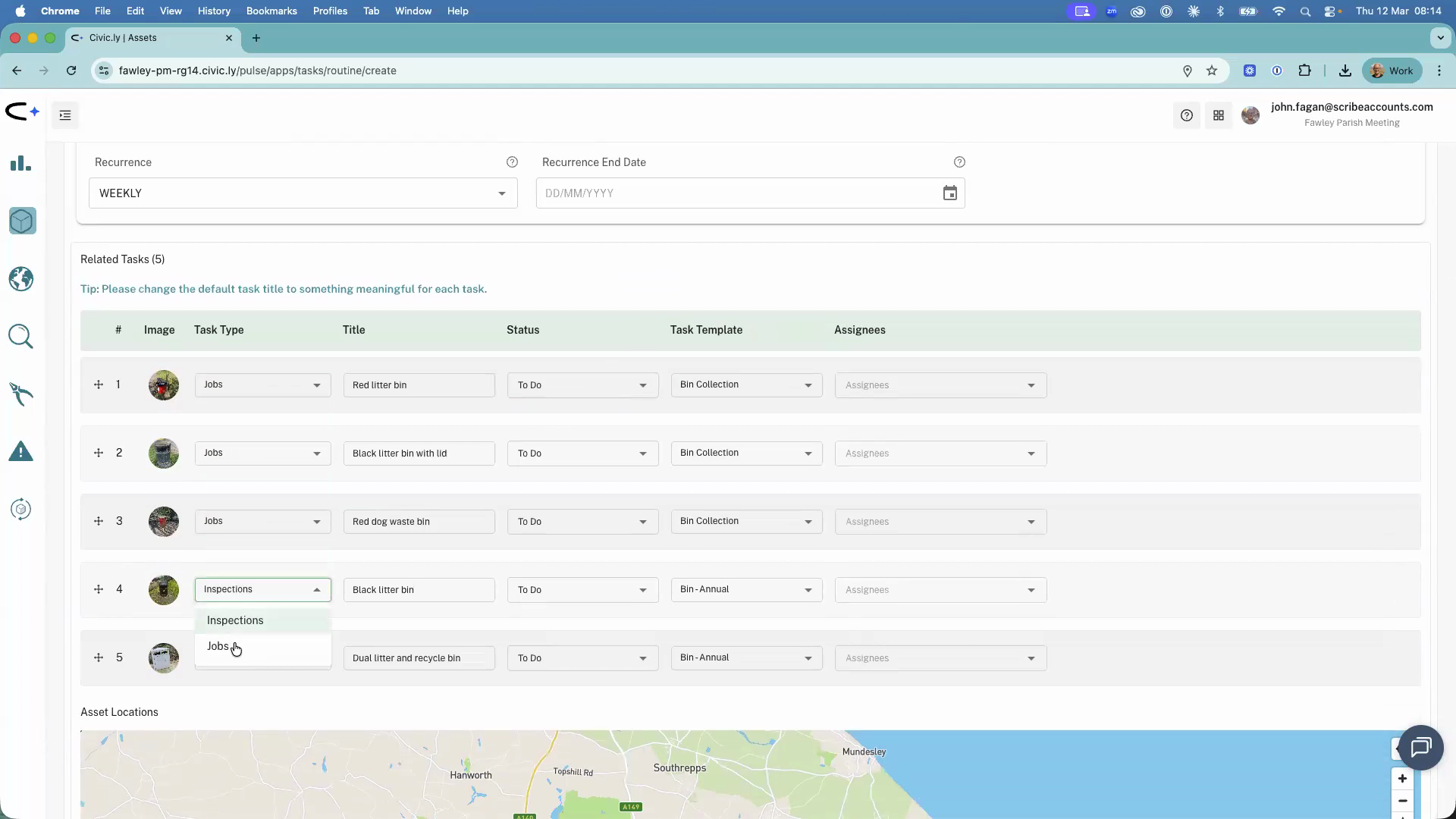
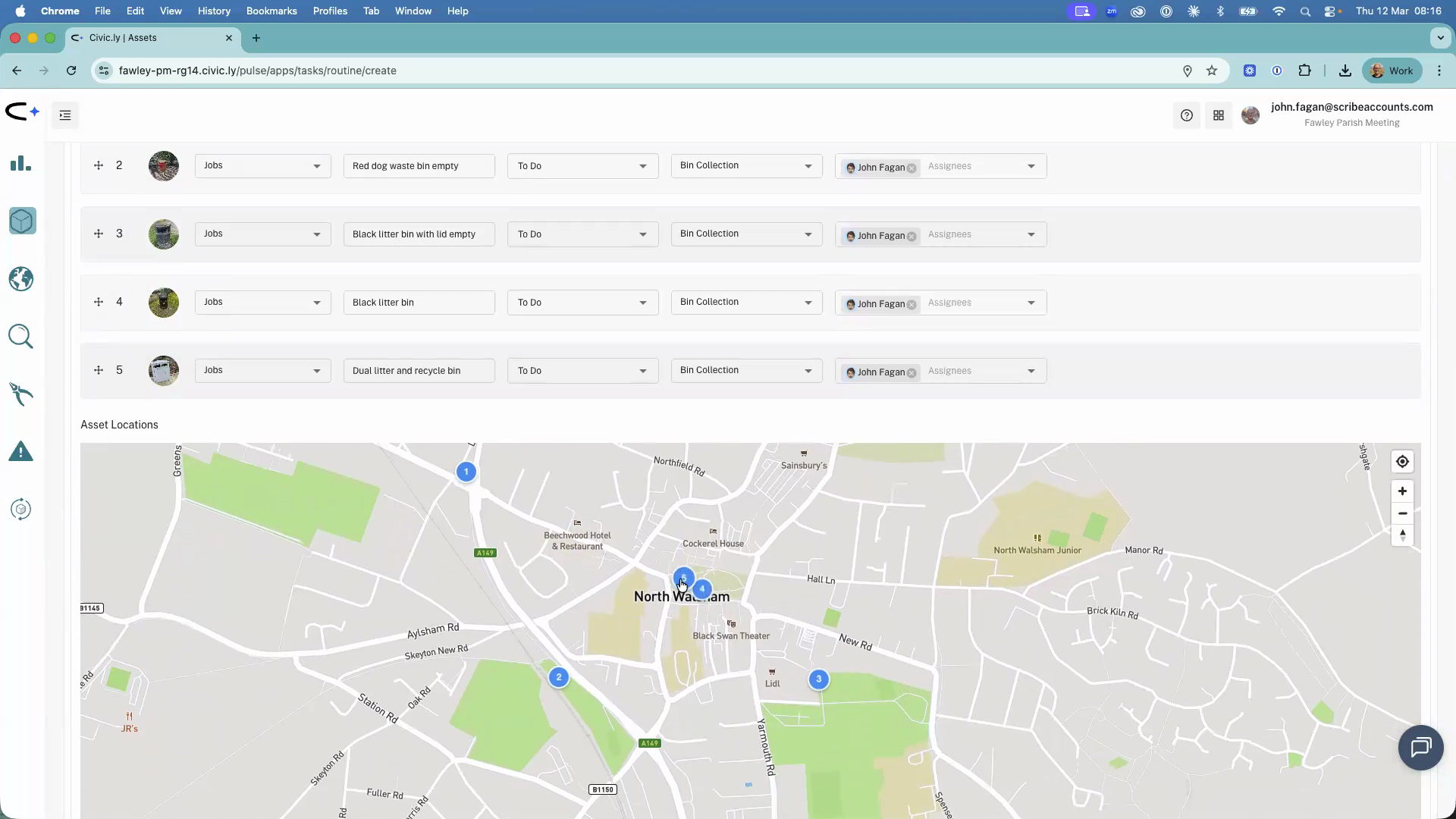
- Scroll down to the Related Tasks section. You will see a row for each asset you selected.
- Set the Task Type for each row. By default, it is set to inspection. If you need jobs instead (for example, for a bin emptying round), switch it to Job.
- Edit the Title of each task if you want to make it more specific (for example, "Empty bin" instead of the asset name).
- Set the Status — this defaults to To Do.
- If a Template is available for the task type, you can select it.
- Choose an Assignee for each task. You can assign different people to different tasks, and you can assign multiple people to a single task.
Step-by-Step: Reordering Tasks on the Map
- Below the related tasks, you will see a map showing numbered pins for each task. The numbers match the order of the tasks in the list above.
- To change the order, drag and drop the rows in the task list. The map updates immediately to show the new numbering.
- Put the tasks in the order your team would physically complete them — this is the order they will appear in the mobile app.
Step-by-Step: Creating the Routine
- When everything looks right, click Create Routine at the bottom of the page.
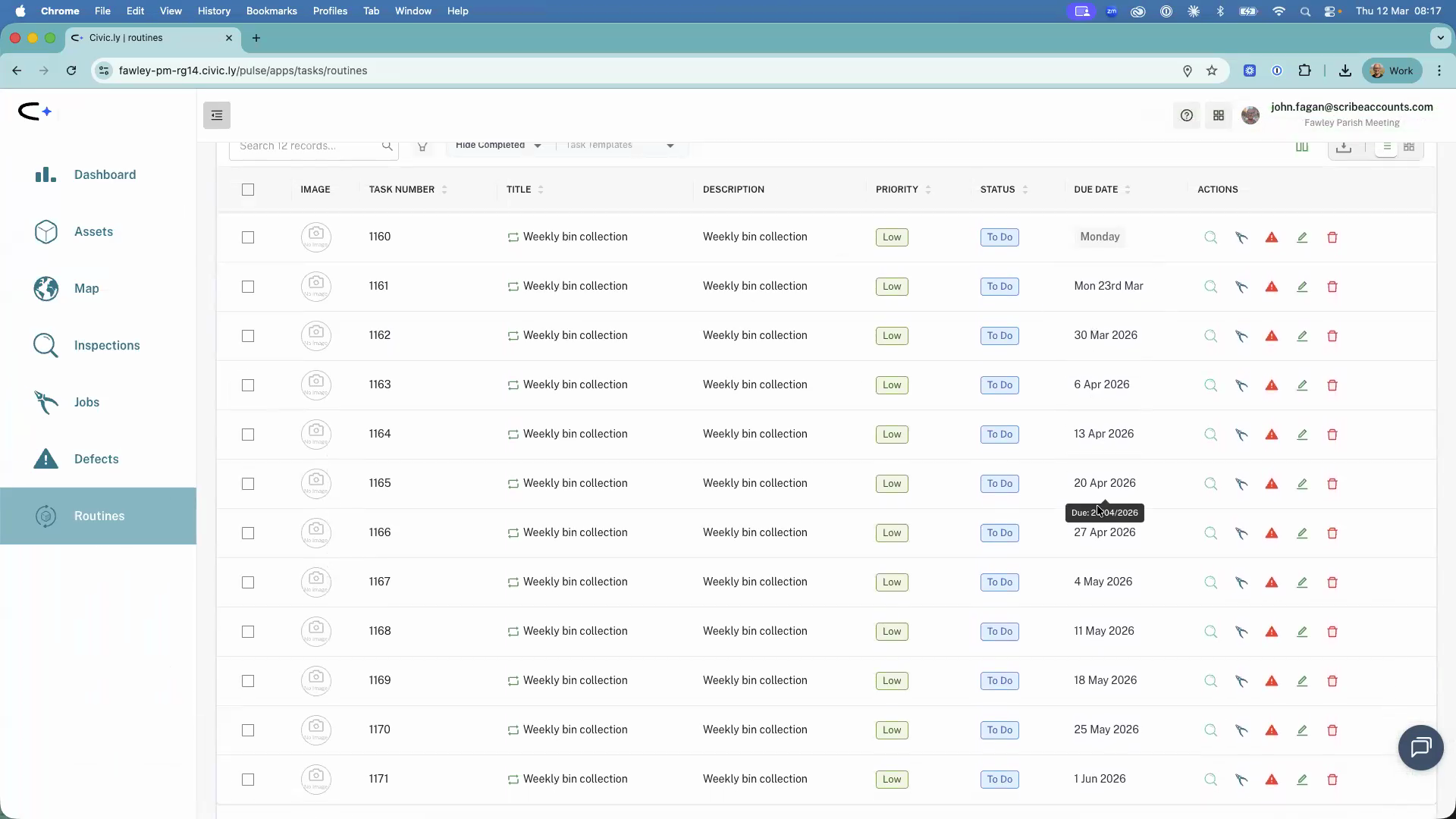
- The system will create all the tasks. This may take a moment.
- Once done, you can find your routine in the Routines section of the left-hand menu. The individual tasks will also appear in the Jobs or Inspections list, depending on the task type you chose.
- Plan your route order. Drag tasks into the order your team would physically walk or drive. This saves time in the field because the mobile app presents tasks in the order you set.
- Start and due dates are usually the same. For most repeating routines like bin collections or playground checks, the work happens in one go on the same day.
- You can edit tasks afterwards. Do not worry about getting everything perfect — you can open any individual task after creation and change the details.
- Use routines for any repeating group of work. Bin rounds, playground inspections, seasonal planting checks, annual PAT testing — if it involves multiple assets on a schedule, a routine is the right tool.
Common Questions
A single scheduled task covers one asset (for example, inspecting one playground). A routine covers multiple assets in one go — it bulk-creates a task for each asset and groups them under a single schedule. Use routines when you have a round of work that covers several assets.
Yes. Each related task in a routine can have its own task type. You could have some rows set to inspection and others set to job within the same routine.
Yes. Open the routine from the Routines section and edit the reoccurrence settings. The updated schedule will apply to future task instances.
Yes. The tasks created by a routine appear in the assignee's task list on the mobile app, in the order you set when creating the routine. They can complete them one by one as they work through their round.
You can edit the routine to adjust which assets are included. Open the routine and add or remove related tasks as needed.