You need to be logged in to the Civic.ly web app with an organisational admin account. If you're not sure whether you have admin access, check with the person who set up Civic.ly for your council.
This guide shows you how to invite new users — councillors, grounds staff, volunteers, or contractors — so they can log in to Civic.ly on the web or the mobile app. You add the person and choose what they're allowed to do on a single screen, and they finish setting up their own login from the invitation email.
Step-by-Step
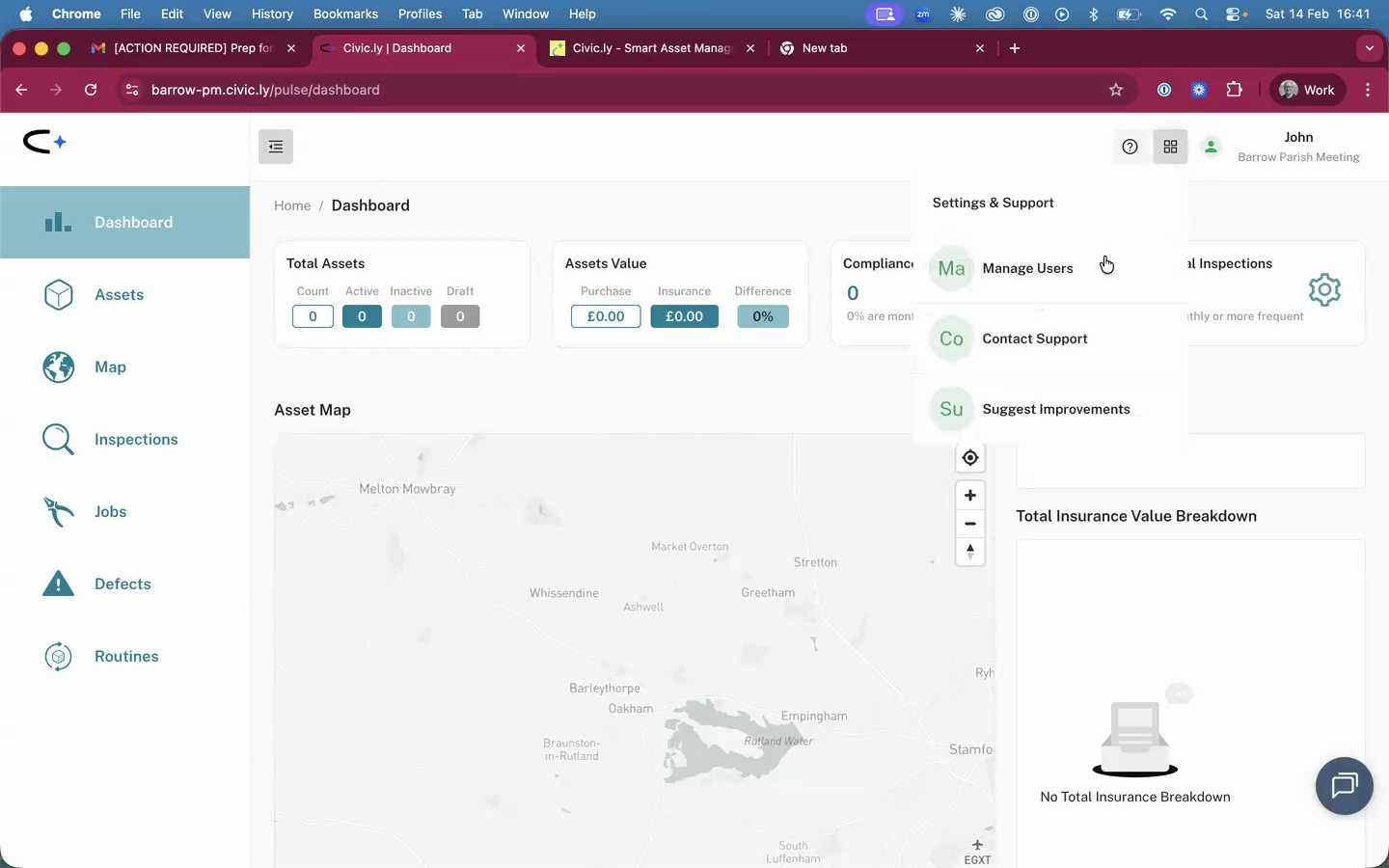
- In the web app, click the app icon (four small squares) in the top right-hand corner of the screen.
- Select Manage Account from the dropdown menu, then Users.
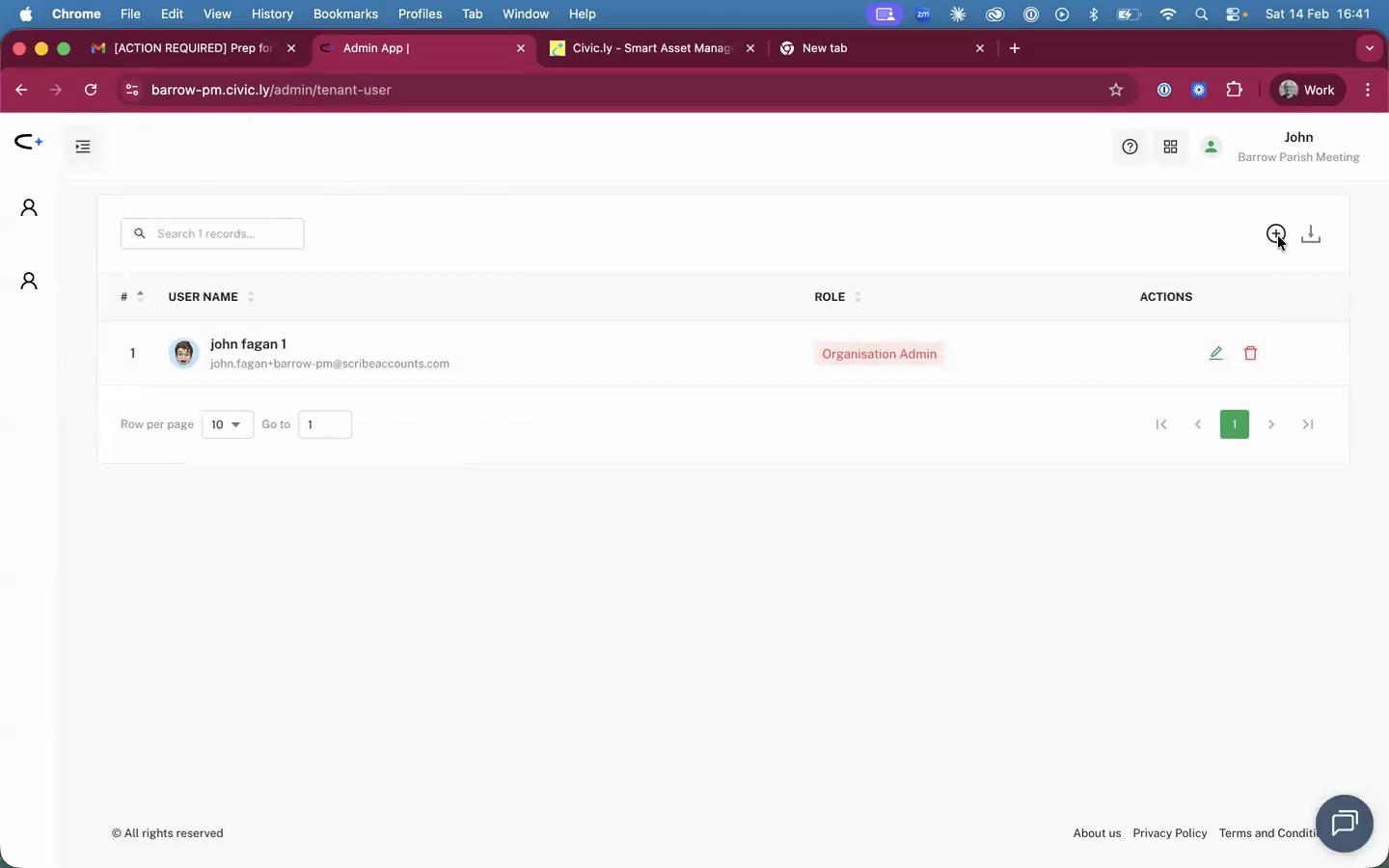
- On the Users screen, click the add user icon (the person with a plus sign) near the top right. The Add User to Tenant window opens.
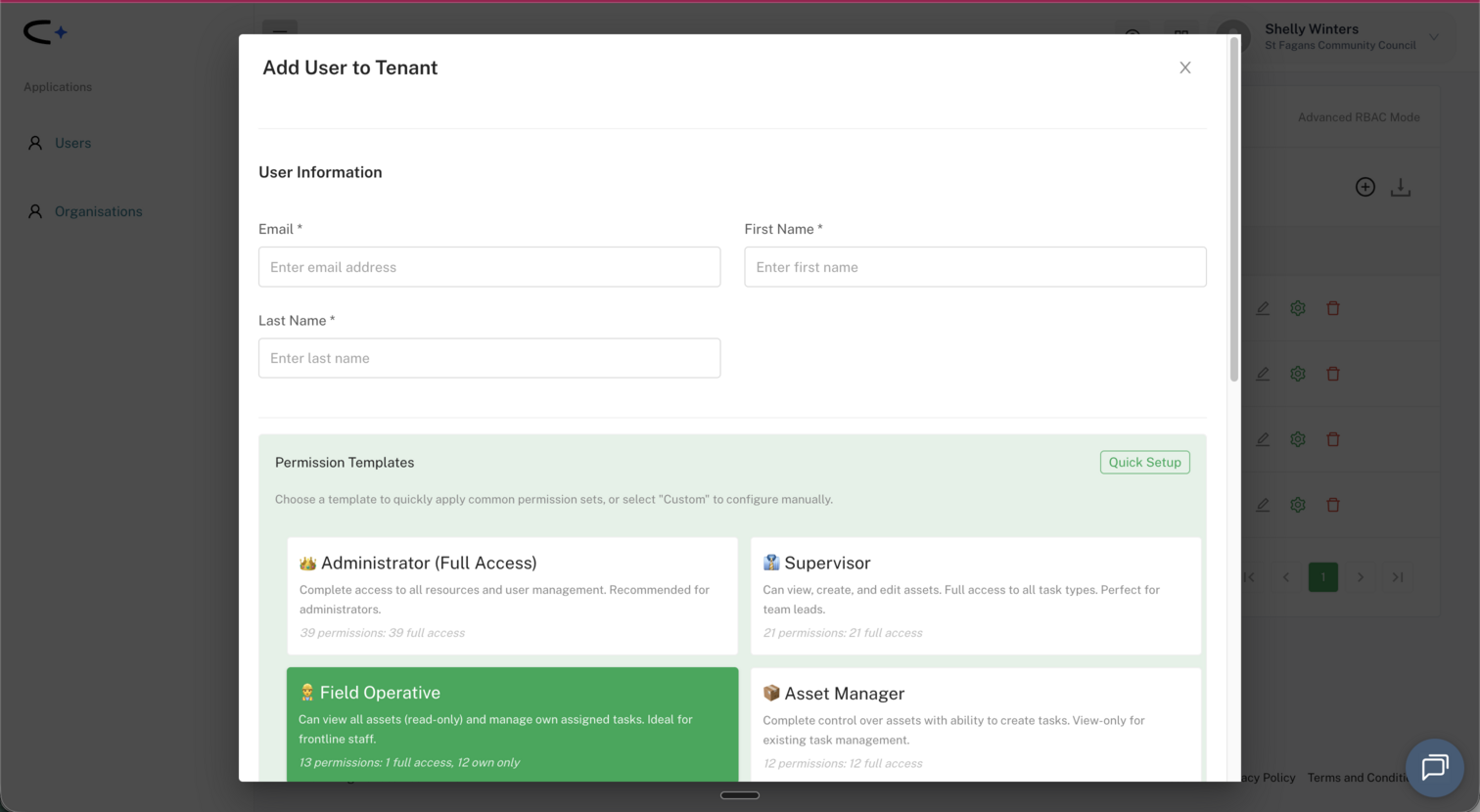
- Enter the person's email address, first name, and last name.
- Under Permission Templates, choose the role that matches what they'll do. This is where you set their access — there's no separate step afterwards. The templates are:
- Administrator — full access, including managing other users. For clerks and full admins.
- Supervisor — view, create and edit assets, plus full access to all task types (inspections, jobs, defects, routines). For team leaders who run day-to-day operations and need to build recurring routines.
- Asset Manager — full control of the asset register; view-only on tasks.
- Field Operative — view all assets (read-only) and work on their own assigned tasks. For contractors, volunteers, and grounds staff.
- Read Only — can see everything, change nothing. For councillors who just need oversight.
- Defect Reporter — view and raise defects only. For councillors flagging issues from the field.
If none fits exactly, pick the closest one — you can fine-tune it now or later, which switches it to Custom. See How to Manage User Permissions for fine-tuning. 6. Click Add User.
The new user will receive a confirmation email with a link to download the Civic.ly app. They don't need a password from you — they create their own when they set up (see below). Let them know to check their junk or spam folder if the email doesn't arrive straight away.
What the New User Needs to Do
There's no temporary password. The new user sets their own password using a verification code we email them:
- Open the link in the confirmation email to download the Civic.ly app, or go to the web app at app.civic.ly. (They can set up on either — the same login works for both.)
- On the login screen, under New here?, tap Set up your account.
- Enter their email address (the one you added them with) and tap Send code. Civic.ly emails them a verification code.
- Type the code from the email into the app. If it's correct, they're prompted to create their own password.
- The password must be at least 12 characters long, with an uppercase letter, a lowercase letter, a number, and a symbol.
- Once the password is set, they log in as normal.
- The verification code goes to the email address you added the person with — if it doesn't arrive within a minute or two, ask them to check their junk folder before requesting a new one.
- Tell new users to copy and paste the code rather than typing it out, to avoid mistakes.
- Once a user is set up, they use the same login for both the web app and the mobile app.
- If someone forgets their password later, they can reset it themselves with Forgot password? on the login screen — you don't need to issue them anything.
Common Questions
None. Civic.ly doesn't use temporary passwords. When you add someone, they get a confirmation email and set their own password by tapping Set up your account, entering their email, and typing in the verification code we send them. You never see or set their password.
No. You choose a Permission Template on the same Add User to Tenant screen where you enter their details. You can adjust it later from Manage Account if their role changes — see How to Manage User Permissions.
Yes. Choose the Read Only template when you add them. They'll be able to see the dashboard, asset register, and map, but won't be able to edit anything. For councillors who only need to report problems, Defect Reporter lets them raise defects without any other access.
Ask them to check their junk or spam folder first. The confirmation email (and the verification code) go to the exact address you entered, so double-check the spelling on their user record. They can request a fresh code any time from Set up your account.
Yes. They can reset it themselves at any time using Forgot password? on the login screen.
On the mobile app, team members can only see tasks that are assigned to them. This is by design — it keeps their task list focused and means contractors or volunteers only see their own work. If you need several people to see the same task, assign it to multiple people using the Assigned to field.