You need to be an administrator to manage other users. If you can't see the Manage Account option, ask the person who set up Civic.ly for your council to promote you.
Civic.ly lets you decide exactly what each person on your team can see and do. A full-time clerk needs different access from a contractor who only works on their own jobs, or a councillor who just reports defects in the park. This guide walks you through the Manage Account app that handles it all.
Step-by-Step
Open Manage Account
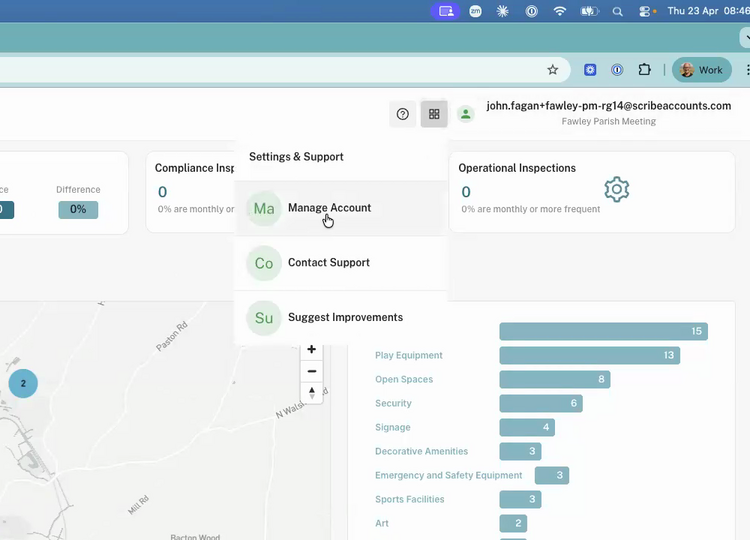
- In the Civic.ly web app, click the app switcher (the four-squares icon, top right).
- Select Manage Account. A separate admin app opens in the same tab — you can switch back to the main Civic.ly app any time from the same menu.
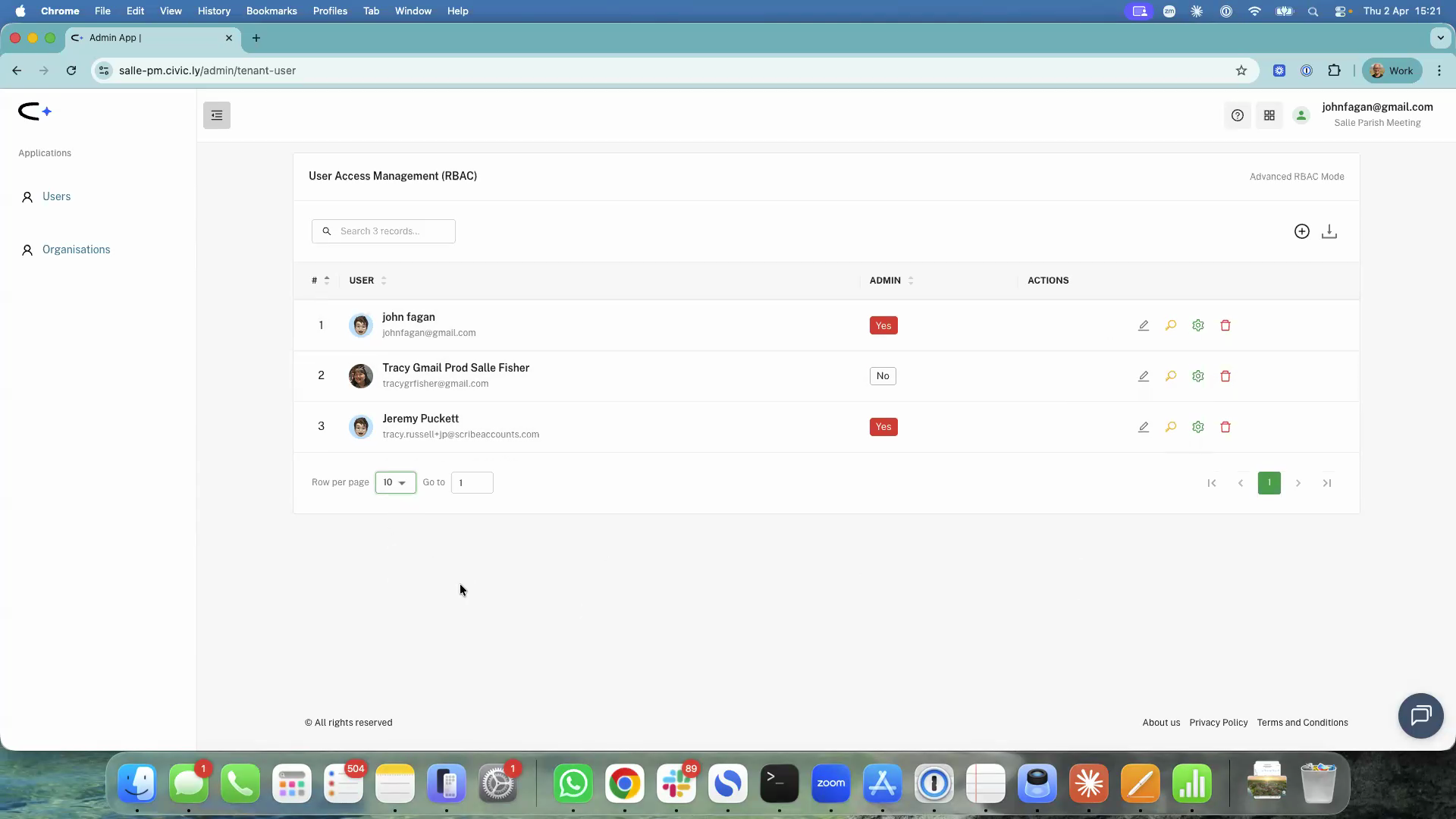
- You land on User Access Management, which lists everyone on your account. The Admin column tells you who can manage other users. The Actions column has the icons you'll use to edit each user.
Direct link: you can also jump straight to this screen at
https://<your-council>.civic.ly/admin/tenant-user— replace<your-council>with your own subdomain (the bit before.civic.lyyou log in at). Handy to bookmark if you manage users often.
Edit a user's profile
For each user you'll see a row of action icons. You can:
- Pencil — edit their profile picture, first name, and last name.
- Cog — promote them to admin or open Manage Permissions.
- Bin — remove them from the account.
Passwords are self-serve. Civic.ly doesn't issue or reset passwords for users. A new user sets their own the first time, by tapping Set up your account on the login screen, entering their email, and typing in the verification code we email them. If anyone forgets their password later, they reset it themselves with Forgot password? — there's nothing for you to send. See How to Add Team Members.
Choose a permission template
Click the cog next to a user, then Manage Permissions. At the top of the panel you'll see six templates. Pick the one that matches the person's role — it's the quickest way to get the settings right. (You can also pick a template when you first add a user, on the Add User to Tenant screen — so you may only need this panel later, when someone's role changes. See How to Add Team Members.)
| Template | Who it's for | What they can do |
|---|---|---|
| Administrator | Clerks and full admins | Everything, including managing other users |
| Supervisor | Team leaders running day-to-day operations | View everything; create, edit, and delete all tasks (inspections, jobs, defects); edit assets but not delete them |
| Asset Manager | Staff who maintain the asset register | Full control over assets (including bulk). View-only on tasks |
| Field Operative | Contractors, volunteers, grounds staff | View and work on their own inspections, jobs, and defects only. Can see all assets but not change them |
| Defect Reporter | Councillors flagging issues from the field | View and create defects. Edit or delete only the defects they raised. No other access |
| Read Only | Councillors who just need oversight | View everything, change nothing |
If none fit exactly, pick the closest one and tweak it — the moment you change a single permission, the template switches to Custom and your choices are saved.
Fine-tune permissions by resource
Below the templates you'll see the five resources you can control access to: Assets, Inspections, Jobs, Defects, and Routines. Click any one to expand it.
Inside each resource you set up to six actions: View, Create, Edit, Delete, Bulk Update, and Bulk Delete. For each action (except Create) you also pick a scope:
- Any — applies to every record in your organisation.
- Own — applies only to records the user has a personal connection to. The exact meaning depends on the resource:
- Assets — records the user created themselves.
- Inspections, Jobs, Defects — records the user created or records assigned to them.
Why some options go grey
The panel enforces a few sensible rules so you can't save a broken setup. When a rule kicks in, the affected options dim automatically — there's no error to dismiss.
- View is the master switch. If View is off for a resource, nothing else in that resource is available.
- View caps the scope. If View is set to Own, Edit, Delete, and the bulk actions can only be Own too — Any is disabled.
- Bulk follows single. Bulk Update only becomes available once Edit is on, and Bulk Delete only once Delete is on.
How Routines works
Routines is auto-managed. There's no toggle — access is granted automatically when the user has full control of Inspections and Jobs: Create on, and Edit, Delete, Bulk Update and Bulk Delete all set to Any on both. If any of those are missing, Routines stays locked. This makes sense because a routine creates inspections and jobs in bulk, so the user needs to be trusted with the underlying tasks first.
Save
Click Save Permissions. Changes take effect immediately in the web app and within 5–10 minutes on the mobile app.
- Start with a template. Nine times out of ten one of the six templates is right, or close enough to tweak. Custom from scratch is harder than it looks.
- Start restrictive, then open up. It's easier to grant more access later than to roll back permissions someone's already used.
- Mobile narrows things anyway. On the mobile app, users only ever see tasks assigned to them — even if their permissions say Any. Helpful if you're worried about a contractor seeing too much on their phone.
- Custom doesn't mean broken. If a user shows as "Custom", it just means you've tweaked a template. Their access still works — it's only a label.
Common Questions
An administrator can open Manage Account — meaning they can add or remove users and change anyone's permissions. (Passwords aren't part of this — users set and reset their own.) A regular user with full permissions can do everything in the main Civic.ly app (assets, inspections, jobs, defects, routines) but cannot manage other user accounts.
No. Changes apply immediately in the web app. On the mobile app, it can take 5–10 minutes for the new permissions to reach their phone.
No — permissions apply across both. The mobile app naturally shows less because it only surfaces tasks assigned to the logged-in user, regardless of their wider permissions.
Bulk actions depend on the single-record action being on first. Turn on Edit for that resource and Bulk Update becomes available. Same for Delete and Bulk Delete.
Routines is auto-managed. It only unlocks when the user has Create, Edit, Delete, Bulk Update and Bulk Delete all set to Any on both Inspections and Jobs. Anything less and Routines stays hidden — because routines generate tasks in bulk, the user needs full task permissions first.
You started from one of the built-in templates and changed at least one permission. Civic.ly renames the configuration to Custom to show it's no longer the standard template. Your settings are saved and work exactly as you configured them.