You need to be an administrator to remove someone. If the person is moving to a new email address rather than leaving, don't remove them: ask us to change the email on their account instead, which keeps their history and password. See migrating a user to a new email.
When someone leaves the council, remove them so they can no longer sign in. Civic.ly makes sure their scheduled work doesn't leave with them: if they are the only person on any work that is still to come, you choose who takes it over as part of removing them.
Step-by-Step
- In the Civic.ly web app, click the app switcher (the four-squares icon, top right) and choose Manage Account.
- You land on User Access Management, the list of everyone on your account.
- Find the person and click the bin icon at the end of their row.
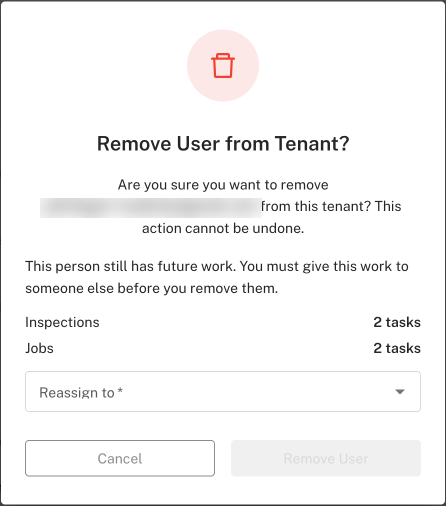
- The Remove User from Tenant? dialog opens. Removing someone cannot be undone, so check it is the right person.
- If they still have future work, the dialog says so and shows how much, by type (for example 2 inspections and 2 jobs). Choose a colleague in Reassign to. The Remove User button stays greyed out until you do.
- Click Remove User. Their future work moves to the person you chose, and they are removed from your account in the same step.
If the person has no future work, there is nothing to reassign and you can remove them straight away.
What counts as future work
- Work only they are assigned to, due today or later, including the tasks a routine will create on its schedule. This is what has to move, so that nothing scheduled ends up with someone who can no longer see it.
- Work they share with colleagues does not hold anything up. They are simply taken off it, and the other assignees stay on.
- Past and completed work stays exactly as it is, still credited to them.
How a removed person appears afterwards
- On lists and records, their name shows as "Name (deleted user)", so the history of who did what stays readable.
- You can still find their work: the Assignees, Created By and Updated By filters still offer them.
- They no longer appear in any assignment picker, so nobody can give them new work by mistake.
- Set up the successor first. If someone is replacing the leaver, add the new person before you remove the old one, so you can choose them in Reassign to. See How to Add Team Members.
- There is no deactivate or suspend option. Removing is the only way to stop someone signing in.
- Reassign to a person, then share it out. Everything moves to the one person you choose. If the work should be split across the team, reassign it to a supervisor and move individual tasks or routine rows from there.
Common Questions
Because they are the only person on work that is still to come. Choose who takes it over in Reassign to and the Remove User button becomes available.
No. Completed work stays on the record, credited to them and shown as "Name (deleted user)".
No, so check the name in the dialog before you click Remove User. If you remove someone by mistake, contact us.