You reset your own password — nobody issues one to you. You just need to be able to receive email at the address on your Civic.ly account. You can do the whole thing from your phone.
If you've forgotten your password, or you've been logged out and can't remember it, you can reset it yourself in a couple of minutes straight from the Civic.ly app on your phone. Civic.ly emails you a short code, you type it in, choose a new password, and you're logged back in.
Step-by-Step
-
Open the Civic.ly app on your phone. On the login screen, tap Forgot password? (just below the Log In button).
-
Enter the email address you log in with, and continue. This must be the exact address on your account.
-
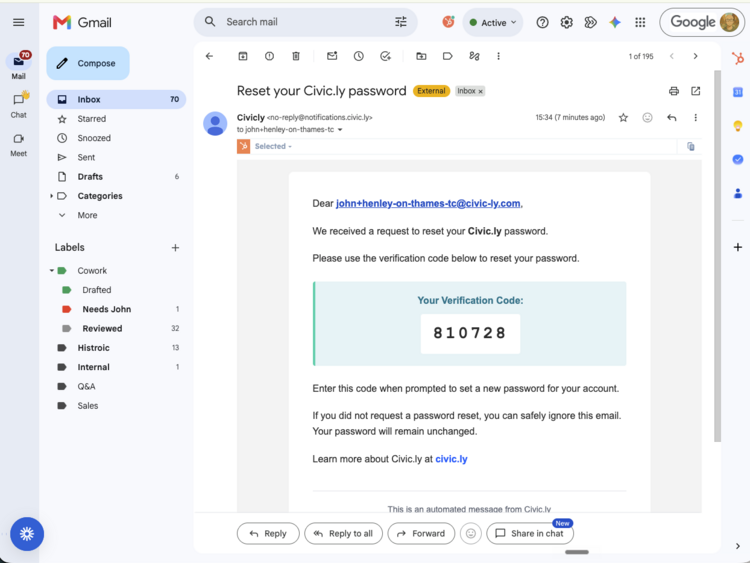
Civic.ly emails you a six-digit verification code. The email comes from no-reply@notifications.civic.ly with the subject "Reset your Civic.ly password". It usually arrives within a minute.
-
Back in the app, type the code into the boxes, then enter your new password and confirm it. Your new password must be at least 12 characters long and include an uppercase letter, a lowercase letter, a number, and a symbol.
-
Tap to confirm. You'll be logged straight in with your new password — no need to go back to the login screen.
That's it. The same password works on both the mobile app and the web app.
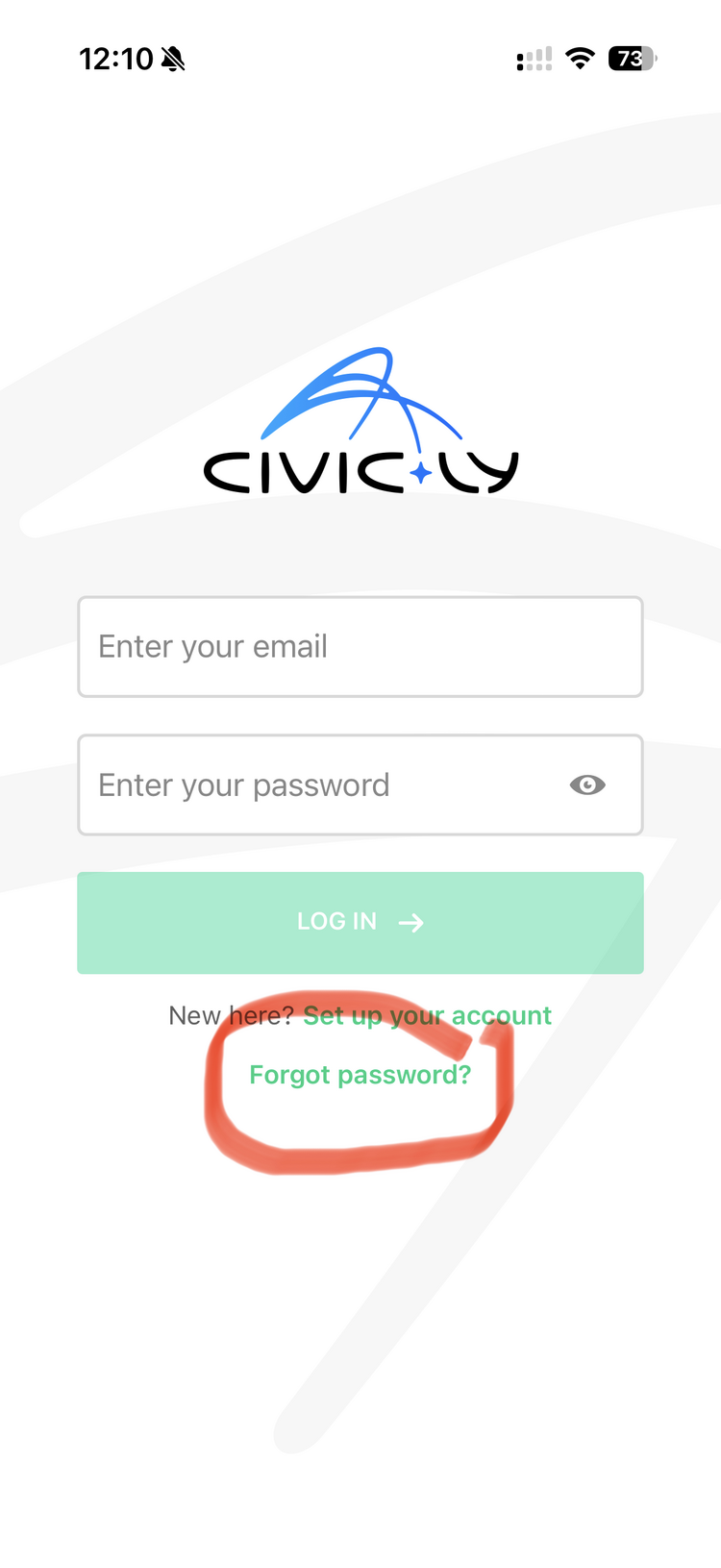
- It all happens on the phone now. Both Forgot password? and Set up your account are on the mobile login screen, so you don't have to find a computer to reset a password.
- Check your junk folder. If the code email doesn't arrive within a minute or two, look in your junk or spam folder before requesting another one.
- Use the exact email on your account. The code only goes to the address Civic.ly has on file for you. If you're not sure which email that is, ask whoever manages your council's Civic.ly account.
- Copy and paste the code rather than typing it, to avoid mistakes.
Common Questions
You can do it entirely on your phone. Tap Forgot password? on the app's login screen — the whole reset (code, new password, and logging back in) happens right there in the app.
No. If your account is brand new and you've never set a password, use Set up your account on the login screen instead of Forgot password?. See How to Add Team Members for the new-user setup steps.
Check your junk or spam folder first. Make sure you entered the exact email address on your account. If it's still not there after a couple of minutes, request the code again. The email comes from no-reply@notifications.civic.ly.
No. Civic.ly doesn't issue or send temporary passwords. You always set your own using the verification code, so nobody else ever sees it.
Yes. You have one login for Civic.ly — the new password works on the mobile app and the web app at app.civic.ly.