A defect is a specific problem found with an asset — a cracked skate ramp, a broken swing chain, graffiti on a bench. In Civic.ly a defect records what is wrong, where, and whether it has been fixed. This article covers raising a defect in the field and then managing it from the web app. Doing the actual repair is handled separately with jobs — see Fixing defects with jobs.
Two ways a defect starts
- From a failed inspection (most common). When you complete a checklist on the mobile app and mark an item with a negative result, you're offered the option to create a defect there and then.
- Spotted on the spot. If you notice a problem while you're out, tap the + button on the mobile app and choose Defect, or use the Create Defect button (the alert-triangle icon) on an asset record in the web app.
Raise a defect on the phone
- When a checklist item fails, choose Create defect when prompted.
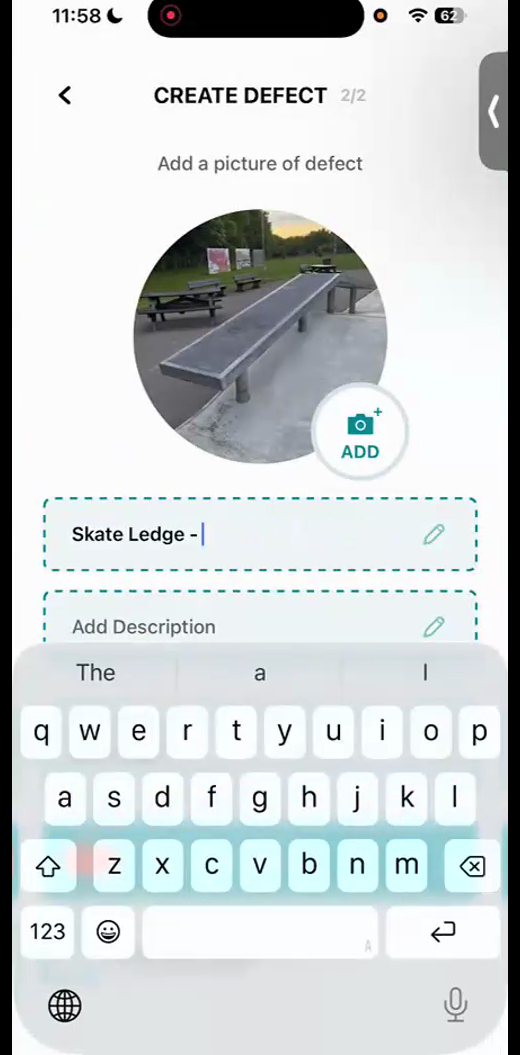
- The defect starts with the asset's own photo. Tap Add (the camera button) to take a close-up photo of the actual problem — a cracked surface is far more useful than the general asset shot.
- Tap the photo to draw on it and highlight the issue, then save.
- Check the title — it pre-fills from the asset name (for example "Skate Ledge – "), so add a few words describing the fault ("cracked surface").
- Add a description if it helps whoever picks it up, and flag it urgent if it needs attention now.
- Tap Create. The defect saves on the phone and syncs to the web app as soon as you have signal.
Manage the defect on the web
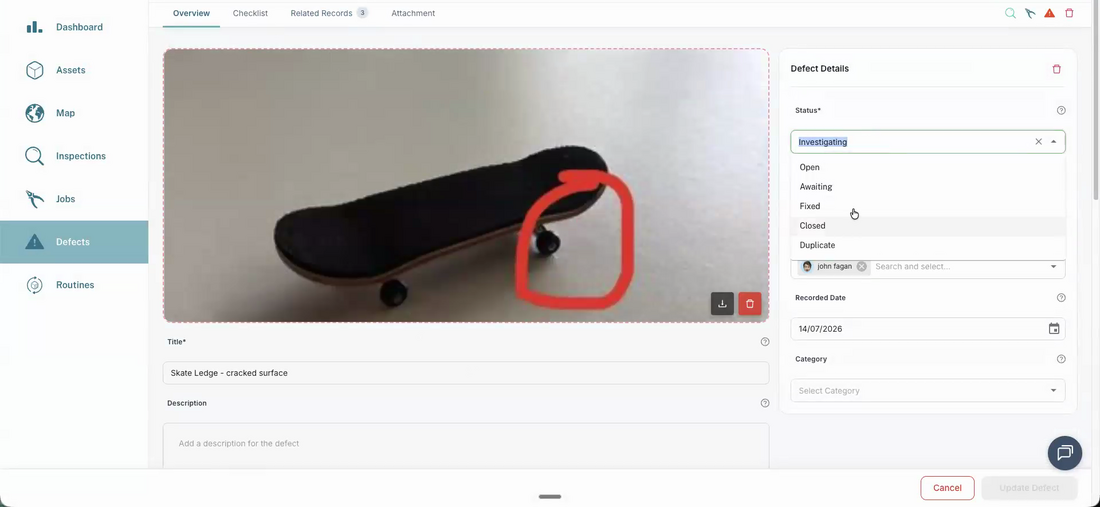
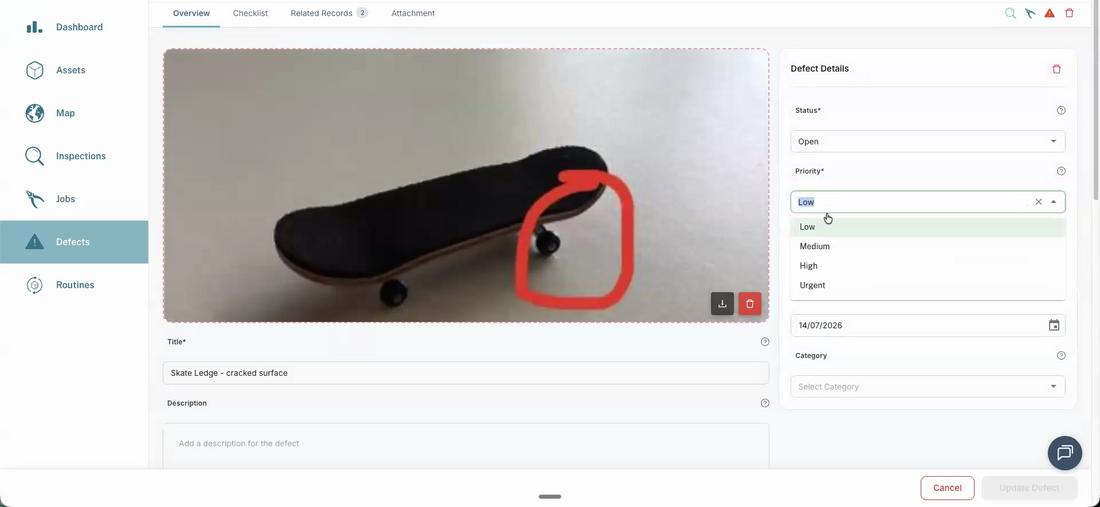
New defects land in your Defects list. Open one to triage it in the Defect Details panel:
- Status — set where the defect is up to: Open, Investigating, Monitoring, Awaiting (a fix), Fixed, Closed, or Duplicate. Two of these finish the defect and drop it out of your list once completed work is hidden: Fixed (you repaired it) and Closed (you are not going to, but you want the record). The rest keep it live in front of you. Monitoring is for a problem you are deliberately keeping an eye on rather than fixing yet, and it pairs with a scheduled check: see how to monitor a defect over time. ⚠️ Duplicate is the exception to watch: it reads like it should finish the defect and it currently does not, so a defect marked Duplicate stays in your list. Until that changes, delete a genuine repeat, or set it to Closed if you would rather keep the trail. See what to do with repeated defects.
- Priority — Low, Medium, High or Urgent. Most reports come in low priority and can safely collect for a rainy day; set the ones that matter to High or Urgent so they rise to the top.
- Category — optionally classify it: Safety, Functionality, Condition, Compliance, Environmental or Accessibility.
- Recorded Date — the day the problem was observed (defects use this instead of a due date).
Keep on top of the list by re-prioritising as new defects arrive — the defect list is your running picture of what needs attention.
Don't fix it inside the defect
The defect is the record of the problem, not the place you do the work. To actually fix it, create one or more jobs from the defect (quote, order a part, install it). If you instead pass the defect around between people, you lose the history of who did what. See Fixing defects with jobs.
Once the work is done, come back to the defect and set its status to Fixed or Closed.
- A good close-up photo does the explaining. Replace the default asset photo and annotate it — the person fixing it may never have seen the asset.
- Get your asset locations right. When you raise a defect in the field, Civic.ly offers the nearest assets first, so an accurate map pin means you attach the defect to the right item.
- Everything rolls up to the asset. Open any asset's Tasks tab to see its inspections, defects and jobs together — a full history for compliance and for making the case to replace a tired asset.
Common Questions
A defect is a problem you've found; a job is work to be done. You log the problem once as a defect, then create as many jobs as it takes to fix it. This keeps a clean record of both the fault and the effort that went into resolving it.
It's the easiest moment to do it, because the failed check offers you the option directly and attaches the inspection as a related record. But you can also raise one any time from the + button or an asset's Create Defect button.