Short answer
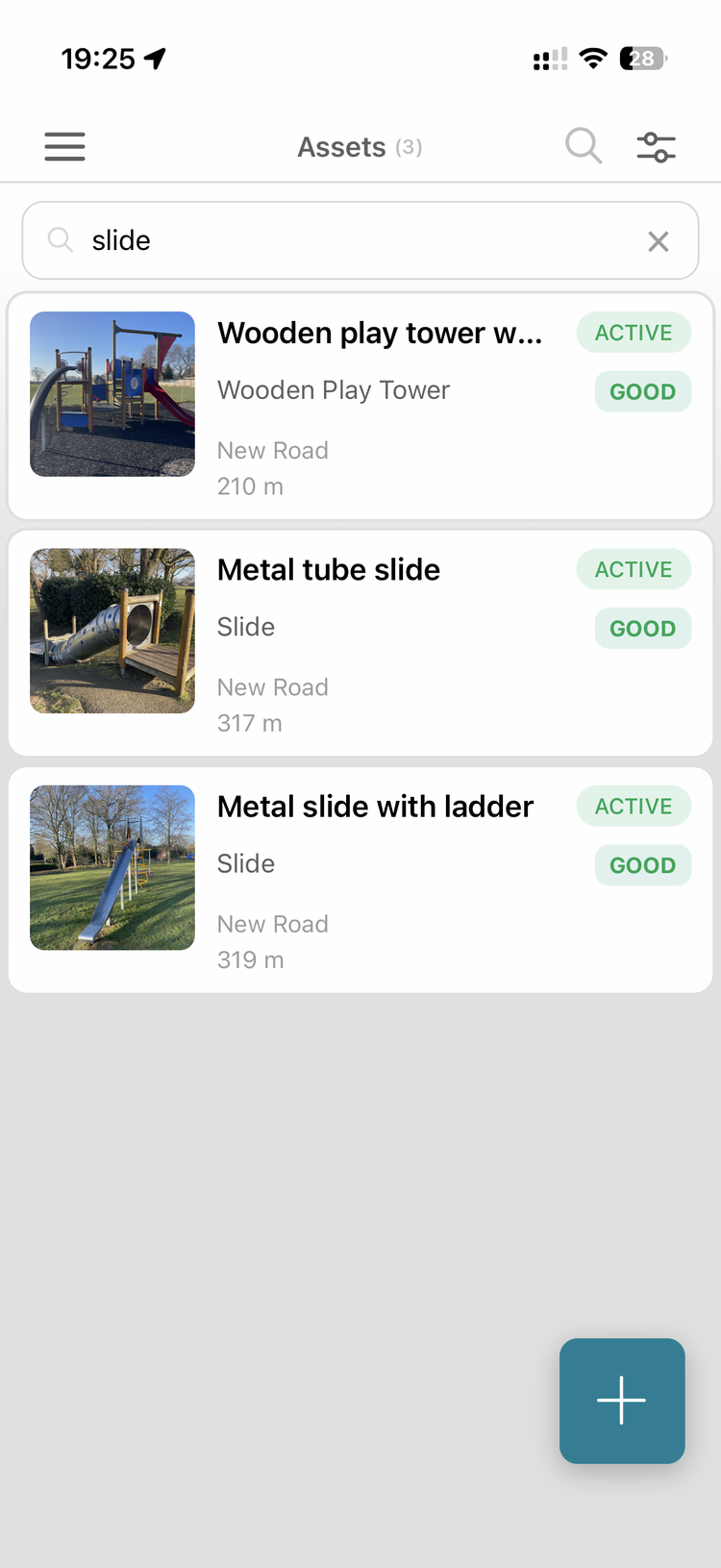
Use the search icon at the top of the Assets or Tasks list (on both mobile and the web app) and type any part of the name — e.g. "swing" finds every swing, "vehicle" finds every vehicle-type asset. Results appear instantly as you type, across your whole account, not just what's nearby.
Detail
- Open Assets or Tasks from the main menu.
- Tap the search icon at the top of the list.
- Type a keyword — an asset type ("bench", "fire alarm"), a name, or a word from a task title.
- The list filters instantly to matching results.
This is separate from (and quicker than) building an advanced filter (e.g. filtering by asset type + location tag) — search is best for "I know roughly what I'm looking for and just want to jump to it," while advanced filters are best for "give me every asset matching several conditions at once" (see How do map areas work, and how do location tags get inherited?).
Watch-outs
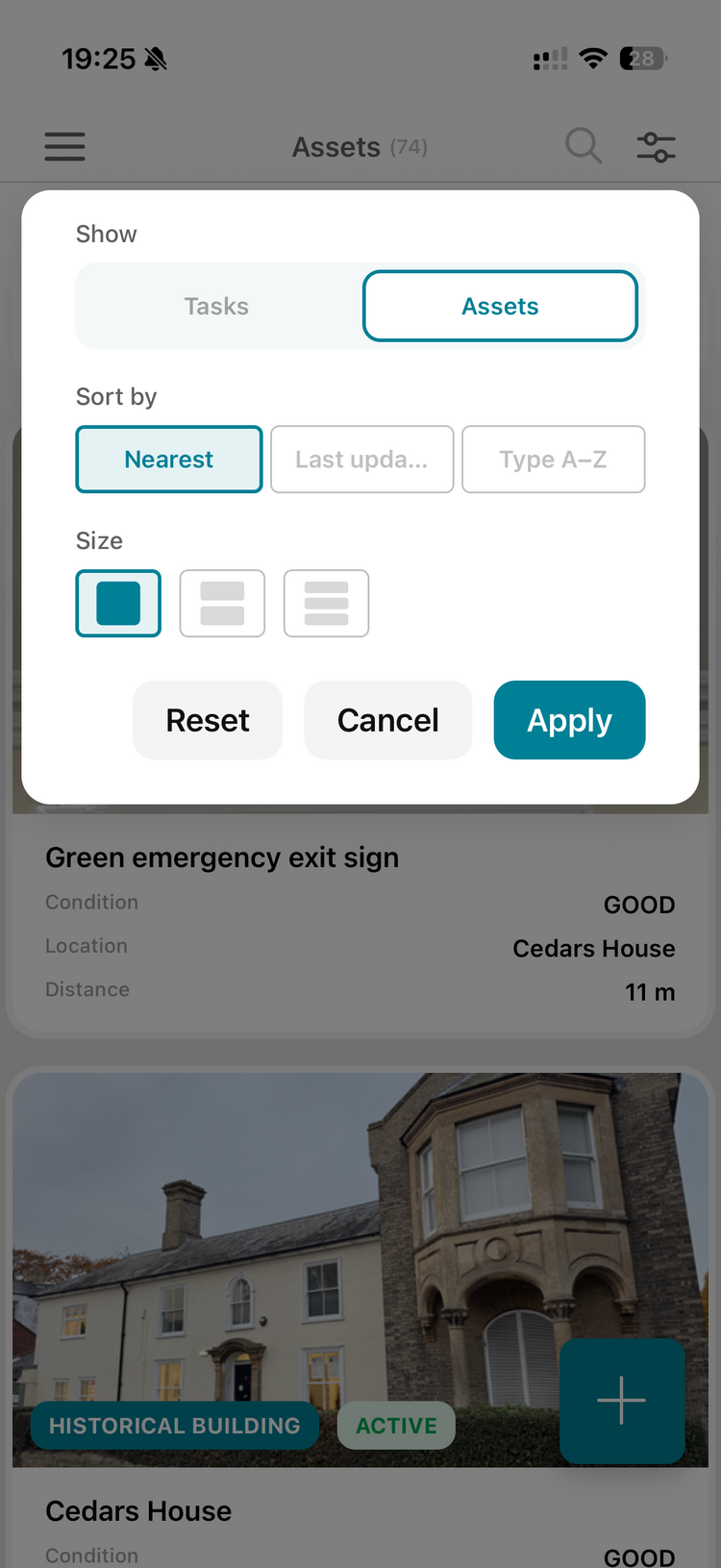
- The asset-picker inside "create a job/inspection" doesn't have search yet. That view is still ordered by proximity to you, which works fine if you're standing next to the asset but not if you're allocating work from elsewhere (e.g. a manager in the office assigning a vehicle check to the depot team). The workaround for now: switch to the main Asset list, search there, open the asset, and create the job from its record. Unifying this with the main search is on our list.
- All filters (including search) update the page's web address, so on the web app you can bookmark a filtered view (e.g. "all my buildings") to jump straight back to it later without re-filtering.