Short answer
Filter the task list to today and switch on hide completed tasks. The list shows only what's left for the day; as the operative ticks each one off, the list shrinks. It's clear, satisfying, and stops accidental double-completion. To review or audit later, un-tick hide completed to bring the day's finished jobs back into view.
Detail
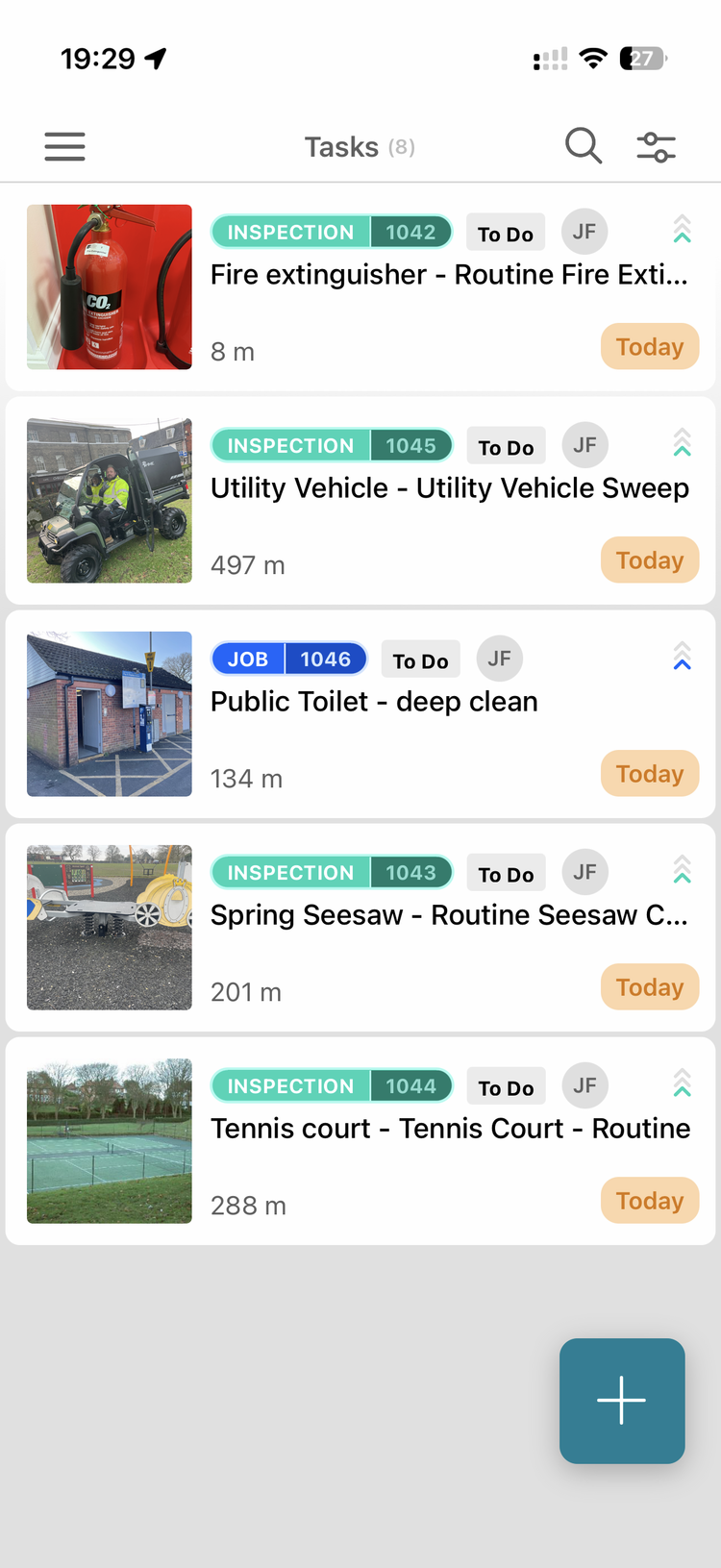
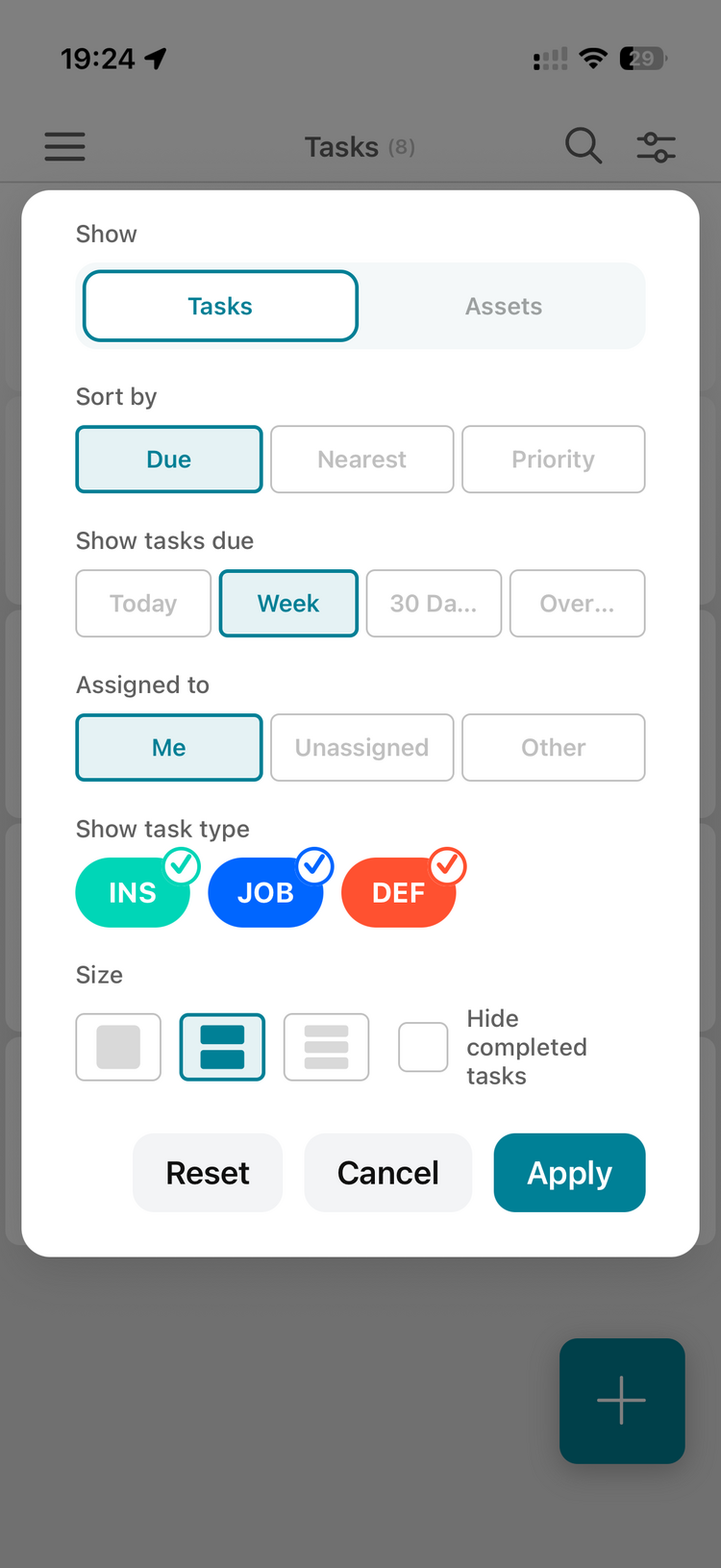
The task list is built around a due window (All, Today, Week, 30 days or Overdue) plus an assigned-to filter (Me / Unassigned / Other). The due-window buttons sit in a row across the top of the task list itself, and All is the default. All is not the council's whole history: it is everything the app has downloaded, which is tasks due from today to 30 days ahead plus anything still overdue. There are also task-type toggles (Inspections, Jobs and Defects), so you can hide the types someone doesn't deal with. Two filter habits make daily life sane:
What each due window shows
- All (the default): everything in the download window, so due from today to 30 days ahead, plus unresolved overdue tasks.
- Today: tasks due today only.
- This week: tasks due in the current week, Monday to Sunday.
- Next 30 days: tasks due from today through the next 30 days.
- Overdue: tasks that are past their due date and still not completed (unresolved). Completed past work does not appear here.
To keep the app fast, it only downloads what these filters need: everything due from today to 30 days ahead (whatever its status), plus any unresolved overdue tasks. Older completed work, and tasks due more than 30 days out, stay on the server until a filter calls for them. This is why the app does not load the council's entire task history.
1. Set the due window to Today. Only the day's scheduled tasks show: what the operative actually has to do now. Tap Today in the row of due-window buttons across the top of the task list. For volunteers who do their round whenever suits them that week, Week works better: land the tasks on the Monday and a Week view shows everything due Monday to Sunday.
2. Hide completed tasks. As each task is ticked off, it disappears from the list. Two benefits:
- The remaining list shrinks visibly during the day, which gives operatives a clear sense of progress.
- There's no ambiguity about what's still outstanding: every row in the list is "to do".
Other useful patterns:
- Due-date ordering. The task list is sorted by due date by default (soonest first), so the most urgent work always sits at the top, whether or not the Today filter is on. This is what makes the list double as a "what's coming up next" view without any reminders or notifications. (In the web app, inspections and jobs are ordered by due date too.)
- Nearest tasks. Operatives can sort by nearest-to-me using the device's location, so the work in front of them surfaces first. This is the tool to reach for when someone wants the work in a sensible running order. The app does not present routine tasks in the order set when the routine was created.
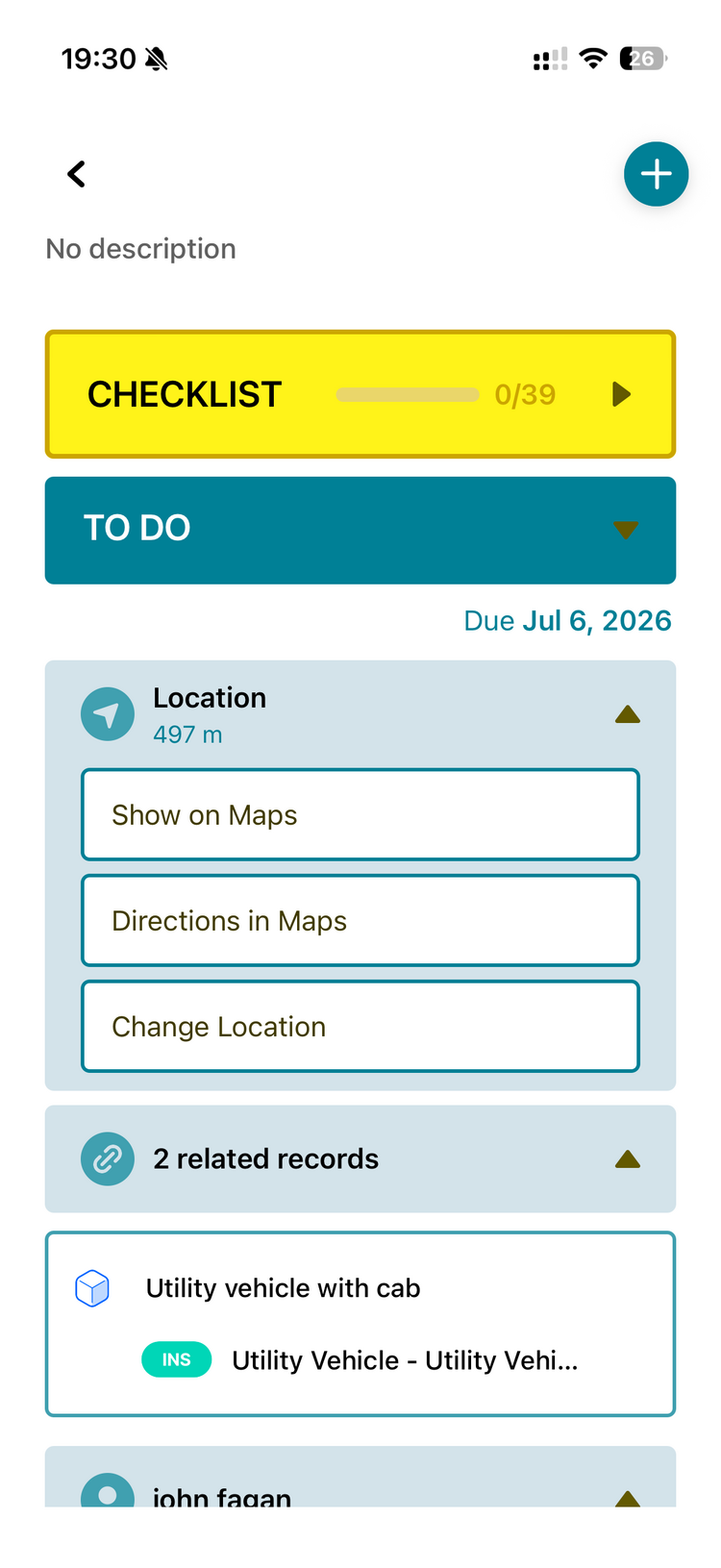
- Check you're at the right asset. When several assets look alike on the list (a row of bins in the same park, say), open the task and, in its Location section, tap Show on Maps to see exactly where that asset is before you pass it or raise a defect against it. Directions in Maps hands you to your maps app if you need to get there first.
- Swipe to complete. A right-swipe on an inspection marks it passed in one gesture. A left-swipe marks it failed and pops the checklist up, so the operative only answers the questions when something is wrong, and can raise a defect from there.
- Large cards for less confident users. In the filter panel, change the card (row) size to large. Each task becomes a bigger card: tap into it, then mark it passed or failed with large, clearly labelled buttons. Swiping does not work on large cards, so anyone comfortable with swiping is better on the medium size.
- Press and hold for the checklist. Pressing and holding a task pops its checklist up from the bottom of the screen, so the operative can answer it (e.g. tap the bin-fullness %) without opening the full task detail. Do the checklist first, then swipe to mark done.
- Photos and forms inline. Where the routine has a form template (e.g. bin fullness), the operative records the reading inside the task; no need to go elsewhere. Photos for any defects raised inline.
Watch-outs
- Routines don't appear on the mobile app. The task-type toggles are Inspections / Jobs / Defects, and operatives see the individual tasks a routine generates, in their own list. The routine layer is a supervisor concept and lives in the web app only, so the daily field workflow is simply: due window, hide completed, and sort by due or nearest.
- The flip side: if a routine's related tasks have no assignee, the work shows up nowhere. Each related task needs its own assignee. See Why Can't I See My Routine Tasks on the Mobile App? for the fix.
- An operative seeing yesterday's incomplete tasks usually means the Today filter is off, or yesterday's tasks were never closed. Either is worth fixing. Yesterday's not-yet-done tasks should be reassigned or formally cancelled rather than left to drift.
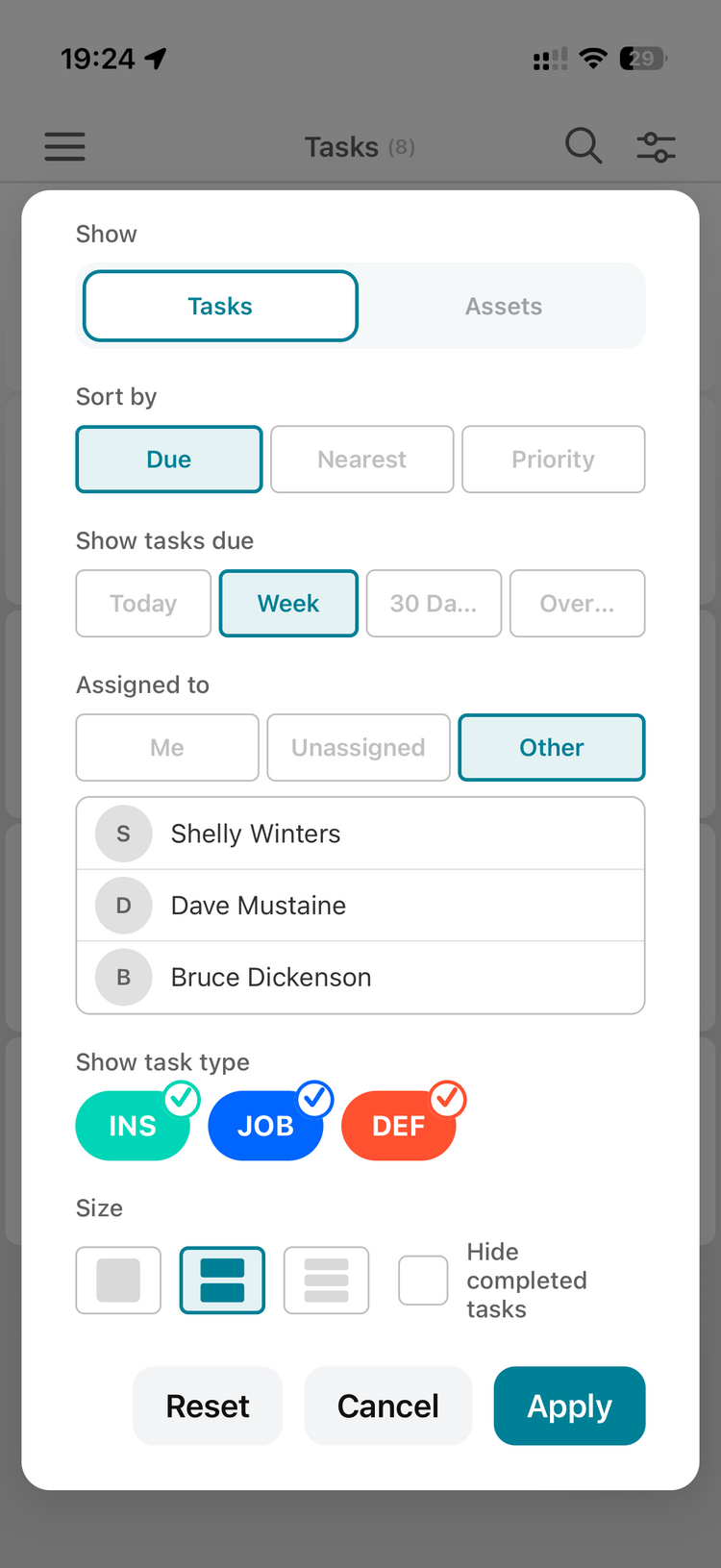
- A manager who also does the work sees everything. A supervisor/manager account has broad permissions, so on the mobile app it shows every task across the whole organisation, not just their own. To cut it down to what's in front of them: sort by nearest (in the building you're working in, only that building's tasks surface), hide completed, and turn off the task types they don't need. The Assigned to → Me filter now does the heavy lifting: even an account that can see everything can work from just its own list. Managers can also pick a team member under Assigned to → Other to review that person's day. If it's still noisy, the fallback remains a second, non-manager account for field days.
- Broad (ANY) permissions make the app slow to load, not just noisy. With org-wide task permissions, the app pulls every task in the organisation (completed, all future, and defects/bugs), and since the app caches data on the device for offline use, that can be thousands of rows and take a long time to load, then feel sluggish. The best fix for a field worker who only needs their own jobs is to scope their inspection and job permissions to OWN (not ANY). They then load only tasks assigned to them, which fixes both the clutter and the slow load. (Keep asset permissions broad if they're capturing assets: it's the task scope that drives the volume.) The filter combo above (Today + hide completed + drop unused task types) is the quick in-app relief; the permission change is the durable fix. A field asset-capturer at one council had the app loading ~3,768 tasks until his job/inspection scope was set to OWN. The app now also limits how much it loads regardless of permissions: it downloads only the filter window (due today → 30 days ahead, plus unresolved overdue), not the whole history, so even a broad-permission account no longer pulls every completed and future task. On a very large account, scoping to OWN still helps further, because a broad account downloads that window for the whole organisation while an OWN account downloads only its own tasks in the window.
- "Hide completed" is per device, not per user. If an operative borrows another's phone, the toggle state may not match. Show them where the toggle is.
- Operatives can reset their own password on the mobile app. On the app's login screen they tap Forgot password?, enter their email, and set a new password using the code we email them. See How do I reset a Civic.ly password?.
Related
- Why Can't I See My Routine Tasks on the Mobile App?
- What's the bulk-select workflow for creating a routine over many assets?
- Can a job be assigned to multiple people, and how do I reassign on the day?
- Can I set up reminders so people are notified about the tasks assigned to them?
- How do I reset a Civic.ly password?