Short answer
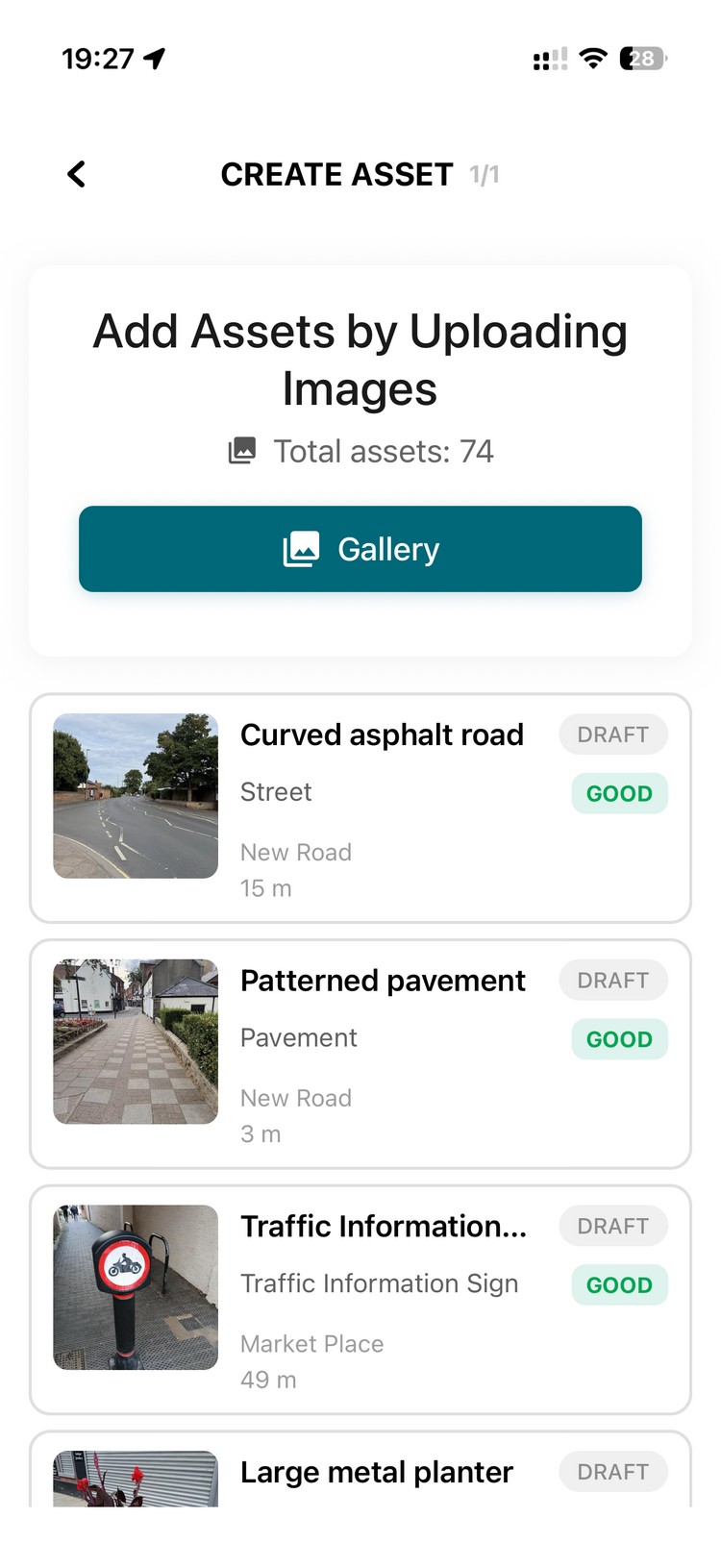
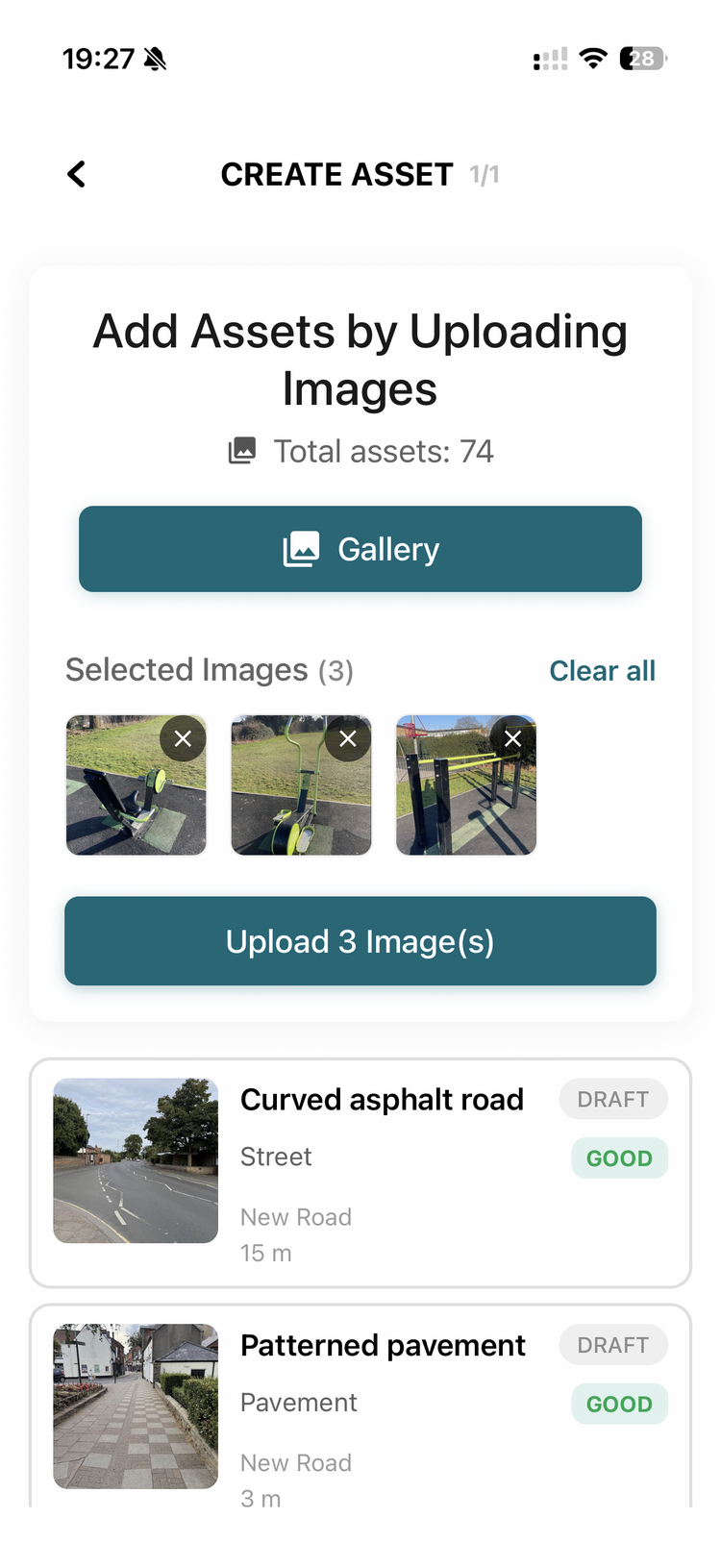
On the phone, upload photos about 10 at a time — that's the reliable batch size. It's deliberately capped: if you try to push 100 in one go and one fails, you'd have to work out which one, whereas 10-at-a-time keeps you in control. The practical rhythm for adding lots of assets is: take your photos, upload a batch of 10, fine-tune those pins on the web app, delete that batch off your phone so you know where you're up to, then do the next 10. There is a bulk upload, but it only works from a laptop, and getting the photos off your phone without losing their GPS is fiddly — for most councils, 10-at-a-time from the phone is the easier route.
Detail
Why the cap. The mobile uploader takes roughly 10 photos per batch. The limit is there so an upload either clearly works or clearly doesn't — with a huge batch, a single failure is hard to spot. If you sent ~12 and "some didn't work", that's the batch size biting, not a fault on those photos.
The recommended rhythm for a big capture day:
- Out in the field, take your photos on the phone's normal camera (location switched on — see the camera-setup Q&A).
- Upload ~10 at a time in the app.
- On the web app, fine-tune the location of those 10 (drag the pins on the satellite map — they're never perfectly placed) and check the AI got the type/condition right.
- Delete that batch off your phone so you always know which ones are done.
- Repeat for the next 10. Doing the playground (10), then the benches (10), and so on, gets you to 100 in organised chunks without a mass-upload that's hard to reconcile.
The laptop bulk-upload, and the GPS catch. Civic.ly does support a bulk upload, but only from a laptop/web app — and the hard part is getting the photos off the phone with their location intact. Emailing or WhatsApping photos to yourself strips the GPS out, so they'd no longer map. The only reliable phone→laptop route that keeps the location is a sync that doesn't strip metadata (e.g. Google Drive installed on both phone and laptop), then bulk-upload from the laptop. It works, but it's enough hassle that 10-at-a-time straight from the phone is usually the better choice unless you're doing a very large one-off load.
Watch-outs
- Don't email/WhatsApp photos to get them onto a computer — those channels strip the embedded GPS, so the assets won't map. (Same root cause as a forwarded photo failing — see the location-troubleshooting Q&A.)
- There's also a per-file size cap of 20 MB — separate from the batch-count limit, and only an issue if a camera is set to shoot extra-large/RAW images.
- Fine-tune as you go, not at the end. Nudging the 10 pins right after each batch (and deleting that batch off the phone) is what keeps a large capture organised; leaving all the pin-nudging to the end is where people lose track.
Related
- How do I set up a phone so its photos carry the GPS location for asset capture? — get the phone embedding GPS before you start
- I've uploaded photos but they're not showing up on the map / their location isn't being detected — how do I fix it? — stripped-location / 20 MB / Limited-access fixes
- After uploading assets from a phone, do I need to adjust their map locations? — the fine-tune-the-pins step
- When I upload photos as assets, how does Civic.ly decide where to place them on the map and what to call them?