A quick tour of what shipped this month — fine-grained permissions, a faster map with proper layer controls, and the first phase of the redesigned asset detail screen. There's also a sneak peek at the AI document upload we've been working on, plus a heads-up on offline mobile mode and task notifications, both landing in the next few weeks.
Watch the 5-minute walkthrough above, or read on for the highlights.
Fine-grained permissions
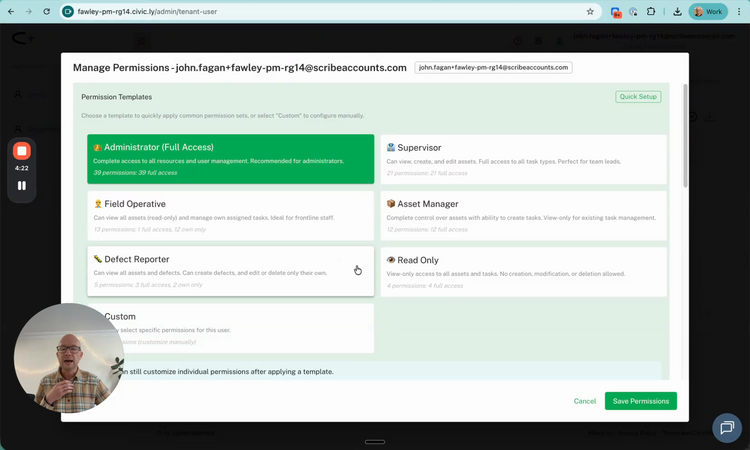
You now have proper control over what each person on your team can see and do. Open Manage Account, click the cog icon, and you'll find a new Manage Permissions screen.
There are six role templates to start with — Administrator, Supervisor, Field Operative, Asset Manager, Defect Reporter, and Read Only — plus a Custom option if none of those quite fit. Apply a template to set sensible defaults, then tweak individual permissions on top.
This is the change that unlocks bringing in councillors, contractors, and volunteers without giving everyone the keys to the kingdom. For a full walkthrough, see How to Manage User Permissions.
Faster mapping with layer toggles
The map has had a serious speed-up — particularly noticeable for councils with hundreds or thousands of assets plotted. Pan and zoom should feel instant now.
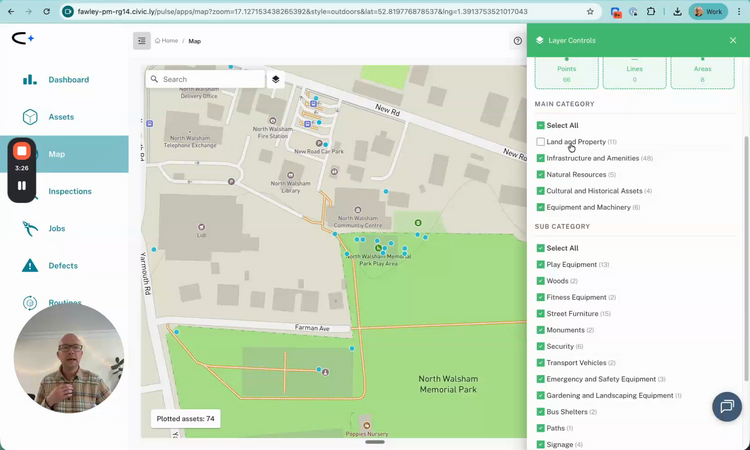
We've also added proper layer controls. Open the Layer Controls panel on the right and you can:
- Switch the base map (street, satellite, OS MasterMap)
- Show or hide all areas in one click
- Toggle entire main categories on and off — Land & Property, Infrastructure & Amenities, and so on
- Drill into sub-categories — turn off everything except, say, Play Equipment to focus on a single inspection round
It's a small thing that makes a big difference once you've got a busy map. For more on getting around the map, see the Map overview.
Redesigned asset detail screen
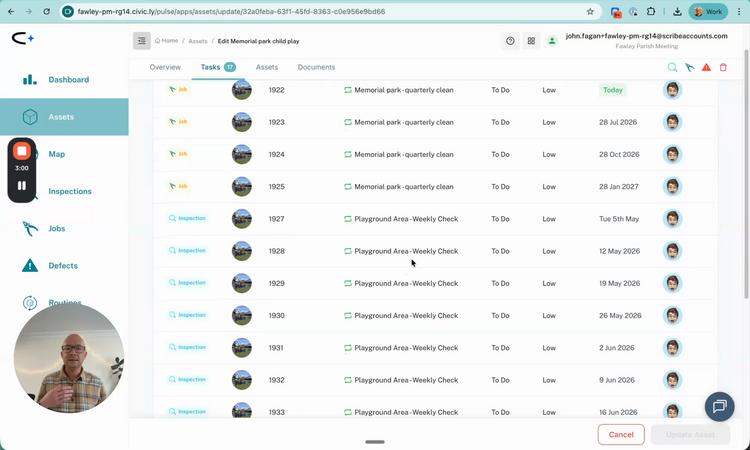
We've started reshaping the asset detail page in preparation for some bigger features coming next. Each asset now has four tabs at the top:
- Overview — the basic details you've always had
- Tasks — every inspection, job, defect, and routine linked to this asset, in one filtered view
- Assets — a placeholder for child assets (rooms inside a building, equipment inside a playground)
- Documents — a placeholder for uploaded files
The Tasks tab is the most useful change today. For a playground area, you'll see the quarterly clean, the weekly playground check, any inspections, and any outstanding defects, all in one list. For buildings, this becomes even more powerful as we roll out the asset-grouping work.
Known issues
A few things we're aware of and actively working on. Most have a fix landing this week.
- Photo upload error on some Android devices — when uploading a photo you may see the message "location not identified in the image". It's affecting a small number of devices and we're still investigating the cause.
- Login failures on some Android devices — a small number of users are seeing login fail even when the username and password are correct. Fix going out this week.
- Android app crashing in the background and restarting — we've identified the cause and the fix ships this week.
- User avatars missing in the task list (web app) — profile pictures aren't rendering on the task list view. Cosmetic only — fix this week.
- Asset photos missing inside routines — on the inspections and jobs that sit inside a routine, the asset thumbnail isn't displaying. Fix this week.
- Routine dates saving as the day before — when you set a start or due date on a new routine (for example, 29 April), the routine is created with the day before instead (28 April). As a quick workaround, pick the date one day after the one you actually want until the fix lands.
- Some recurrences skipped on routines that started in the past — if you create a routine with a start date in the past, some future occurrences don't get generated. For example, a monthly routine starting at the beginning of the month may skip a month or two when the next instances come round. We're investigating.
- Subtask due dates don't update when you change a routine — if you edit a routine and change its due date, the inspections, jobs, and other subtasks underneath keep their original due dates. For now you'll need to update those subtask dates by hand.
If you hit one of these — or anything else odd — let us know at hello@civic.ly so we can keep track of which devices are affected.
Coming soon
A quick look at what we're working on next — track everything live at ideas.civic.ly.
Related assets on the new asset detail screen — building on the redesigned tabs above, the Assets tab will start filling in. You'll be able to add related assets to an area or building — the equipment inside a playground, the rooms inside a hall, the bins along a footpath — and see everything that belongs together in one place.
Offline mode for mobile — for grounds staff working in areas with patchy data signal. Complete inspections and log defects without a connection; everything syncs when you're back in coverage. Landing in the next couple of weeks.
Task notifications — a Monday-morning email summarising what's coming up and what's overdue, plus instant in-app and email notifications when a defect or job gets assigned to you.
AI document upload — drop in a 30–40 page RoSPA report, fire risk assessment, tree survey, or contractor report and Civic.ly's AI extracts every recommended work item, assigns priorities, and creates jobs or defects automatically. Still in prototype but progressing well.
In your hands
Keep the ideas coming. Head to ideas.civic.ly to vote on what we should build next or add your own suggestion — we genuinely work through the list and ship the things that get traction.
For support, we've moved everything to a single inbox: hello@civic.ly. Anything you need — questions, problems, training requests — drop us a line and we'll come back to you quickly.
A small milestone
We've now passed 90 councils using Civic.ly day-to-day, and we're closing in on 100. Thank you for the feedback, the ideas, and the patience while we keep improving the product week by week.
Common Questions
No. The web app and mobile app update automatically — just refresh your browser or close and reopen the app to pick up the latest version.
No. Existing users keep their current access. The new templates and fine-grained controls are there when you want to bring more people in or change someone's role.