A bumper update covering August and September, led by a genuinely new feature: you can now link assets together, so everything inside a building, a park or a vehicle sits under it. Alongside that, the mobile app moved another step through our sync and performance programme, notifications arrived, defects gained a Monitoring status, and the checklist library grew a full set of play equipment Operational Checks. Everything below is live now.
New: link assets to the thing they belong to
Until now every asset stood on its own. A community centre was one record, and the fire extinguishers, the boiler, the defibrillator and the kitchen inside it were another twenty, all sitting at the same level in your register with nothing connecting them.
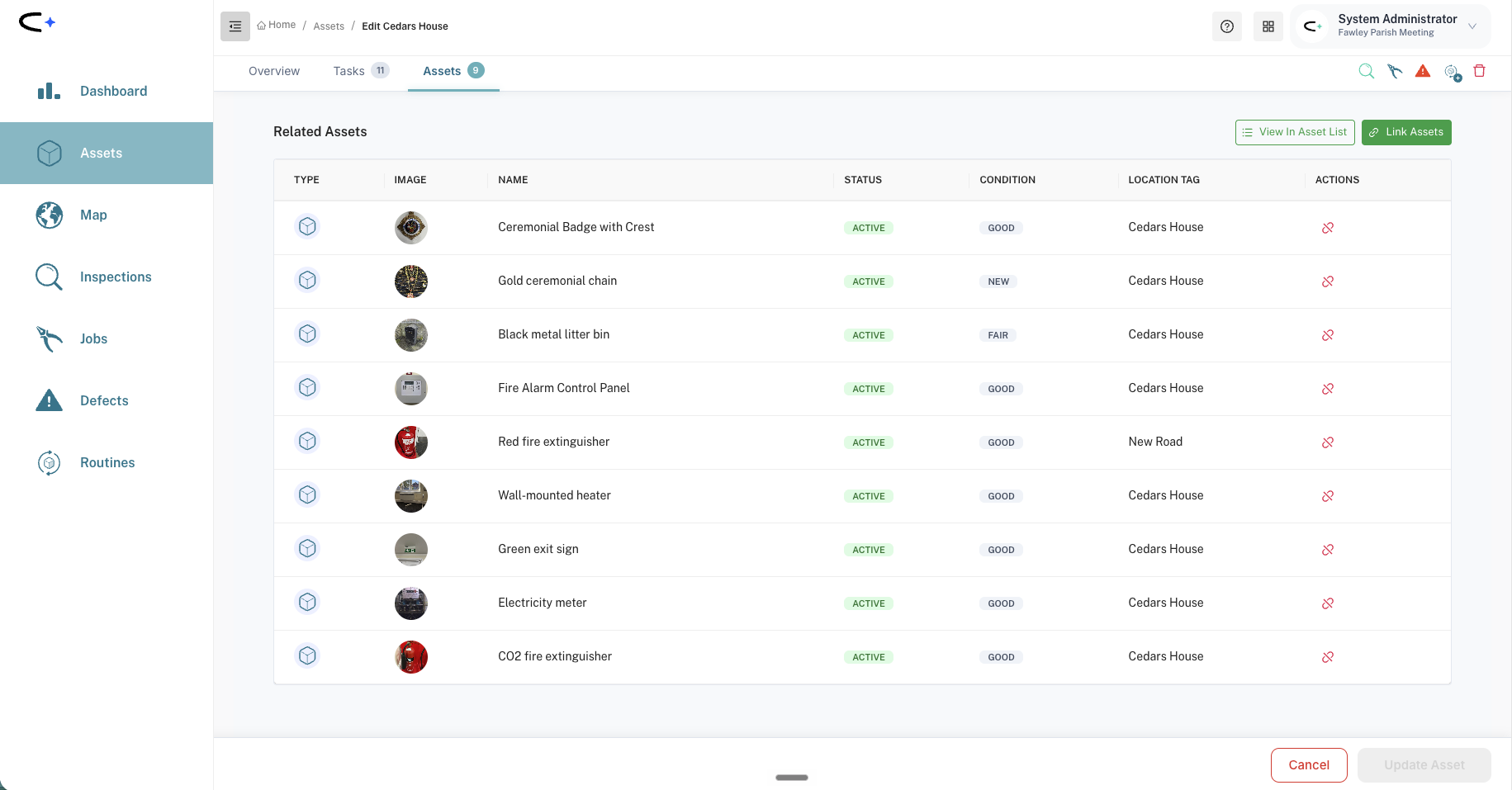
You can now link an asset to a parent asset. Link the extinguishers, the boiler and the rest to the building, and they belong to it.
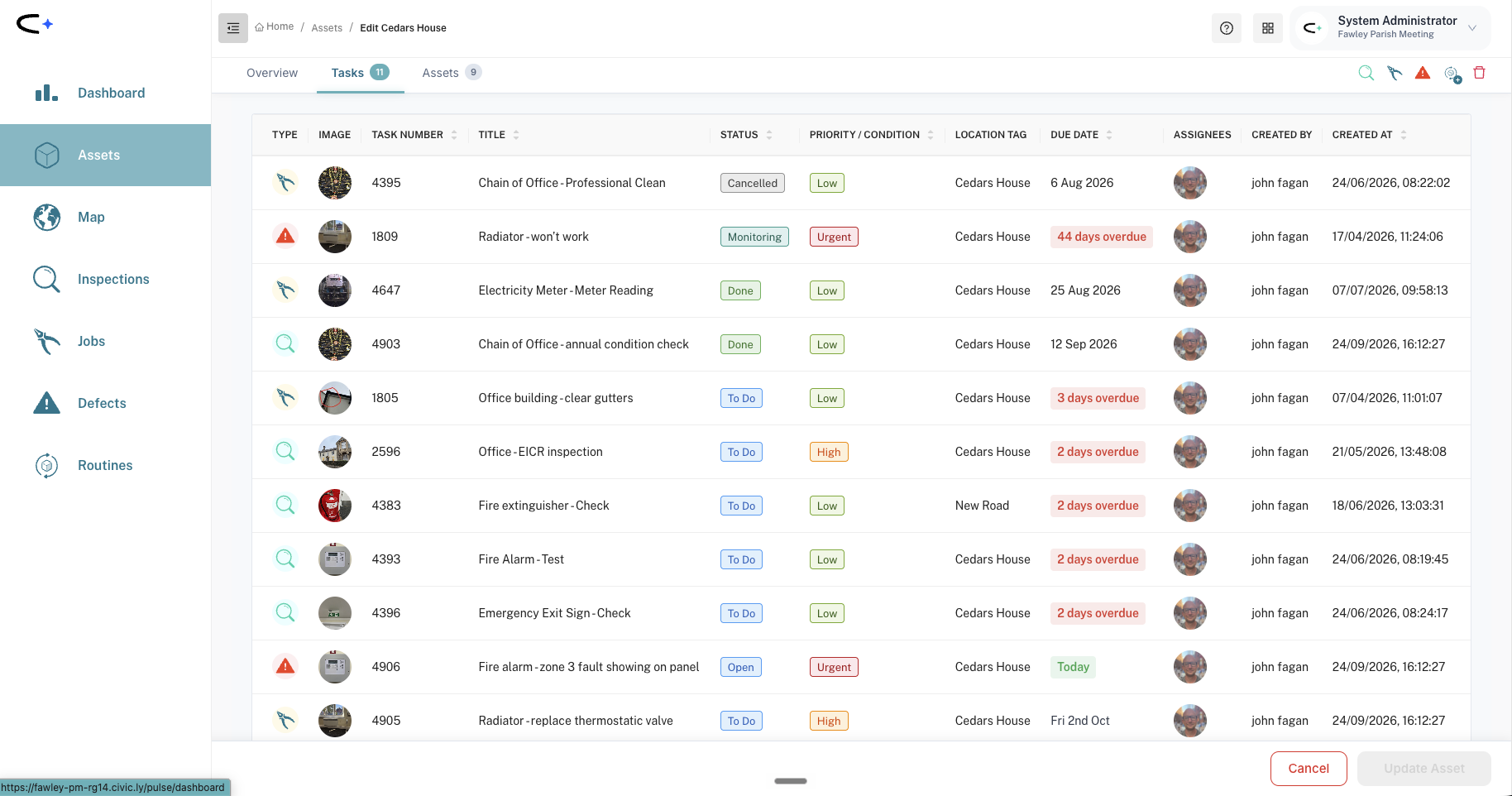
The big one: tasks roll up. When you open the building, its task list shows the tasks for everything linked to it, not just tasks raised against the building itself. So at building level you get the full picture in one place: every inspection, every job and every defect for that building and everything in it. That is the view councils have been asking us for.
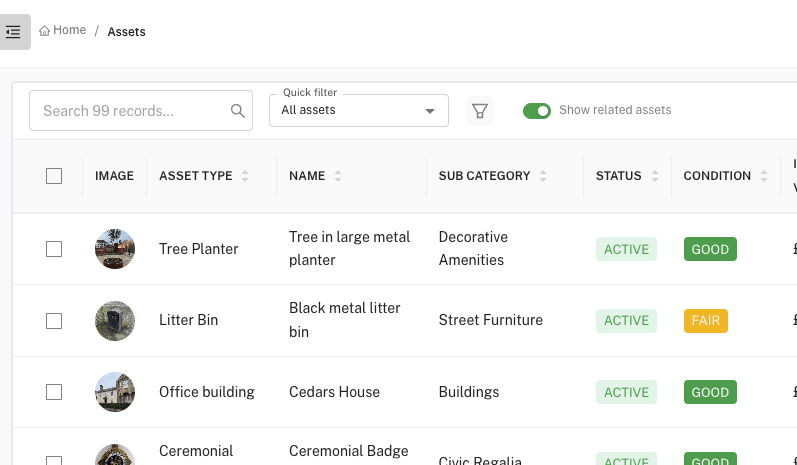
Your register gets cleaner. The small stuff no longer has to clutter the top level of your asset list. You can toggle related assets on and off, so you can look at your register either way: everything laid out flat, or just the things that stand on their own.
How the linking works. It is deliberately two tiers, not an unlimited tree. An asset can have a parent, and a parent can have many children, but a child cannot then have children of its own, and a parent cannot be linked to another parent. One level of nesting keeps it simple to build and simple to read.
What to use it for. Buildings are the obvious case, and the one it was designed around. It works just as well for a park or an open space, with the benches, bins, play equipment and signage inside it linked to the park. Or a vehicle, with the fire extinguisher and first aid kit it carries. You can link any asset to any asset, but it earns its keep when the parent is something large that contains other things.
Alongside the core feature:
- Link from the asset list. Select assets and link them without opening each record, or use the plus button on the Assets tab of an asset record to search for and link one.
- Open the full list. A related asset links through to the main asset list, so you can work with the whole group properly.
- Everyone can use it. Linking no longer requires a super user. Any user with the right permissions can do it.
- Add a related record from the asset image, straight from the Overview tab.
- See related assets on the map.
Mobile app: sync, speed and a better task list
A run of work aimed squarely at two groups: councils with large numbers of assets or tasks, and councils working where the signal is poor or absent. This is an ongoing programme and there is more to come, but this is the biggest step so far.
Syncing
- Only what has changed. The app now downloads just the records that have changed since it last synced, instead of pulling the same data again every time. On a weak signal this is the change you will feel most.
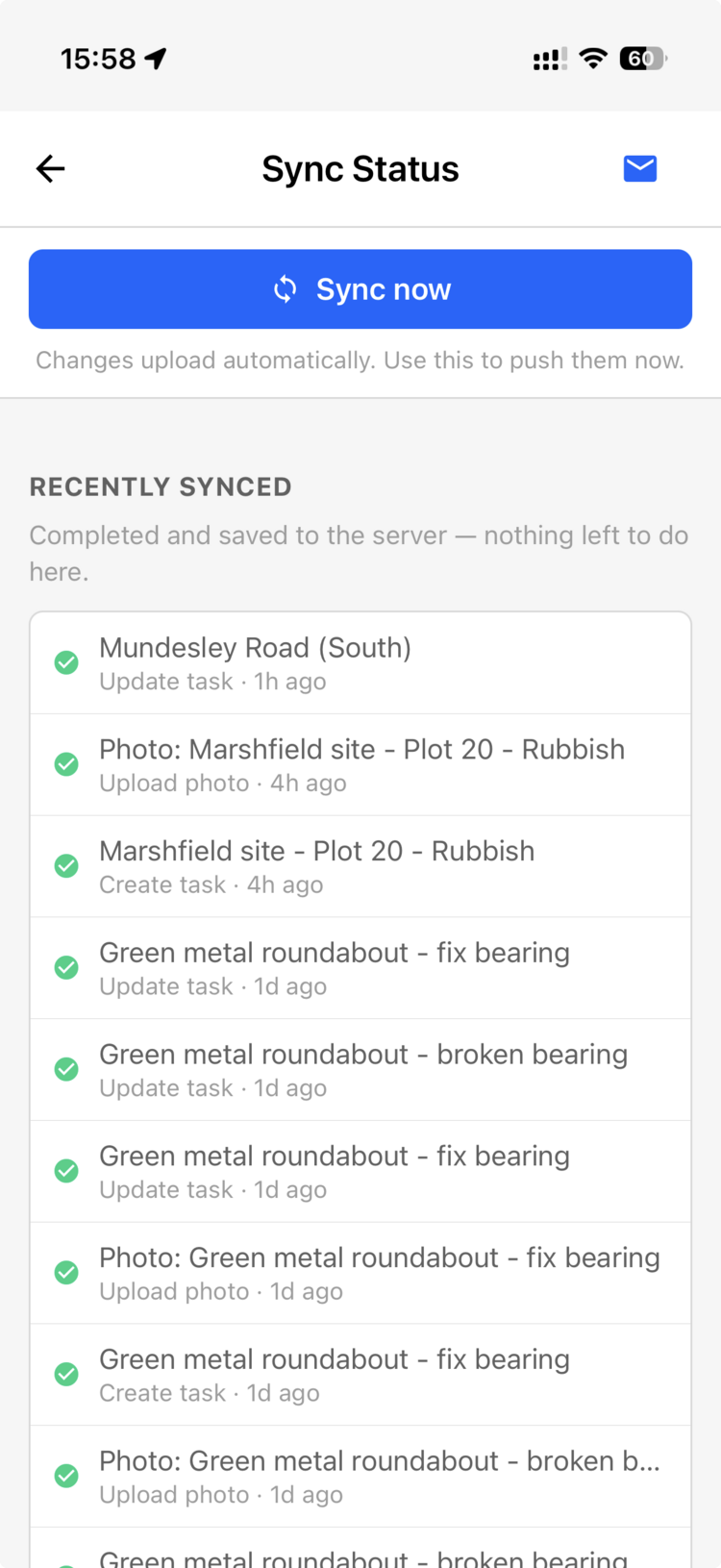
- Sync now. A button that forces your queued work up straight away, instead of waiting for the app to try again on its own.
- Stuck uploads fixed. Work could sit in the pending list with full signal, in the office, on wifi. A refused photo would also block everything behind it. Both are fixed.
- Errors that make sense. When a change cannot be saved you see the actual reason, in the app and in your emailed sync log, rather than a generic failure.
Speed
- Faster to open. The app was downloading far more than it needed on every sync, which is why it dragged on councils with thousands of assets and a long task history. It now asks for fewer records, and less on each one. It also stopped ignoring your due-date filter and pulling every task regardless.
The task list
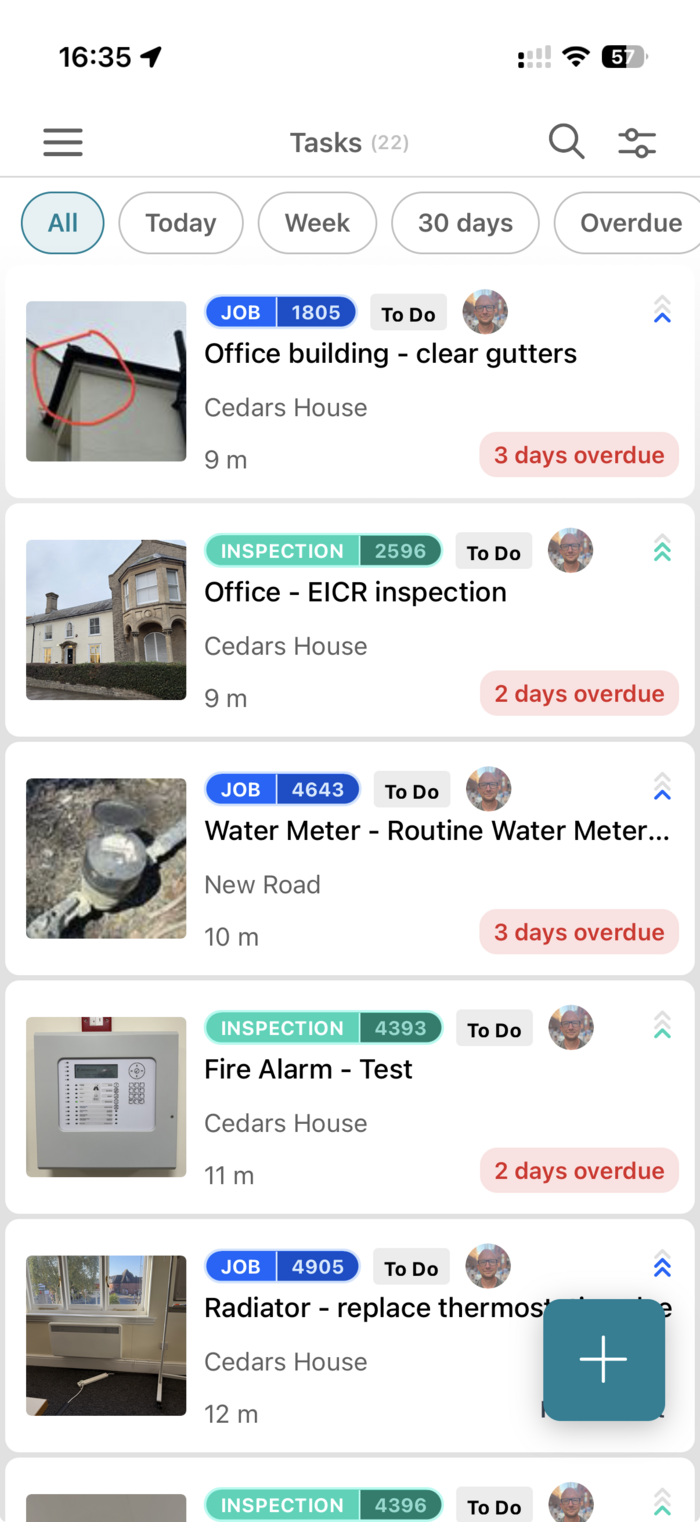
- Due-window filters on the list itself. All, Today, Week, 30 days and Overdue, right at the top. All is the default, so you can see everything at once without opening a filter panel.
- New tasks pre-fill with the asset's name, not the asset type, so a job on a named bench arrives with a title you recognise.
- Sort by nearest now works inside large areas. Distance was measured incorrectly for assets sitting within a park or open space, which pushed them to the wrong end of the list. One honest caveat: this corrects how we calculate distance, not how accurately a given phone or tablet reports its own location, and any difference you see between devices is a separate thing.
- Smaller fixes. On iPhone, a task you created did not always appear in your list until you reopened the app.
Update through the App Store or Google Play to pick these up.
Mobile app: built for tablets
If your team works on tablets, the app now behaves like a tablet app rather than a stretched phone app. Text and icons stay a sensible size, the navigation drawer stays open on a wide screen, lists use two columns, and rotating the tablet or using split screen no longer breaks the layout. The login, welcome and task screens have all been rebuilt to suit the larger screen.
Notifications have arrived
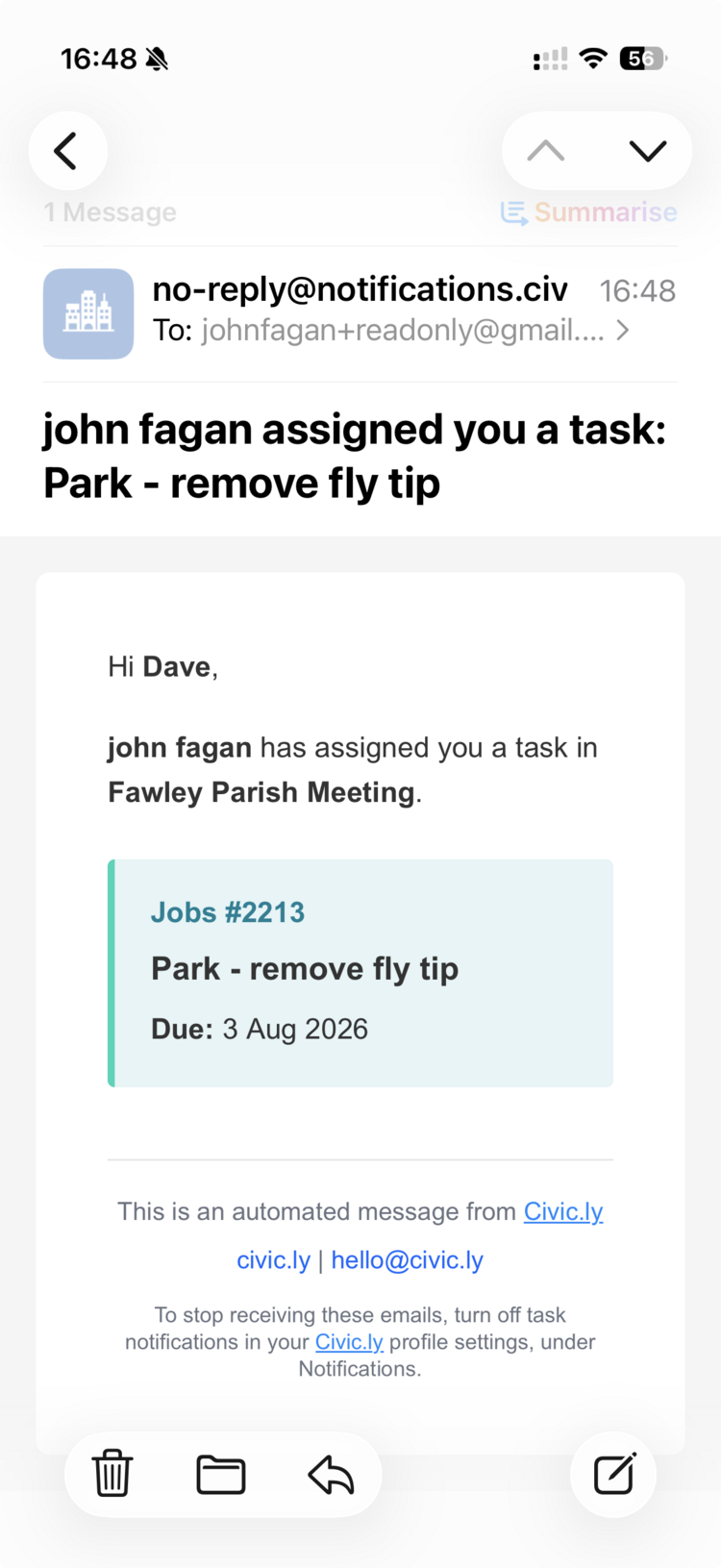
Several of you have asked for this. When someone creates a task and assigns it to you, you now get an email. The obvious case is a job raised to fix a defect: the person who has to do the work finds out without anyone having to tell them.
A few things worth knowing:
- It covers one-off tasks only. Routines and recurring series are generated in bulk, often months ahead, so notifying on each one would be noise rather than signal.
- You can turn it off yourself. There is an Email notifications switch in your own profile settings, under Notifications. No administrator needed.
- This is the first piece of a larger notifications capability, so treat it as a foundation rather than the finished article. Tell us what you want next.
Defects: a new Monitoring status
Not every defect is one you intend to fix. A crack in a path you want to keep an eye on is a different thing from a broken gate awaiting repair, and until now the defect list could not tell them apart. Defects can now be set to Monitoring.
One piece of advice that matters: a status does not monitor anything by itself. Set the defect to Monitoring and raise a job from it with a recurrence, quarterly say, so someone actually goes and looks. That gives you dated photographic evidence of whether it is getting worse, which is the point. See How to Monitor a Defect Over Time.
Mapping
- Satellite imagery at wider zoom levels. Ordnance Survey and Getmapping now show two zoom levels further out, so you can see aerial imagery across a whole parish rather than having to zoom right in.
- Clicking gets you the right record. Hovering shows what is in focus, and a point that sits inside an area now opens the area rather than whatever happened to be underneath.
- Cleaner areas. The red dashed outline and vertex dots have gone from area styling, so the map reads more clearly.
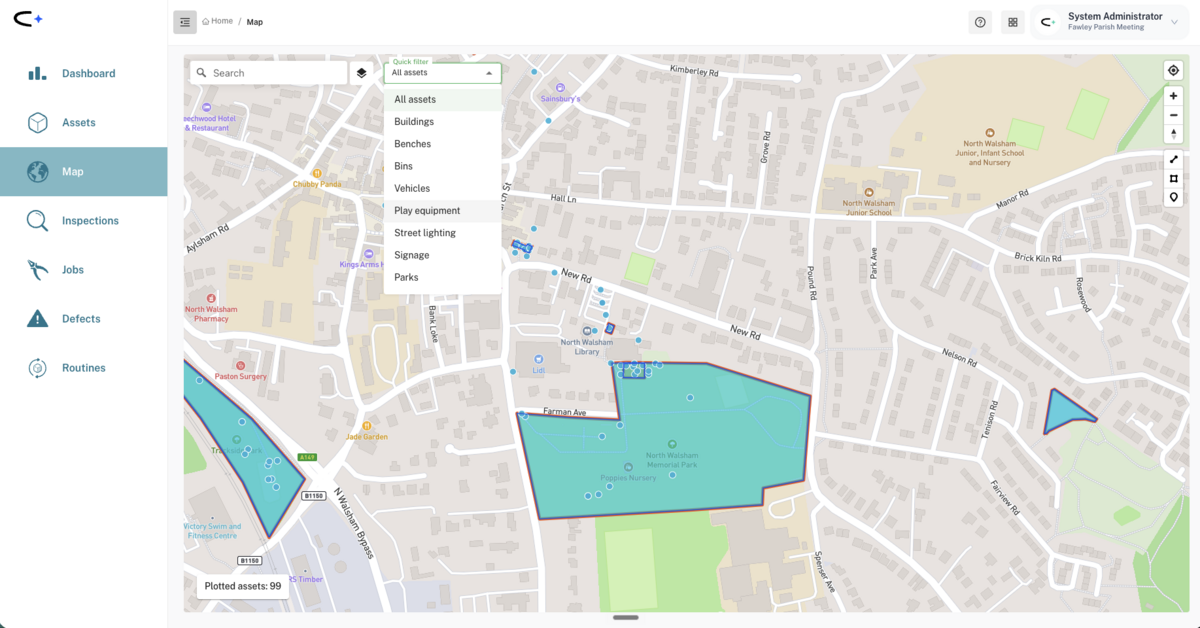
- Quick Filter on the map. July's Quick Filter came to the asset list. It is now on the map too, so you can narrow to buildings, benches, bins, play equipment and the rest in one click. The Play Equipment filter, which was returning nothing, now works.
Task lists and task details
- Assignee and due date where you can see them. The task details screen has been reorganised so the fields you actually change are at the top, and the asset classification sits below as read-only context.
- Filters work in any order. Task list filters only applied if you selected them in a particular order, and the checklist filter was lost from the page address if applied first.
- Related Tasks shows real values. Due Date and Created By were showing N/A on every row even though both were set, and the list now shows who raised each linked task and when.
- Asset detail as columns. Task lists can show the asset's location tag, asset type, sub-category and main category, so you can sort and filter your work by where it is and what it is without opening each task.
Checklists: play equipment Operational Checks
The biggest addition to the checklist library this summer. Every family of play equipment now has an Operational Check: a detailed, per-component inspection you record item by item, alongside the quick weekly routine check that already existed.
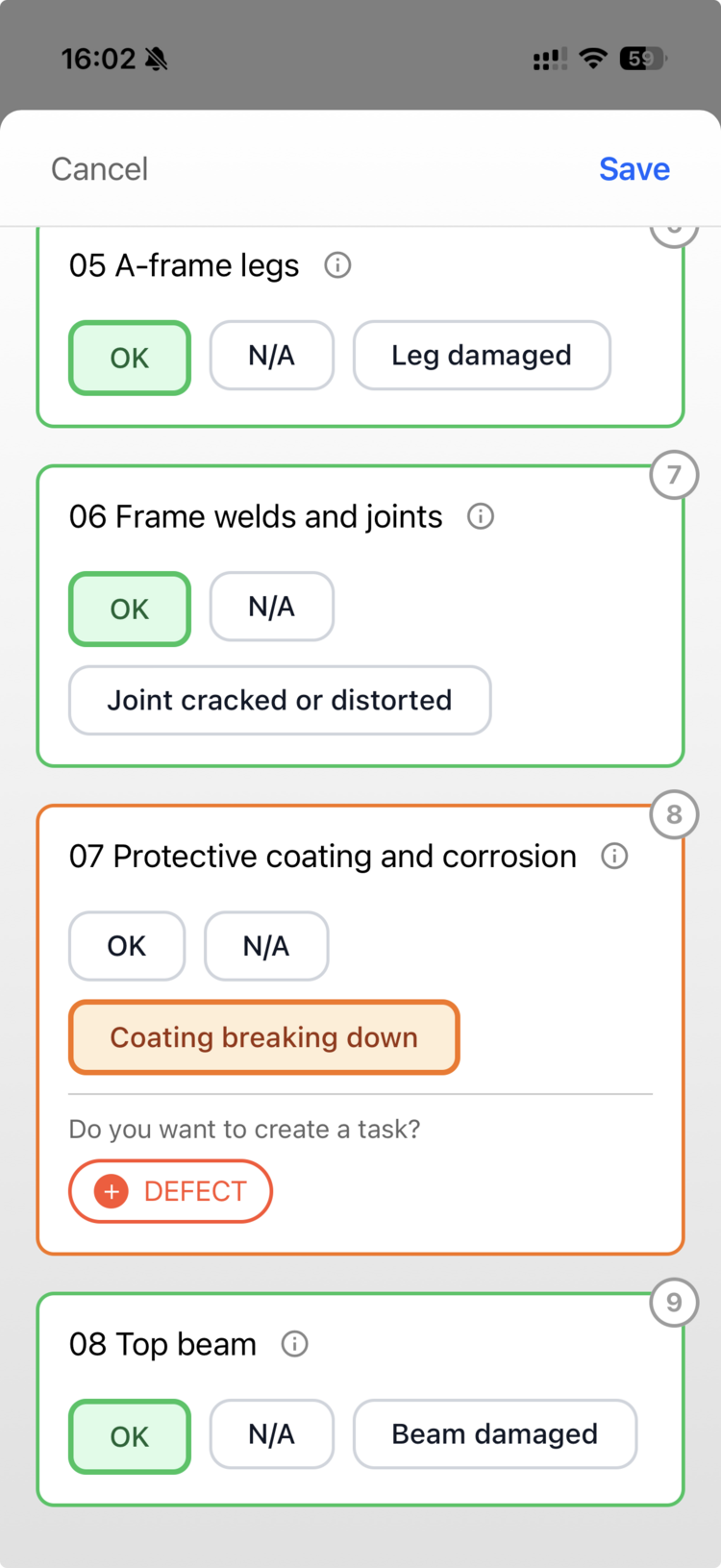
Eleven Operational Checks (Operational Swing Check, Operational Slide Check and so on) covering swings, slides, roundabouts, climbing frames, multi-play units and the rest of the play range, with 284 individual checks between them, set to run quarterly. Each item is recorded as OK, N/A or fault, raising the matching defect automatically on a failure, and items are numbered in the order you actually walk the equipment. Most items now carry guidance text explaining what you are looking for and why, which makes them usable by someone who has not been on an inspection course.
This is the tier the standard asks for: BS EN 1176-7 expects a more detailed check of operation and stability every one to three months, over and above the routine visual check. See How to Use a Checklist for how the routine check and the Operational Check work together.
Checklists: a Tree Sweep
Trees are new to the checklist library. The Tree Sweep is a 32-item ground-level visual inspection covering the things a competent person can see from the ground: the base and roots, the trunk, the branches and canopy, and what sits below the tree if something were to fall. It runs annually on any asset typed as a Tree.
This is a ground-level visual record, not a substitute for a qualified arboricultural inspection where one is needed.
Checklists: smaller additions
- Fire Shutter Check, monthly, for fire-rated shutters that close when the alarm sounds. There is a matching Fire Shutter asset type.
- Life Buoy Ring Check, monthly, covering the ring, the throw rope, the housing and its condition.
- Defibrillator Check now covers the cabinet, with three new items: cabinet lock, cabinet heater (with an N/A escape when it is above 5°C) and cabinet cleanliness.
- Vehicle sweeps now follow the walkaround. The Van Sweep was re-sequenced into the order you actually walk a vehicle, and that order now applies across Car, Motorbike, Utility Vehicle and Emergency Vehicle sweeps too, in both petrol or diesel and electric versions. Only the numbering changed. Your completed inspections and any defects raised from them are untouched.
- Clearer wording. "Usage / Trigger Time" on grounds equipment is now simply Trigger Time, and explains that it means the time you were actually operating the machine, not how long the job took. On vehicle checks, "the diesel engine" is now just "the engine".
- Gaps closed. Litter and dog waste bins and wheelie bins now carry the weekly Bin Collection job, sharps bins and wheelie bins carry the annual bin check, and a Water Heater now offers the Calorifier Check, which is the one a legionella regime cares about.
New asset types
Added to the shared catalogue over the summer: dog exercise area, petanque terrain, table football, landing light, fire shutter, boot scraper, sharps bin, key safe, traffic cone, and a general Room for rooms that do not fit a more specific type.
Behind the scenes
Some fixes you will not see, but will feel. Editing routine sub-tasks and assignees no longer trips our web firewall's request limits and returns "Network Error". A large download can no longer exceed the response size cap and fail outright. Saving a record no longer reports a conflict when nothing had actually changed. And the server-side work that lets the mobile app download only what has changed is in place, which is what the mobile app above builds on.
In your hands
Everything above is live now. Keep the ideas coming at ideas.civic.ly, or email hello@civic.ly.
Common Questions
No. The web app updates when you refresh your browser, and the mobile app updates through the App Store or Google Play (you may be prompted to update).
No. Linking is two tiers. An asset can have a parent and a parent can have many children, but a child cannot have children of its own, and a parent cannot be linked to another parent.
Only if you want them to. You can toggle related assets on and off, so you can see your register flat or see only the assets that stand on their own.
Yes. Update the app and it will clear on your first sync. If anything is still stuck, open the sync screen and tap Sync now. If it still will not go, email us the sync log, which now includes the reason.
Open your profile settings, find the Notifications section, and turn off Email notifications. It applies to you only, and you do not need an administrator to do it.
No, it sits alongside it. The routine check stays as your frequent visual look. The Operational Check is the more detailed quarterly check of operation and stability that BS EN 1176-7 asks for.