your vehicles need to be in the asset register and set to the right vehicle asset type. If they are not there yet, ask your account administrator to add them. You also need permission to create inspections. If you cannot see the option, see How to Manage User Permissions.
This article covers the mechanics: creating and completing a vehicle check from your phone. For deciding how much detail to capture and how often, see How to Inspect Vehicles and Machinery.
Every vehicle type has three checklists to pick from:
- The Check (for example Van Check): a quick graded walk-round for a daily or pre-use check.
- The Sweep (for example Van Sweep): a thorough itemised check, one question per part, often run weekly.
- Annual Road-Legal Check: the yearly MOT, tax and insurance review.
Browse them all in the vehicle checklists.
Step-by-Step
-
Open the Civic.ly app on your phone and make sure you are on the Tasks view.
-
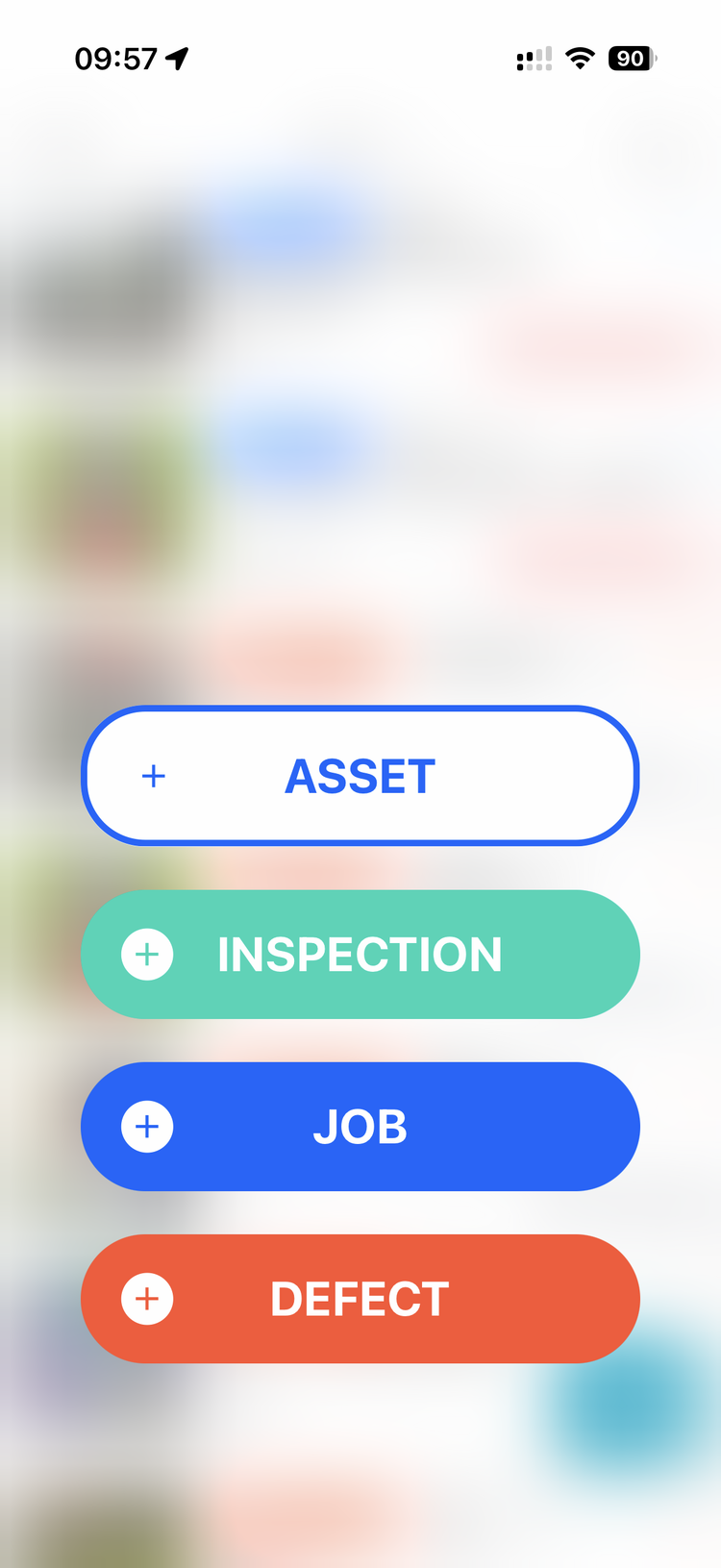
Tap the big + button in the bottom right corner. You will see four options: Asset, Inspection, Job and Defect.
-
Tap Inspection.
-
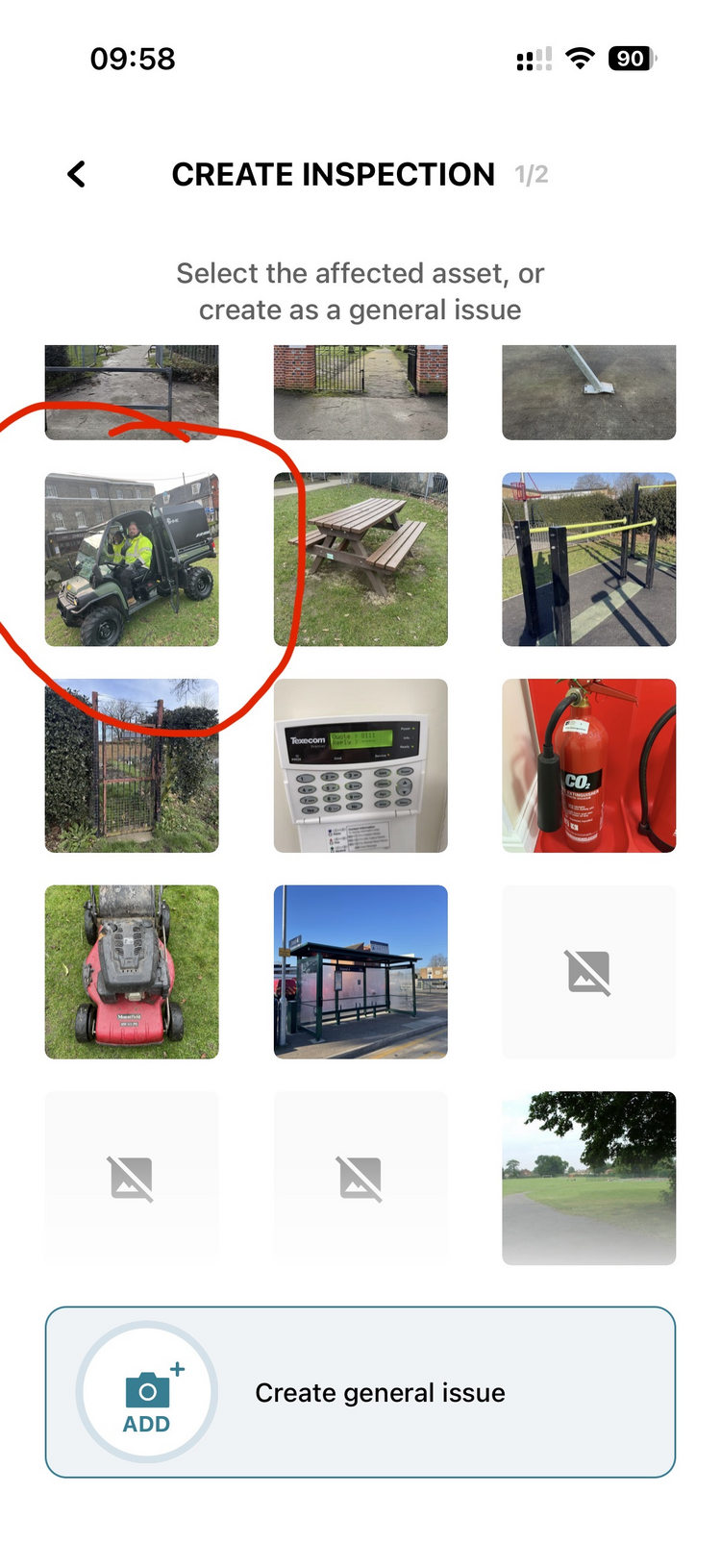
You will see a grid of assets. The app shows the nearest assets to your current location first, so if your vehicles are mapped to the depot and you are standing there, they appear at the top. If not, scroll down to find the vehicle.
-
Tap the vehicle you want to inspect. On the next screen, tap Add Checklist and pick the Check or Sweep for that vehicle type, or the Annual Road-Legal Check for the yearly review.
-
The title fills in automatically. You can add a Description with extra notes. Check that Assigned to shows the right person, then tap Create Inspection.
-
The inspection appears in your task list with a To Do status and today's date. Tap it to open it.
-
Work through the checklist. A Check asks a handful of graded questions (braking, lights, tyres and so on); a Sweep walks through each item with an OK / N/A / fault answer. Tap the response that matches each item. When an answer fails, the app offers to raise a defect with the title pre-filled, and you choose whether to create it.
-
When you have answered every item, tap Save. The results sync to the web app automatically, giving your office team a full audit trail.
- Make it part of the morning routine. Arrive at the depot, open the app, tap + → Inspection → pick the vehicle → complete the checklist. It takes a couple of minutes once you are used to it.
- Each driver does their own check. Because the inspection is assigned to whoever creates it, you get a clear record of who checked which vehicle and when.
- Raise defects on the spot. A problem found during the checklist (dodgy brakes, a bulb out) can become a defect straight from the inspection, which flags it to your office team.
- Scheduled checks are faster. If the office sets up a daily routine instead, the checks are already waiting in each driver's task list, and a vehicle that is fine can be passed with a single swipe right. See Working in the Field.
Common Questions
The app shows assets nearest to your current location first. If the vehicle is not mapped near where you are, scroll down to find it. If you still cannot see it, check with your account administrator that the vehicle has been added to the asset register.
Two possible reasons. First, check you tapped the right asset: if you selected a nearby park or building by mistake, you will see that asset's checklists. Second, the vehicle may have the wrong asset type. Checklists are linked to asset types, so a vehicle categorised as something else will not show the vehicle checklists. Ask your account administrator to check the asset type in the web app.
Either works. Drivers can create their own check from the + button with no setup in the office, and the results still sync back with a full audit trail. If you want to see which vehicles were not checked, schedule a daily routine instead, so a missed check shows as overdue. See How to Inspect Vehicles and Machinery.
Your account does not have permission to create inspections. Ask your account administrator to check your permissions in Manage Account: Inspections needs Create and Edit ticked. See How to Manage User Permissions.