The mobile app is where the work actually gets done: grounds and facilities staff run their whole day from it, even with no signal. This article covers setting up your task list so it works itself down, completing tasks quickly, creating work on the spot, and how offline and sync behave.
Set up your list
The due-window buttons (All, Today, Week, 30 days, Overdue) run across the top of the task list. All is the default and shows everything the app holds, which is today to 30 days ahead plus anything overdue. Tap Today (or Week) so you're only looking at what's due now.
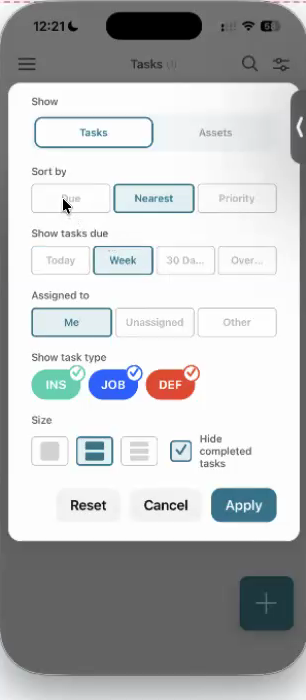
Then tap the filter icon (top right) and set the rest of the everyday field setup:
- Sort by → Nearest so the closest tasks rise to the top.
- Assigned to → Me so you see your own work.
- Hide completed tasks so each job drops off the list the moment it's done, like a taxi driver clearing a fare.
Tap Apply. Set up this way, the list clears itself as you move through the day.
Complete tasks quickly
- Tap a task to open it and fill in the checklist.
- Or work faster with a swipe: swipe right to pass, swipe left to fail (the checklist pops up so you can record why).
- The checklist is optional. Marking a check passed or failed is enough to record it, so you don't have to fill in the checklist on every item. Whether your team completes it each time is your council's choice.
- Press and hold a task to open its checklist directly.
- Prefer bigger buttons? In the filter panel, set the card size to large. You tap into each task and mark it passed or failed with large buttons. Swiping is not available on large cards.
Switch views and search
Each task card shows the asset's location tag, so you can see where a task is without opening it. The search box at the top of the task list matches on the location tag too: type "Memorial Park" and every task tagged with that location comes up. If your routines are named after the place they cover (say, "Play inspections at Memorial Park"), the tag is also a quick way to tell which round a task belongs to.
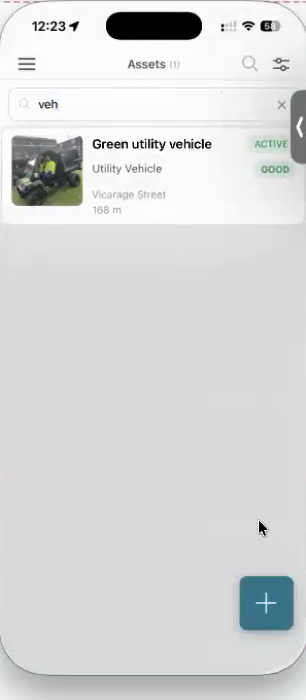
The Tasks / Assets toggle lives inside the filter panel, so tap the filter button (top right) first, then switch to Assets. That flips the screen from your task list to the asset register, where you can search for any asset on the device and open its details.
Create on the spot
Spot something while you're out? The + button raises a job, inspection or defect against any asset, there and then. Take a photo, and it's logged.
This is also the answer to "how does someone set up an inspection from an asset on the phone?", so it is worth having the sequence in full:
- Tap the filter button (top right).
- Switch the Tasks / Assets toggle to Assets.
- Search for the asset and open it.
- Tap + and choose job, inspection or defect.
The equivalent on the web app is the asset's three-dot menu (Create Inspection / Create Job / Create Defect). See How to Create an Inspection. Worth knowing which one a colleague is asking about before you talk them through it, because the two routes look nothing alike.
Works offline, syncs later
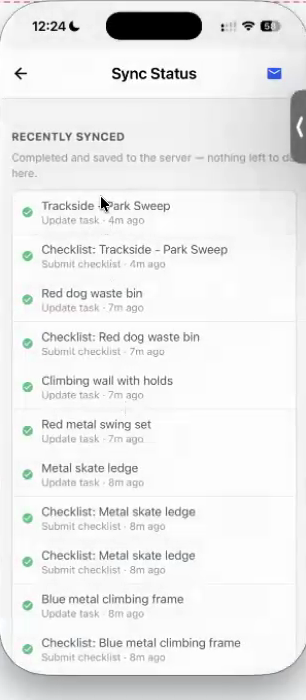
Everything you do saves on the phone first and syncs to the web when signal returns, so a lost connection never stops you working. The Sync Status screen shows what's recently synced and what's still pending. If the web app isn't showing something you've done on the phone, that task probably hasn't synced yet, so pull down to refresh to force it.
If something stays pending
Usually getting back into coverage and pulling down to refresh is enough. If an item is still showing as pending after that, and especially if it has been stuck for more than a day, send us the sync log and we will look at what is holding it:
- Tap the burger menu (top left) to open the side panel.
- Tap Sync Status.
- On the sync data screen, tap the envelope icon (top right).
- Address it to hello@civic.ly and send.
The log tells us what is queued on the device and why it has not gone through, which is not something we can see from our side. While you are waiting to hear back, stay logged in, because the work is still only on the phone.
Before you log out: clear your pending items
Your offline work lives on the device until it syncs. Logging out clears it. So while anything is still showing as pending on the Sync Status screen, stay logged in.
This matters most in the one situation where people are told to sign out: installing an app update, or troubleshooting with IT. If someone asks you to log out and back in, check Sync Status first, get back into coverage, and pull down to refresh until the pending list is empty. If the app asks you to confirm signing out, treat that as the prompt to go and check. A batch of completed inspections is not worth losing to a sign-out, and re-doing a park's worth of checks means going back out to site.
The same applies to anyone else picking up the phone: don't switch accounts on a device that still has someone's unsynced work on it.
- Not sure who'll do a task? Assign more than one person. With hide completed on, it drops off everyone's list once someone does it, and sort by nearest keeps it off the top for anyone who isn't close, so whoever's nearest picks it up.
- Trust the sync. "Done but not showing on the web" almost always means the phone hasn't synced, not that the work was lost. Check the Sync Status screen.
Common Questions
No. The app works fully offline: complete inspections, log defects and take photos, and it all syncs automatically once you're back in coverage. The one thing to avoid is logging out before that has happened, because unsynced work is held on the device (see Before you log out).
Only once it has synced. Open Sync Status first: if anything is listed as pending, get back into coverage and pull down to refresh until the list is clear, then log out. Work that hasn't synced is stored on the phone and is cleared when you sign out, so it would have to be done again.
Send us the sync log: burger menu (top left), Sync Status, then the envelope icon (top right), addressed to hello@civic.ly. That log shows what is queued on the device and why it is not going through, which we cannot see from our side. Keep the phone logged in until it is resolved, because the work is still only on that device (see Before you log out).
It hasn't synced yet. Open the Sync Status screen to check, and pull to refresh to push it through. This is usually a connectivity issue on the device, not a lost record.