This guide is about changing a schedule that's already running. If you haven't set one up yet, start with Scheduling Recurring Tasks.
Plans change — a weekly check becomes monthly, a due date shifts, a different person takes over a round. You can edit a recurring inspection or job at any time. The important thing to understand is how far your change reaches: just the one occurrence you're looking at, or every future occurrence. This guide explains the choices and what each one does.
Editing one occurrence or the whole series
When you edit a recurring task and save, Civic.ly asks you to choose the scope of the change:
- Update this [task] only — the change applies to just the single occurrence you're editing. Everything else in the series stays as it was.
- Apply to the series — the change applies to this occurrence and all future ones.
The key detail: "apply to the series" counts from the due date of the task you're editing — not from today. So if you open an occurrence whose due date was two weeks ago and apply your change forward, it takes effect from that date onward. If you open one due in four weeks and apply forward, it takes effect from that date onward. Occurrences before the one you're editing are never touched.
Changing how often it repeats
Changing the due date and applying it to the series simply shifts that series forward from the edited task's due date.
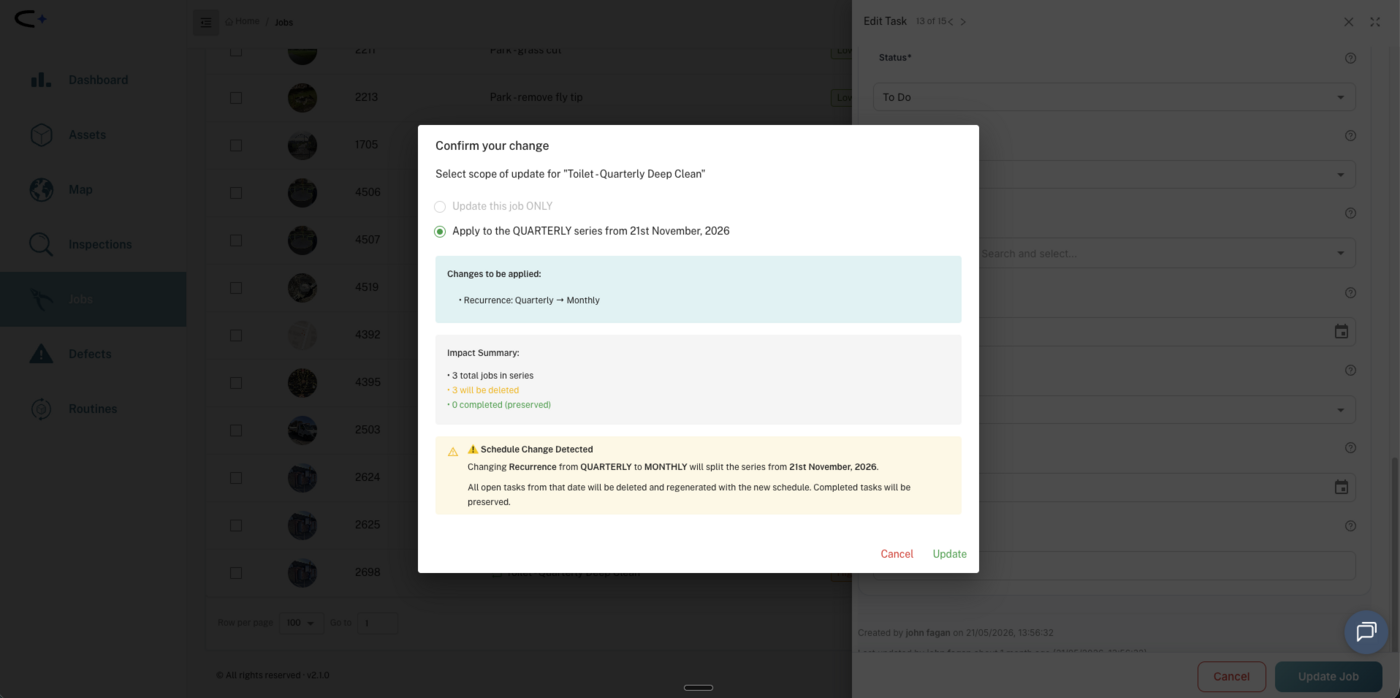
Changing the frequency (say, from Quarterly to Monthly) is different: it ends the old series and starts a new one. The old series stops at the due date of the task you're editing, and a fresh series on the new frequency begins from that point. In practice this means:
- All open (not-yet-done) occurrences from that due date onward are deleted and regenerated on the new schedule.
- Any occurrence that has been completed or edited is preserved — it won't be deleted.
You don't have to work this out in your head. When a frequency change is detected, Civic.ly shows a Confirm your change dialog first, listing exactly what will be applied, an impact summary (how many tasks are in the series, how many will be deleted, how many completed ones are preserved), and a plain-English warning. Read it, then click Update to go ahead or Cancel to back out.
Editing tasks that belong to a routine
If a task was created by a routine, you cannot change its frequency from the individual task — the recurrence is locked, and controlled by the routine itself. To change how often a routine repeats, open the routine and edit it there.
What you can change on a single routine-generated task is its due date. This is deliberate: it lets you nudge one occurrence when someone can't get to it on the day — off sick, bad weather, or any other one-off reason — without disturbing the rest of the round.
Changing other details
Editing anything else — the title, description, notes, or assignees — works the same way as a schedule change. When you save, you're asked whether to apply it to this occurrence only or to all future occurrences (from the due date of the task you're editing). So you can reassign a single week's job to cover a holiday, or reassign every future occurrence to a new team member, depending on which option you pick.
Common Questions
No, that's expected. Changing the frequency ends the old series and starts a new one from the due date of the task you edited. All open occurrences from that date are deleted and regenerated on the new schedule — but anything already completed is kept. The confirmation dialog tells you exactly how many will be deleted and how many are preserved before you commit.
No. It only affects the occurrence you're editing and the ones after it — counted from that task's due date. Earlier occurrences are left untouched.
Recurring tasks created by a routine are locked to the routine's schedule, so the frequency can only be changed from the routine itself. On an individual routine task you can still change the due date — handy for shifting a single occurrence when someone's off sick or the weather stops play.
Yes. When you save the change, choose Update this task only. To change every future occurrence instead (for example, handing a round to a new team member), choose the apply-to-series option.
No. Completed occurrences are always preserved, even when a frequency change regenerates the rest of the series. The same is true if you clear a recurrence end date — nothing already done is removed.