You set a recurring schedule while creating an inspection or job (see How to Create an Inspection), or while creating a routine if you want the same work to repeat across several assets at once. This article assumes you know how to create one of those.
Most council work repeats — weekly playground checks, monthly grass cuts, annual PAT testing. Rather than creating the same task by hand every time, you can set it to repeat, and Civic.ly creates each new occurrence automatically and assigns it to the same person. This article explains how recurring schedules work and the options available.
How recurring schedules work
There are two places you can make work repeat, depending on how much you're scheduling:
- A single inspection or job — when you create it, change the Recurrence field from None to how often it should repeat. Use this when one asset needs the same task over and over, such as inspecting one particular playground every week.
- A routine — a routine bundles the same work across several assets and repeats them together on one recurrence setting. Use this for a round of work, like emptying every bin in a park or checking every play area. See How to Create a Routine.
Both work the same way underneath. The Recurrence field defaults to None (a one-off task), so the key step is to change it. Once you do, Civic.ly creates each new occurrence at your chosen frequency and assigns it to the same person — no need to recreate the task each time.
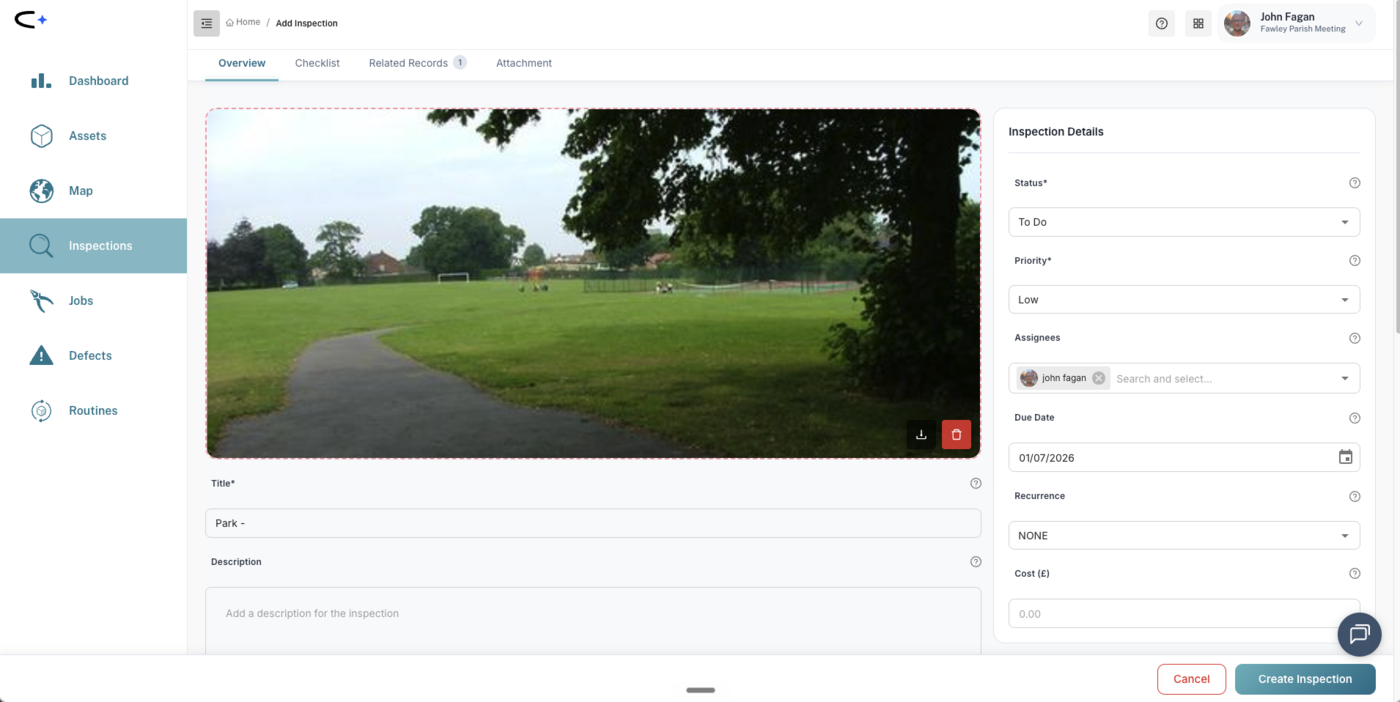
Choosing how often it repeats
Open the Recurrence dropdown and you'll see the full list of intervals, from daily all the way through to every ten years:
- Daily
- Weekly (recommended)
- Monthly (recommended)
- Bi-monthly — every two months
- Quarterly — every three months
- Bi-annually — every six months (twice a year)
- Annually (recommended)
- Every two years and up, through to every ten years
The three cadences marked recommended (Weekly, Monthly, Annually) cover most council work. Watch two labels that catch people out: Bi-monthly is every two months (not twice a month), and Bi-annually is every six months. There's no fortnightly (every two weeks) option yet — see the Common Questions for the workaround.
Setting the dates
Alongside the recurrence you'll set:
- Due date — when each occurrence should be completed by. This is the date the recurrence counts from.
- Recurrence end date — once you've chosen a recurrence, you can set a date for it to stop creating new occurrences.
The most important thing to know is this: leave the end date blank by default. A blank end date means the schedule runs indefinitely, which is what you want for ongoing work. You do not need to give it a stop date for it to keep running.
A common first-time mistake is to set a far-future end date, thinking the schedule needs one. It doesn't — that just forces Civic.ly to generate every occurrence up to that date, flooding your list. Only set an end date for genuinely time-bounded or seasonal work.
Seasonal work — Repeat every year
If work only happens in certain months (for example, weekly grass cutting from April to September), you can model the season:
- Set the due date to the season's first occurrence (e.g. 1 April) and choose the recurrence (e.g. Weekly).
- Set the recurrence end date to the end of the season (e.g. 16 September).
- Tick Repeat every year.
Civic.ly then repeats that cycle every year — from the due date to the recurrence end date, ignoring the year — so it picks itself up again next April. Repeat every year only makes sense together with a due date and a recurrence end date.
Why your upcoming list seems to "stop" at a date
Civic.ly doesn't create every future occurrence at once. Instead it keeps a rolling window of upcoming ones and tops it up automatically. As a rule of thumb it holds roughly the next 12 cycles for a weekly schedule, 20 for a daily one, and 12 for a monthly one, and a top-up runs each week to extend the window as time moves forward.
So if your list appears to stop a couple of months out, that's normal — it's the edge of the current window, not a fault and not a missing end date. New occurrences keep appearing over time. Don't add an end date to "fix" it — that would actually stop the schedule.
Changing a schedule later
You can change a recurring schedule after it's set up — the frequency, the due date, or the end date. Editing a recurrence can reshape the whole series and behaves differently for tasks inside a routine, so it has its own guide: see Editing and Modifying Recurring Tasks. In short: when you save, you choose whether the change applies to just that occurrence or to all future ones, and completed work is always preserved.
- Leave the end date blank unless the work is temporary or seasonal. This is the single biggest thing to get right — a blank end date keeps the schedule running and avoids over-generating tasks.
- Use a routine for work that spans multiple assets on the same schedule. A single recurrence covers one asset; a routine covers a whole round — several assets that need the same task at the same frequency — in one go.
- A long upcoming list is usually the schedule working, not a duplicate. A weekly routine over eight play areas shows a lot of occurrences — use the due today / due this week filters to focus on what's due.
- Model the season, not the exceptions. For seasonal work, set the due date and recurrence end date to the season's boundaries and tick Repeat every year — don't rely on someone skipping occurrences by hand.
- Click Create once. If the page is slow, wait — clicking again can create duplicate schedules on the same asset.
Common Questions
In two places. For a single asset, change the Recurrence field from None when you create an inspection or job. For the same work across several assets, create a routine — this repeats the whole round on one recurrence setting. Both create new occurrences automatically at your chosen frequency and assign them to the same person.
No — leave it blank for ongoing work. A blank end date means the schedule runs indefinitely and Civic.ly extends it automatically. Only set an end date when the work is genuinely temporary or seasonal. Setting a far-future end date "just in case" forces the system to generate thousands of future tasks and clutters your list.
No, that's expected. Civic.ly keeps a rolling window of upcoming occurrences (roughly the next 12 for a weekly schedule, 20 for daily) and tops it up each week. What you're seeing is the edge of that window, not the end of the schedule. New occurrences keep appearing over time — you don't need to do anything, and you shouldn't add an end date to "fix" it.
There's no native fortnightly option yet. The workaround is to create two monthly schedules over the same assets, offset by about two weeks — for example one due on the 1st of the month and one due on the 15th. Together they fire roughly fortnightly. Note that Bi-monthly means every two months, not twice a month, so it won't do what you want here.
Open the inspection, job, or routine and edit it — you'll be asked whether to apply the change to that one occurrence or to all future ones. Changing the frequency reshapes the series, and tasks inside a routine can only be rescheduled from the routine itself. See Editing and Modifying Recurring Tasks for the full detail.
The usual cause is an end date set on the recurrence, deliberately or by accident. The schedule generates occurrences up to that date and then stops. Open the item, clear the recurrence end date (or move it to when you want it to stop), and save with Update → apply to all future occurrences. Nothing already completed is lost. If occurrences don't reappear within a few days, contact us at hello@civic.ly and we'll rebuild it for you.