It helps to know how to create an inspection first, since routines bundle inspections and jobs together. The Getting Operational training webinar walks through both end to end.
A routine is a group of tasks (inspections or jobs) bundled together and scheduled as one. Think of it as a round: a repeating collection of work across multiple assets, like weekly playground inspections, a bin collection round, or annual PAT testing across your electrical assets. This article shows you how to create one in the web app.
The routine is the parent: it holds the schedule, and every task underneath inherits it. Set it to repeat every Monday and all its tasks are created for every Monday. Each task is tied to one asset, so you choose the assets, set the task type, and assign the people who will do the work.
Step-by-Step: Selecting Your Assets
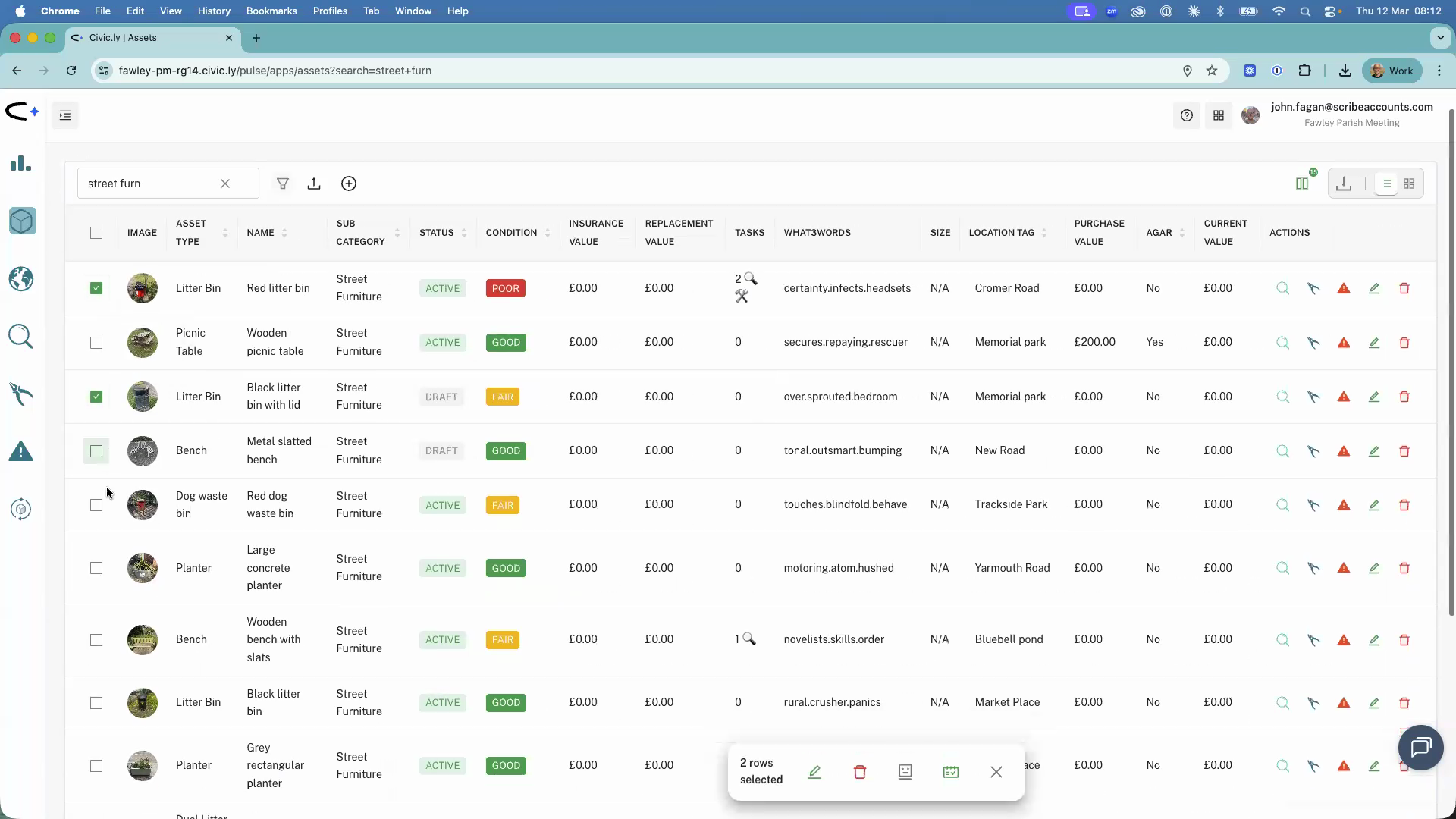
- Open the Asset Register from the left-hand menu.
- Use the search bar or filters to find the assets you want. Filtering by location tag is quickest when the round covers one site.
- Tick the checkbox next to each asset. An action bar appears at the bottom of the screen as you select.
- On the right-hand side of the action bar, click Create Routine.
- The routine creation page will load with all your selected assets listed as related tasks.
Step-by-Step: Filling in the Routine Details
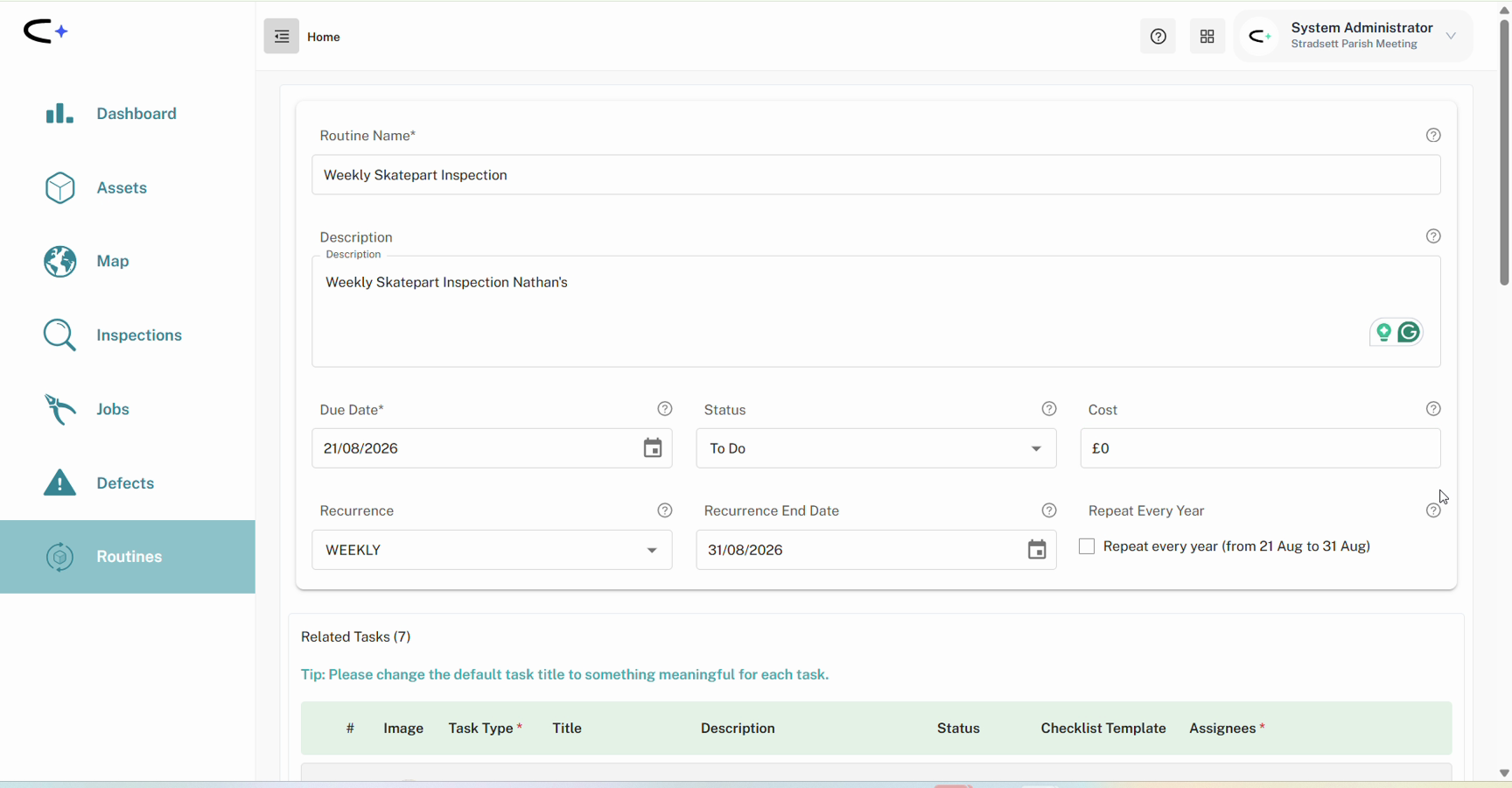
- At the top of the page, type a Routine Name for the routine (for example, "Weekly Bin Collection").
- Add a Description if you want to include any extra details or instructions.
- Set the Due Date: the date the tasks should be completed by. This is the date the recurrence counts from, so it is effectively the first occurrence.
- Set the Recurrence (the schedule). It starts at None. The schedule you set here applies to every task in the routine. Set it to Weekly and every task underneath is created weekly.
- Leave Recurrence End Date blank if the round runs indefinitely. Fill it in only if the work stops on a particular date.
There is no assignee on the routine itself. The people who do the work are set on the individual tasks below.
Seasonal rounds
Set a Recurrence End Date and Civic.ly treats the routine as a season: work that runs between two dates and then stops. A Repeat Every Year tickbox then appears, labelled with the span you chose ("Repeat every year (from 21 Aug to 31 Aug)"). Tick it and the same block returns on the same dates next year: summer holiday playground checks, winter gritting, a cutting season.
Leave the end date blank and the tickbox stays hidden, as there is no season to repeat.
Step-by-Step: Configuring the Related Tasks
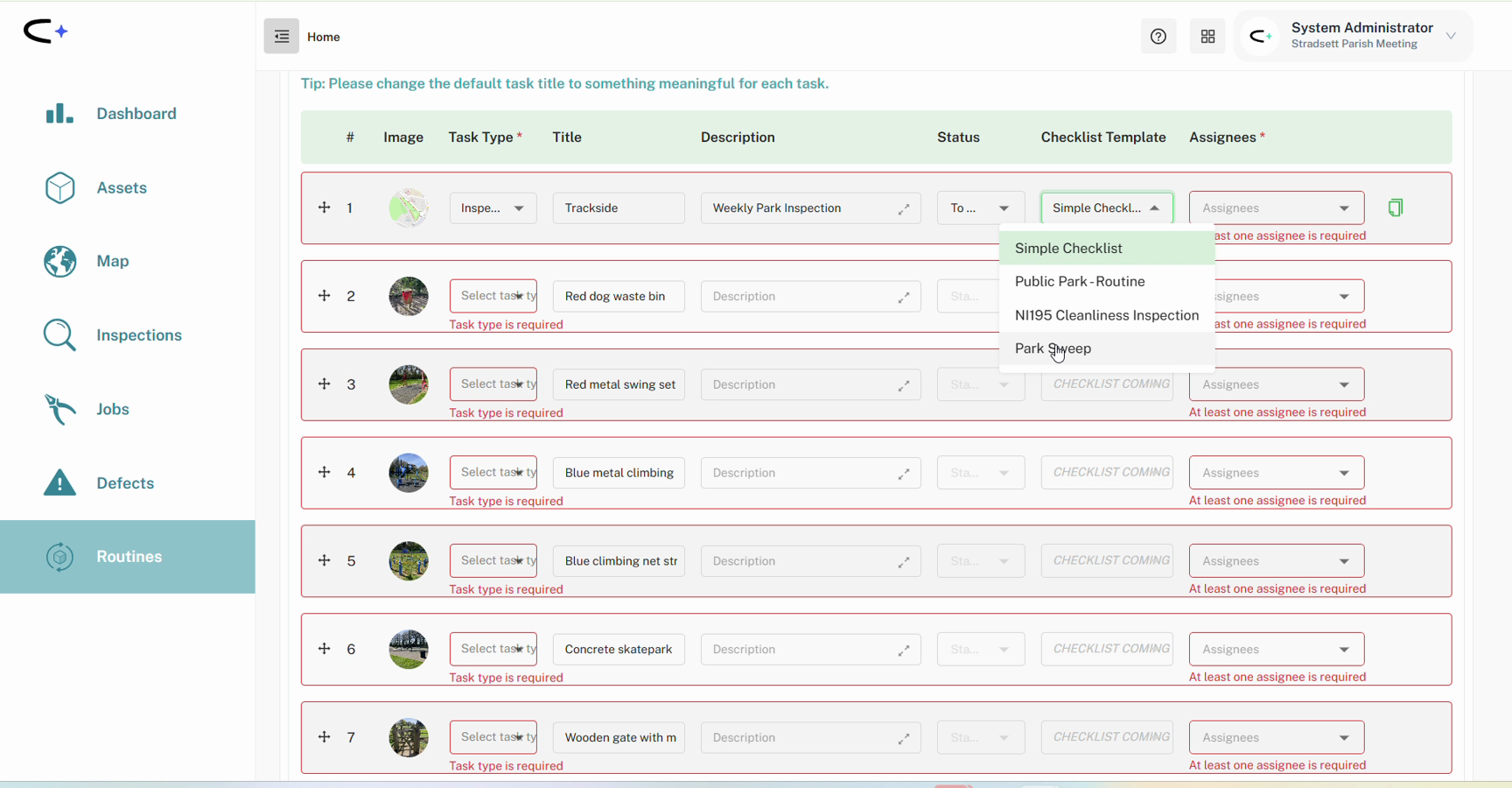
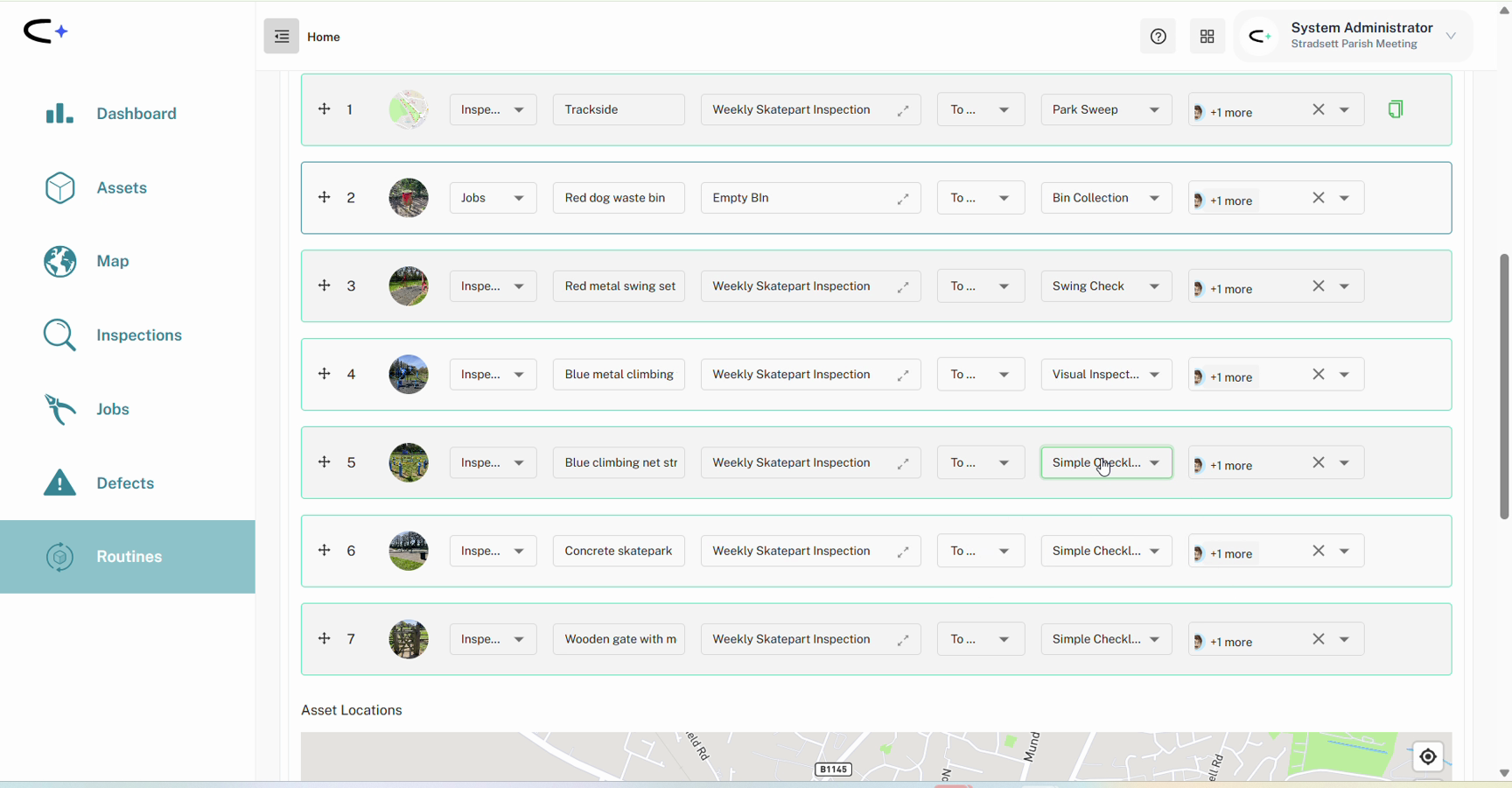
- Scroll down to the Related Tasks section. You will see a numbered row for each asset you selected, and a reminder to change the default task title to something meaningful.
- Set the Task Type on the first row. There is no default: you have to choose Inspection or Job explicitly, and the routine will not save until every row has one. Use Job for operational work like a bin round or a grass cut, and Inspection for condition checks. Until you choose, the row shows Task type is required, and Status and Checklist Template stay greyed out.
- Check the Checklist Template. Once the task type is set, Civic.ly fills this in from the asset type. Change it only if you want a different one. CHECKLIST COMING SOON means no checklist is mapped to that asset type and task type combination (most common on Jobs), not that checklists are unavailable. Compliance checklists are only offered on Inspections. See the Checklist Library if you're unsure.
- Choose an Assignee for the row. This is required on every row. The routine will not save with an unassigned task, and the row shows At least one assignee is required until you set one. You can assign different people to different tasks, and more than one person to a single task.
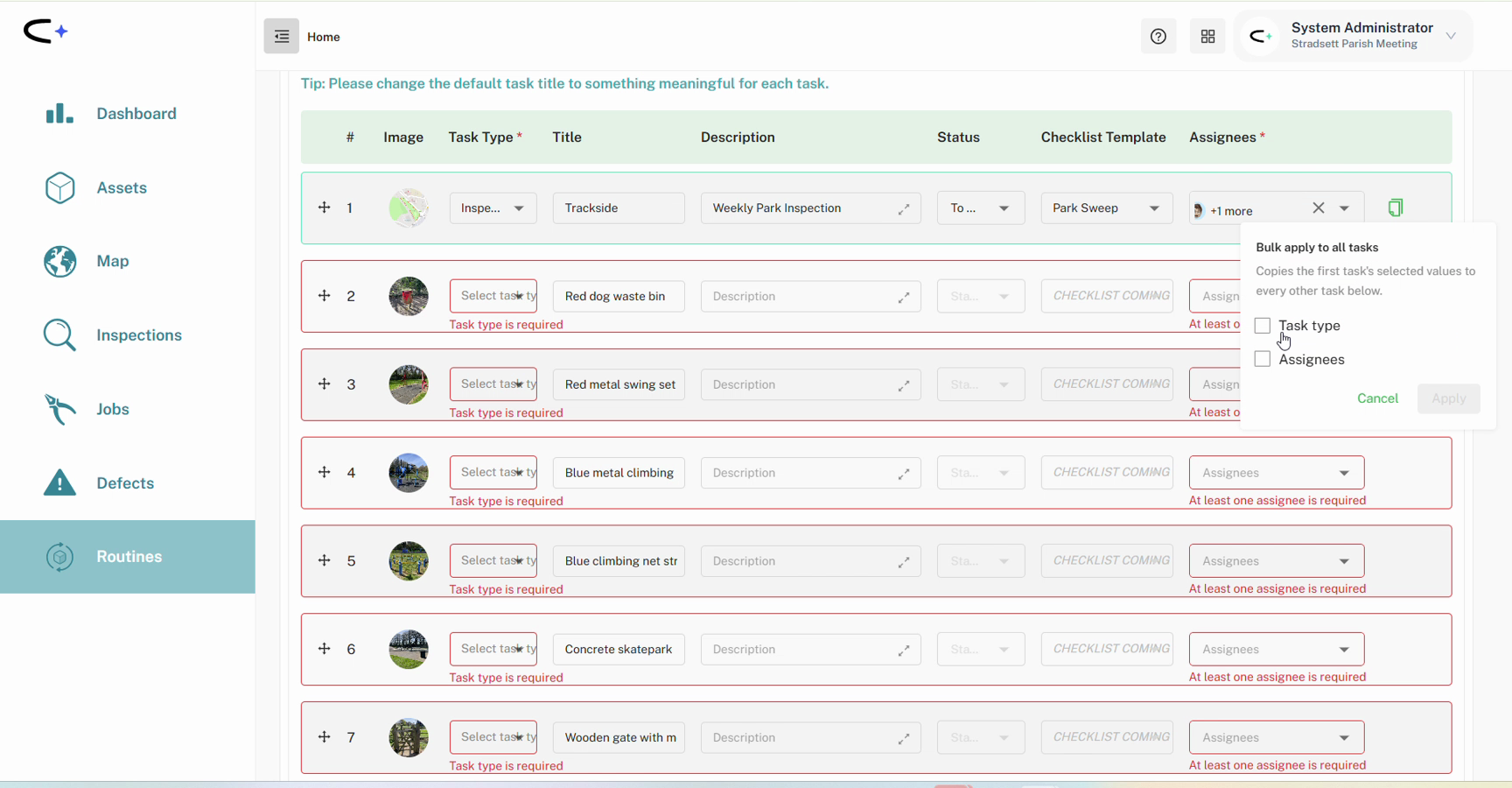
- Copy the first row down to the rest. Click the copy icon at the right-hand end of row one to open the Bulk apply to all tasks panel. Tick Task type, Assignees, or both, then click Apply. This saves setting each row by hand, which matters on a long round like a 50-bin collection. It copies those two fields only. Status, title, description and checklist template stay per-row.
- Edit the Title of each task. It defaults to the asset name verbatim, so an unedited routine produces tasks called things like "Concrete quarter pipe". Make it say what the work is: "Empty bin", "Weekly swing check". Add a Description where a row needs its own instruction.
- Set the Status. This defaults to To Do.
Below the related tasks there is an Asset Locations map with a pin for each one, a quick way to check the round covers the assets you expected before you save it.
Step-by-Step: Creating the Routine
- When everything looks right, click Create Routine at the bottom of the page.
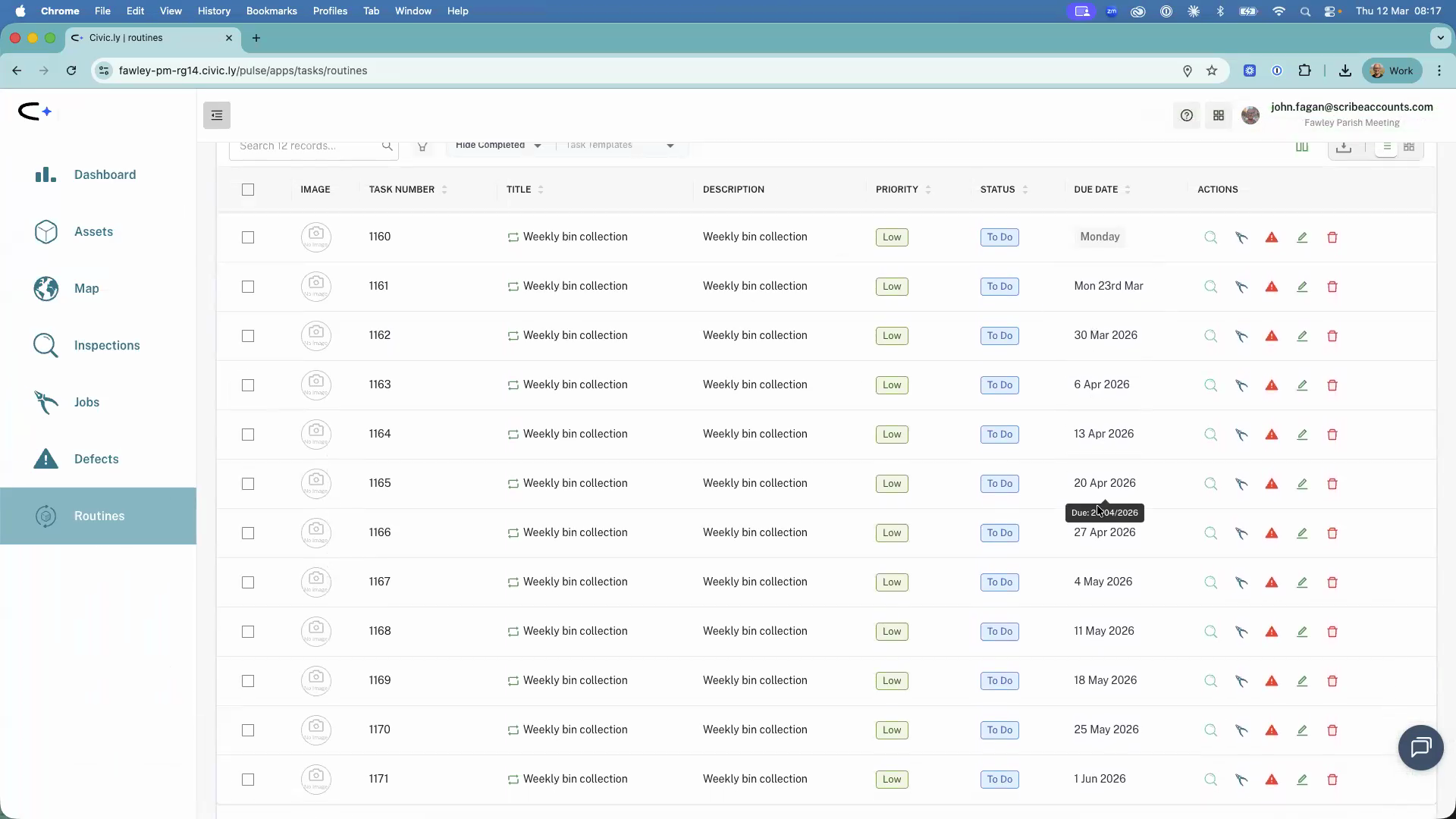
- Civic.ly builds every task in the schedule, counting up as it goes ("Creating… 3 of 8") and asking you not to refresh the page. On a weekly routine it generates roughly the next 12 weeks of occurrences, so this takes a moment.
- Your routine then appears in the Routines section, with a separate entry for each scheduled occurrence. The individual tasks also appear in the Jobs or Inspections list.
If the Create Routine button doesn't complete, check that every row has both a task type and an assignee. Those are the only mandatory fields.
- Leave the recurrence end date blank unless the work is seasonal. A blank end date keeps the routine running indefinitely. See Scheduling Recurring Tasks.
- One routine per park, not one for everything. A routine has a single frequency, so set up a separate routine for each park or site rather than one giant routine across them all. It keeps each round manageable and lets you schedule them independently.
- Set the first row, then bulk apply. On a long round, set the task type and assignees on row one exactly as you want them and use Bulk apply to all tasks rather than working through every row. If you're not sure who'll do a task, assign more than one person and let sort by nearest and hide completed sort it out in the field.
- Sign the routine off once its checks are done. Completing every task underneath a routine doesn't close the routine itself, so it will still show as outstanding until someone marks it done. Build that into your weekly review. See Why does my task still show as To Do?.
- Nothing is final. You can change assignees, unlink a task, delete one, or add more assets later, and choose whether the change hits one occurrence or the whole series. See How to Edit a Routine.
- Everyone gets the work on their phone. With an assignee required on every row, a routine can't land on nobody's mobile list. See Why can't I see routine tasks in the mobile app?.
Common Questions
A single scheduled task covers one asset (for example, inspecting one playground). A routine covers multiple assets in one go. It bulk-creates a task for each asset and groups them under a single schedule. Use routines when you have a round of work that covers several assets.
Yes. Each row has its own task type and checklist. A skate park round might be six inspections on the play equipment plus one job to empty the bin, all on the same weekly schedule.
Yes. Open the routine from the Routines section and edit the recurrence settings. Civic.ly then asks whether the change applies to that occurrence only or to the whole series from that date onwards. See How to Edit a Routine.
Yes. The tasks created by a routine appear in the assignee's task list on the mobile app, and they can complete them one by one as they work through their round. To get the list into a useful order in the field, use the app's own sort by nearest and hide completed filters.
You can do both without rebuilding the round. See How to Edit a Routine.