Tags are short labels you put on a job, defect or inspection so you can find that group of work again later. "CCC" for problems that belong to the county council, "Trees" for all tree work, "Contractor" for jobs going out to your grounds contractor: each piece of work can carry as many tags as you need, and you can filter any task list down to a tag in a couple of clicks.
Where tags come from
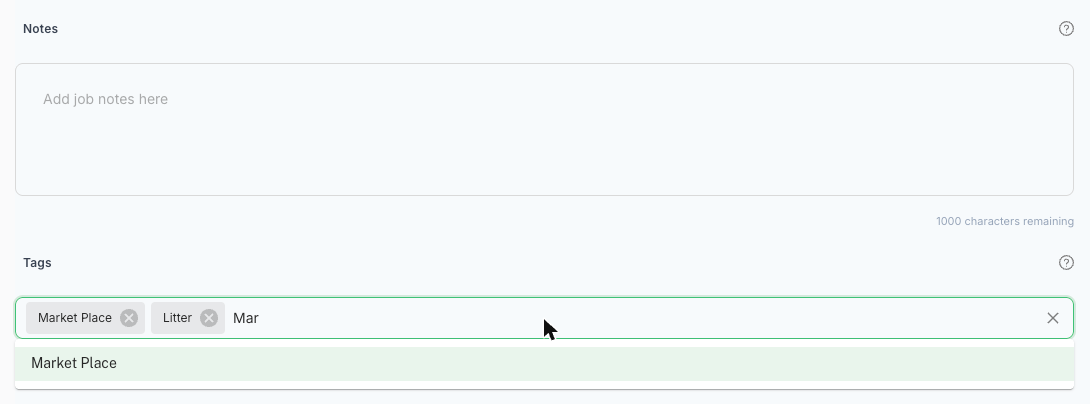
Every job, defect and inspection has a Tags field. When the work is raised against an asset, it starts with that asset's location tag already filled in, for example Market Place. That is why place names from your map appear in the tag lists. You can then add your own tags alongside it.
Step-by-Step
Add a tag
- Open the job, defect or inspection in the web app.
- Scroll down the Overview tab to the Tags field, below Notes.
- Click into the field and type your tag, for example CCC.
- Press Enter. The tag appears as a chip next to any tags already there.
- Click the save button at the bottom right (Update Job on a job) to save.
To reuse a tag you already have, start typing it and pick it from the suggestions that appear below the field. Picking from the list keeps your spelling consistent, which matters when you filter.
To remove a tag, click the small x on its chip and save.
Find everything with a tag
- Open the Jobs, Defects or Inspections list.
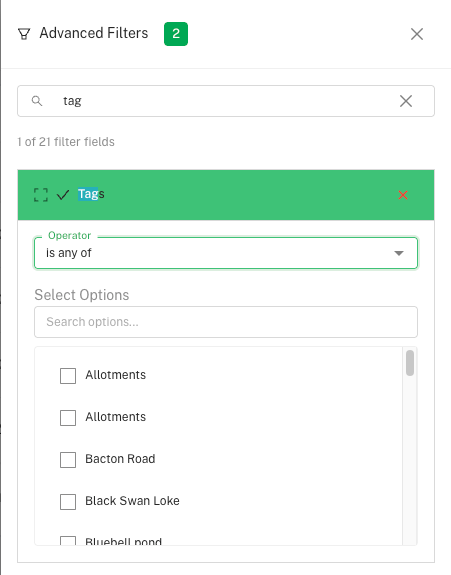
- Click the green filter icon (the funnel) next to the search box to open Advanced Filters.
- Type tag in the search box at the top of the panel and open Tags.
- Set the Operator to is any of, then tick the tag or tags you want.
- Click Apply Filters.
The list now shows only the work carrying those tags, and an Active Filters chip above the list shows what is applied. Click the x on the chip to clear it. From the filtered list you can print or export, so a tag is a quick way to produce a list for a meeting, a contractor or another authority.
The other operators are useful too: is not any of hides work with a tag, is present shows everything that has at least one tag, and is not present shows everything with none.
- Agree your tags as a team. A short list everyone uses ("CCC", "Trees", "Contractor", "Vandalism") is far more useful than lots of near-duplicates. "CCC", "Ccc" and "County" are three different tags as far as the filter is concerned.
- Use tags for things that cut across places. Location already tells you where the work is. Tags are best for who needs to act, what kind of work it is, or why you are tracking it.
- Tag general issues too. A job raised without an asset has no place to inherit, so a tag is the easiest way to group it with related work.

Common Questions
Yes. A job, defect or inspection can carry as many tags as you like, and the filter finds it under any of them.
Work raised against an asset starts with the asset's location tag, such as the park or building it is in. Those place names sit in the same list as the tags you add yourself, so you can filter by place or by your own labels in the same way.
A new tag is created when you press Enter and then save the task. If you type a word and leave without saving, nothing is kept. Once saved, the tag appears in the filter list and in the suggestions the next time you type.
Give it a tag such as CCC (or the name of the authority) on every report. Then filter on that tag to pull out the list to send them. Exports carry the record, not the photos, so send the link to each record, or attach the photos separately, if they need the images too.
This article covers the web app, where tags are added and filtered. If your team raises work on the phone, add or check the tags afterwards on the web app.