You need a Civic.ly account. If you have not set one up yet, follow Set Up Your Account first.
The quickest way to build your asset register is to walk your sites and photograph each asset. You take the photos on your phone, then upload them in the Civic.ly mobile app. Civic.ly reads the GPS location saved inside each photo, puts the asset on the map, and uses AI to suggest its type, name and condition.
It only works if your phone is set up first. If the permissions are wrong, your assets will not map, and you will not find out until you have photographed a whole site. So do steps 1 to 3 before anything else.
Step 1: Install the mobile app
Photos are uploaded through the Civic.ly mobile app, not the website.
- iPhone or iPad: download from the App Store
- Android: download from Google Play
Look for the green star icon, because a US education app has a similar name. Log in with the same email and password you use for the web app. Do your first sign-in on Wi-Fi, because the app downloads your whole asset register, photos included, the first time.
Step 2: Set your permissions (you must do this)
Two sets of permissions have to be right. If either is wrong, the map will not work.
Your phone's camera must save the location inside each photo.
- iPhone: Settings, then Privacy & Security, then Location Services. Make sure it is on, tap Camera, choose While Using the App, and turn Precise Location on.
- Android: you need two settings. In your phone's Settings, open Apps, then Camera, then Permissions, then Location, and allow precise location. Then open the Camera app, go into its settings, and turn on the location toggle. It is called Location tags on Samsung, Save location on Pixel and Save location info on Xiaomi.
The Civic.ly app needs location and photos access.
- Location: choose While using the app.
- Photos: choose Full access (iPhone) or Allow access to all photos (Android). Do not pick "Selected photos" or "Limited access". Civic.ly then cannot see the photo you just took, and uploads fail or arrive with no location.
Each phone model words these screens a little differently. How to Configure Your Mobile Device has the full steps for iPhone, Samsung, Pixel, Xiaomi and other Android phones. Update your phone to the latest iOS or Android first, because older versions often hide these settings.
Step 3: Test with one photo first
Before you photograph a whole site, prove the setup works with a single photo.
- Go outside and take one new photo with your phone's normal camera. An old photo will not do, because it was taken before location was switched on.
- Open it in your Photos app and swipe up. If you see a small map, the location is saved in the photo.
- Upload that one photo in the Civic.ly app (tap the plus button, choose Asset, then Gallery, as shown in step 5).
- Open the Map in the web app and check the asset landed where you took the photo.
If Civic.ly tells you the photo has no location, or the pin is nowhere near, fix the settings in step 2 before you do anything else. Photos taken without location cannot be repaired afterwards and have to be retaken. One council photographed 150 assets before discovering the permissions were off, and every asset landed at latitude 0, longitude 0, off the coast of Africa.
Step 4: Photograph your assets
Walk your route and take photos with the phone's normal camera.
- One asset per photo. If a bench, a bin and a sign are all in shot, the AI has to guess which you meant.
- Stand close, so the asset fills most of the frame, and keep a little of the surroundings in shot so you can find it later.
- One photo per asset. Two photos of the same item become two assets.
How do I take photos that add my assets correctly first time? has more on framing.
Step 5: Upload in batches
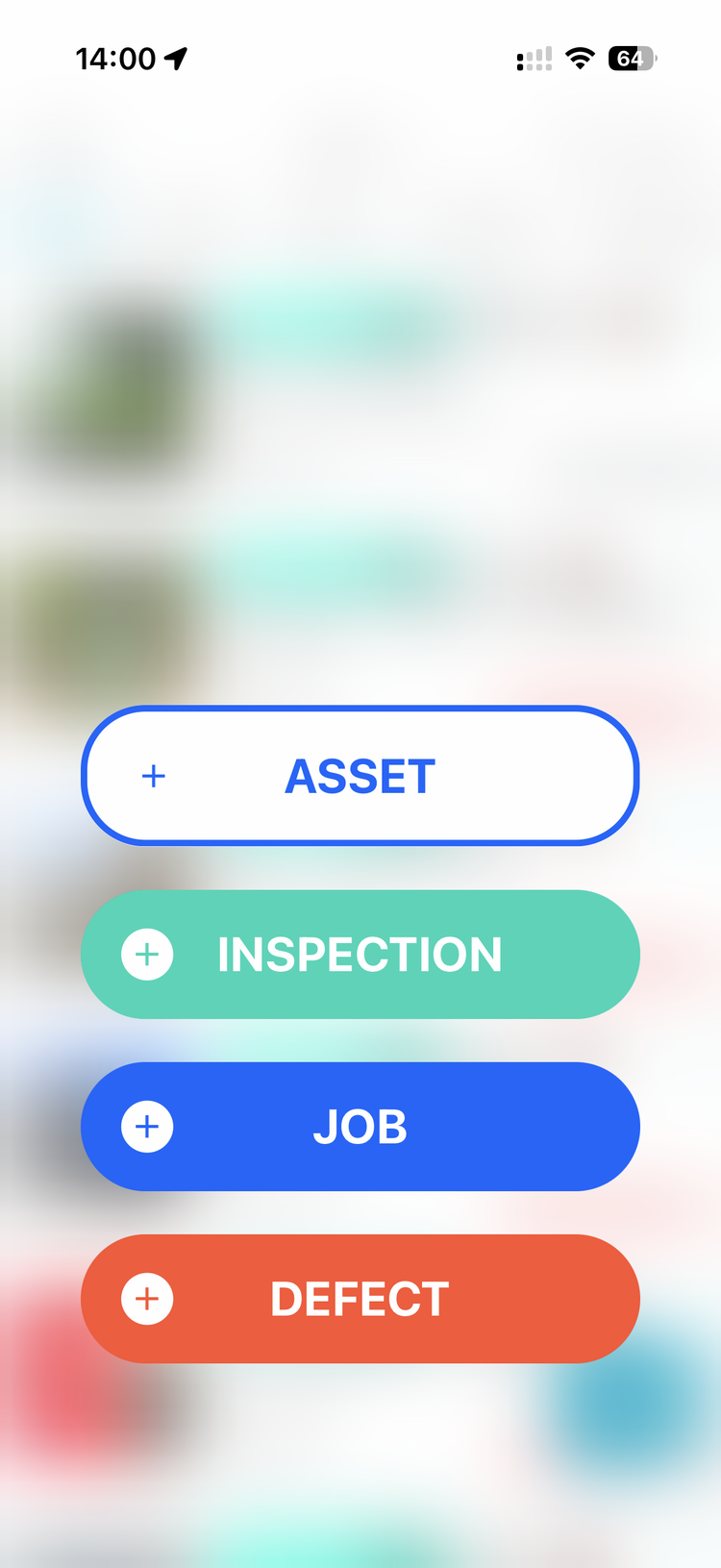
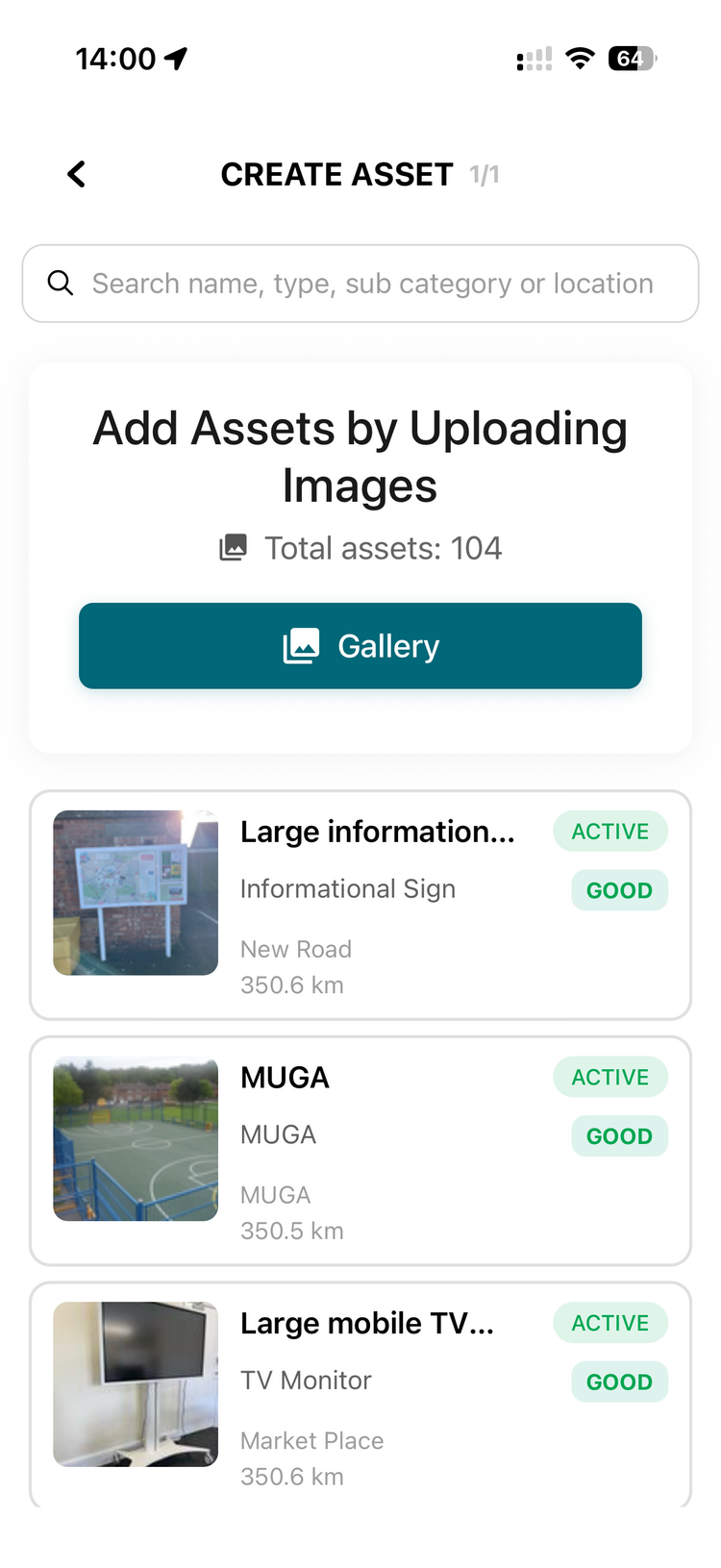
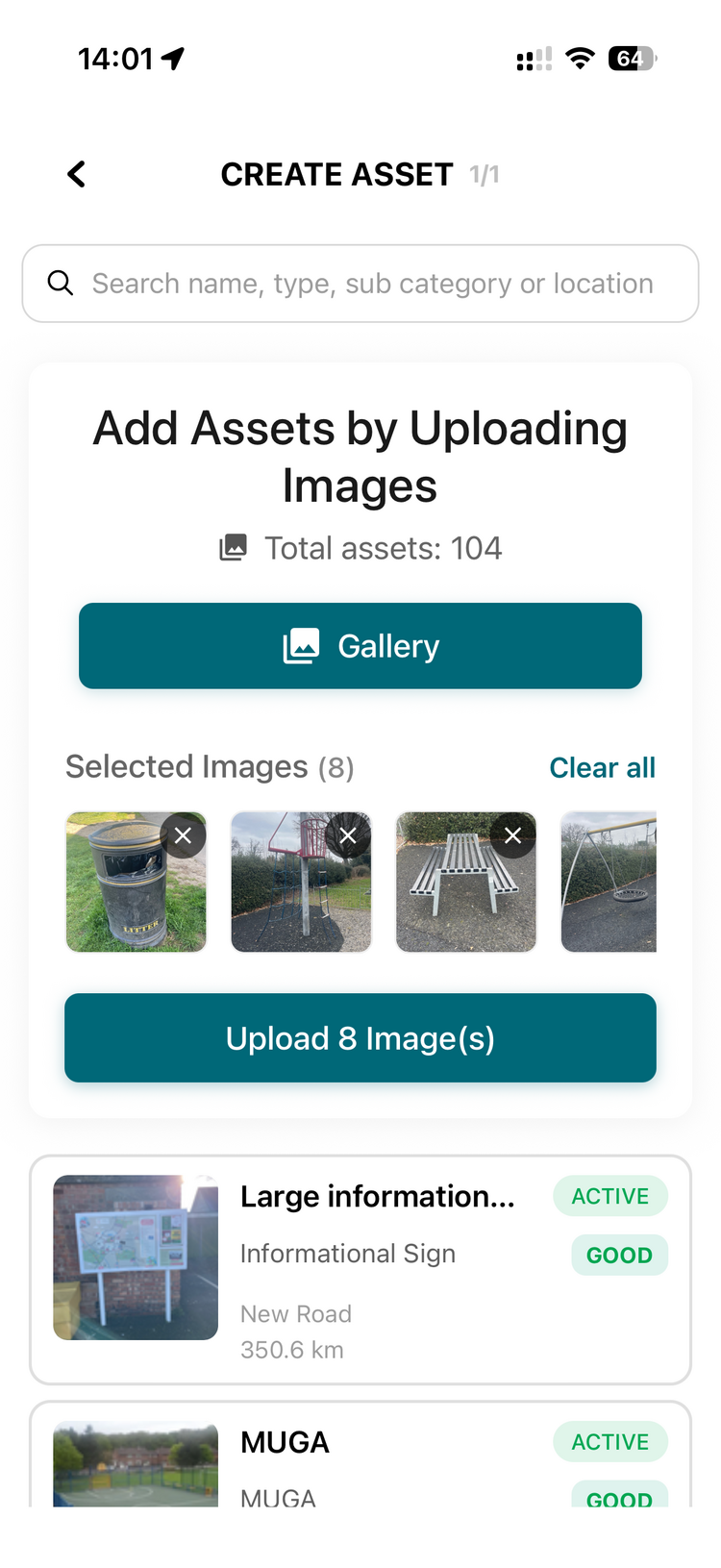
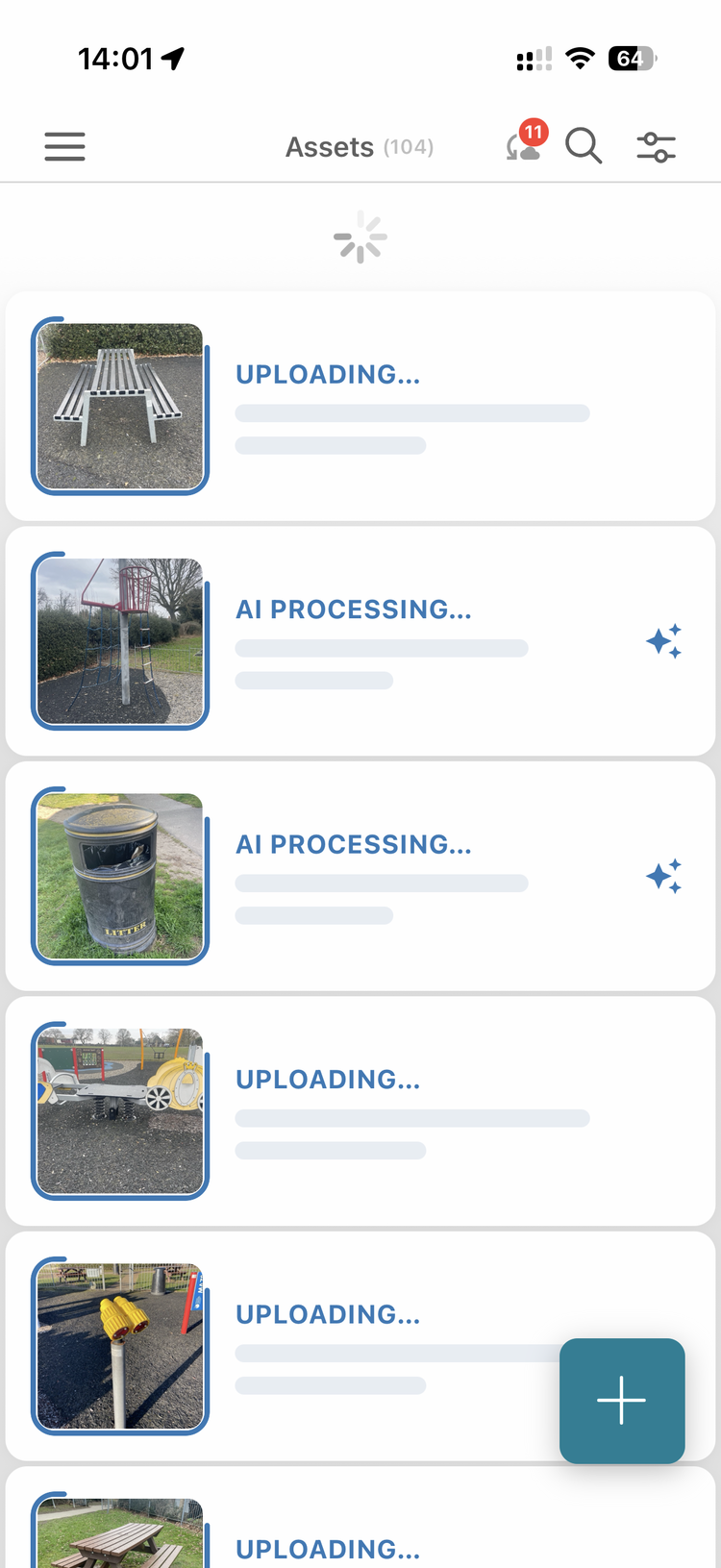
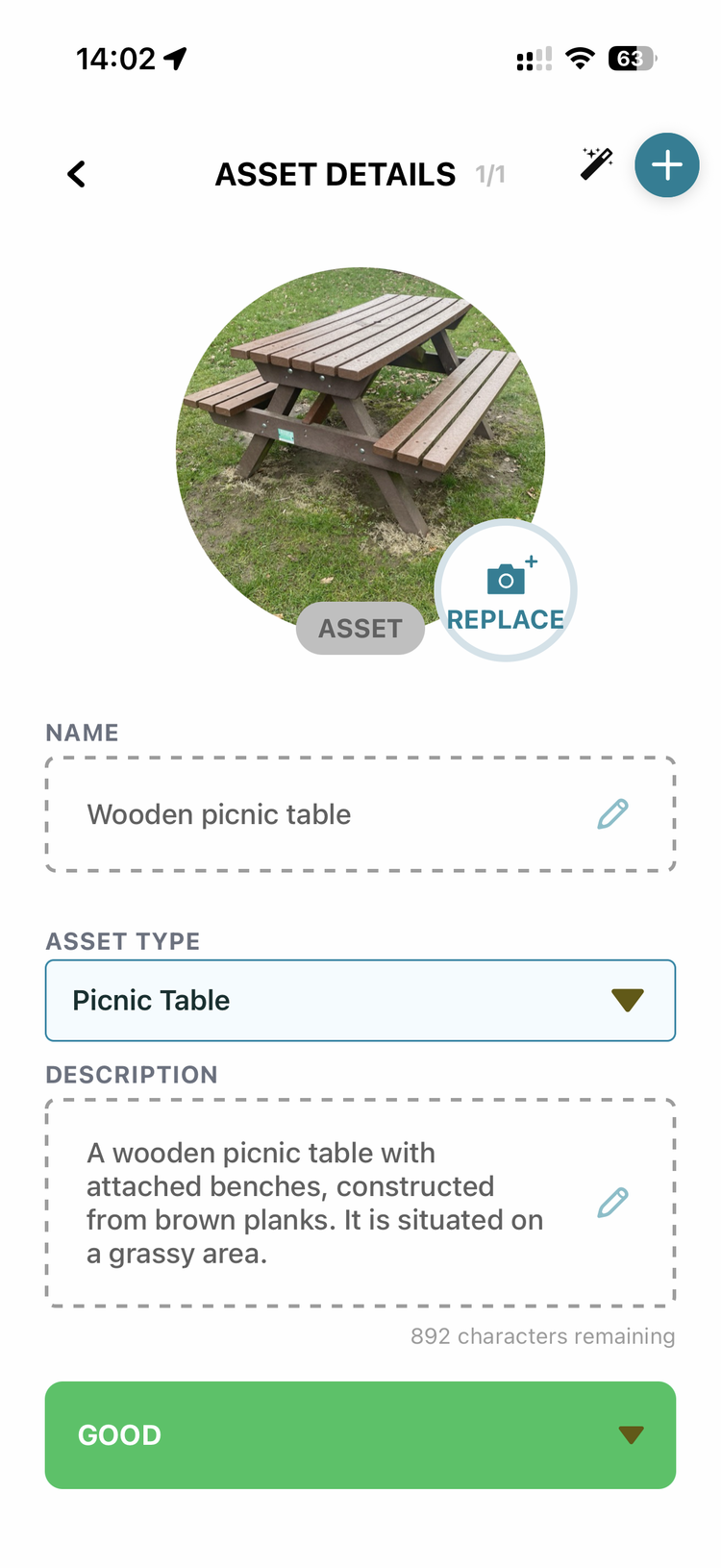
In the app, tap the plus button and choose Asset. On the Create Asset screen, tap Gallery and select your photos. Upload about 10 at a time. If you push 100 in one go and some fail, it is hard to see which. Each photo becomes its own asset, placed on the map from its GPS location, with the type, name and description suggested by the AI.
Step 6: Check and nudge each batch
Phone GPS is usually 5 to 20 metres out, so the pin lands where you were standing, not where the asset is. After each batch, open the Map in the web app, switch to satellite view, and drag each pin onto the asset. Check the AI got the type right too, because the type decides which inspection checklists you are offered. Then delete that batch from your phone so you know where you are up to, and start the next 10.
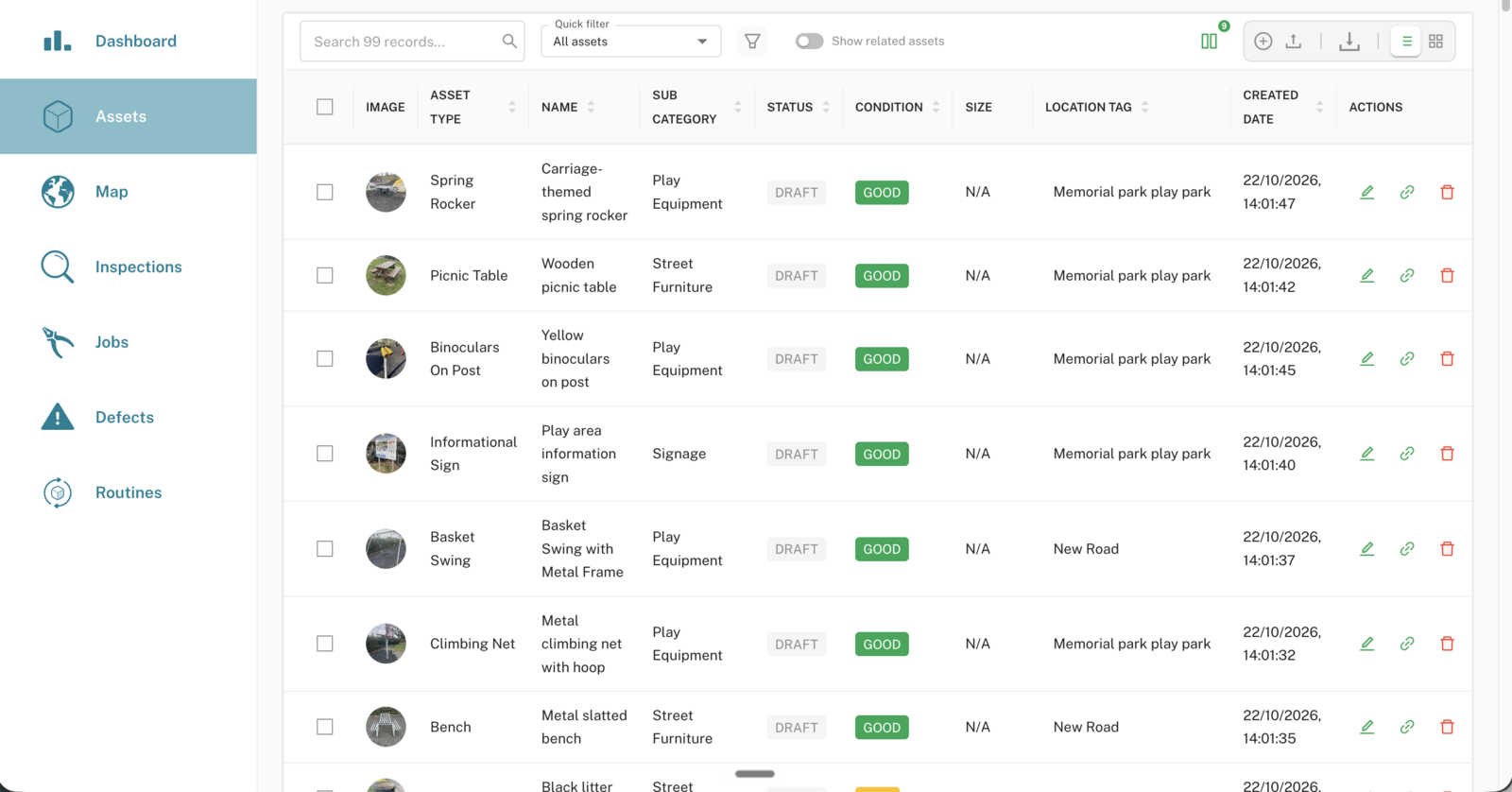
New assets arrive as Draft. That is intentional, so finish the record on the web app and move it to Active when you are happy. Why do assets I add on the mobile app save as Draft? explains.
- Draw your areas first if you can. Any asset photographed inside a drawn area is tagged with that area's name automatically. See How to Create and Edit Areas.
- Keep capture to one or two people. The same asset is then not photographed twice.
- Set up each capturing phone before anyone goes out. Do a test photo on every phone.
- Everyone else needs less. People who only complete inspections, jobs or defects do not need the camera settings. They only need the Civic.ly app's location and photos permissions.
Common Questions
No, but it saves time. If the areas already exist, each asset photographed inside one is tagged with the area name. If you add assets first, they do not pick up an area afterwards.
Photograph them as normal. Each lands on the map where the photo was taken and is tagged with the nearest street name instead of an area. You can still filter the asset list by asset type and by location tag to see them together.
Only if they still carry their location. Email, WhatsApp and other messaging apps remove it, as do screenshots, so the assets would not map. Move photos with OneDrive, Google Drive, AirDrop or a USB cable. See We already have photos of our assets. Can we use those?
Yes. The Bulk upload button on the Assets list in the web app takes a folder of geotagged photos. The photos must reach your computer with their location intact, which is why most councils find 10 at a time from the phone easier. See How do I bulk upload photos from my computer?
Take a new photo and swipe up on it in your Photos app. No map means the camera is not saving location, so recheck step 2. A map in Photos but still no location in Civic.ly usually means the Civic.ly app only has limited photo access, a forwarded photo, or a file over 20 MB. See Photos not showing on the map.
Once your assets are on the map, the Getting Operational with Civic.ly webinar series shows you how to start inspecting and scheduling work.