Make sure you've set up your Civic.ly account — you need access to the web app to draw areas on the map.
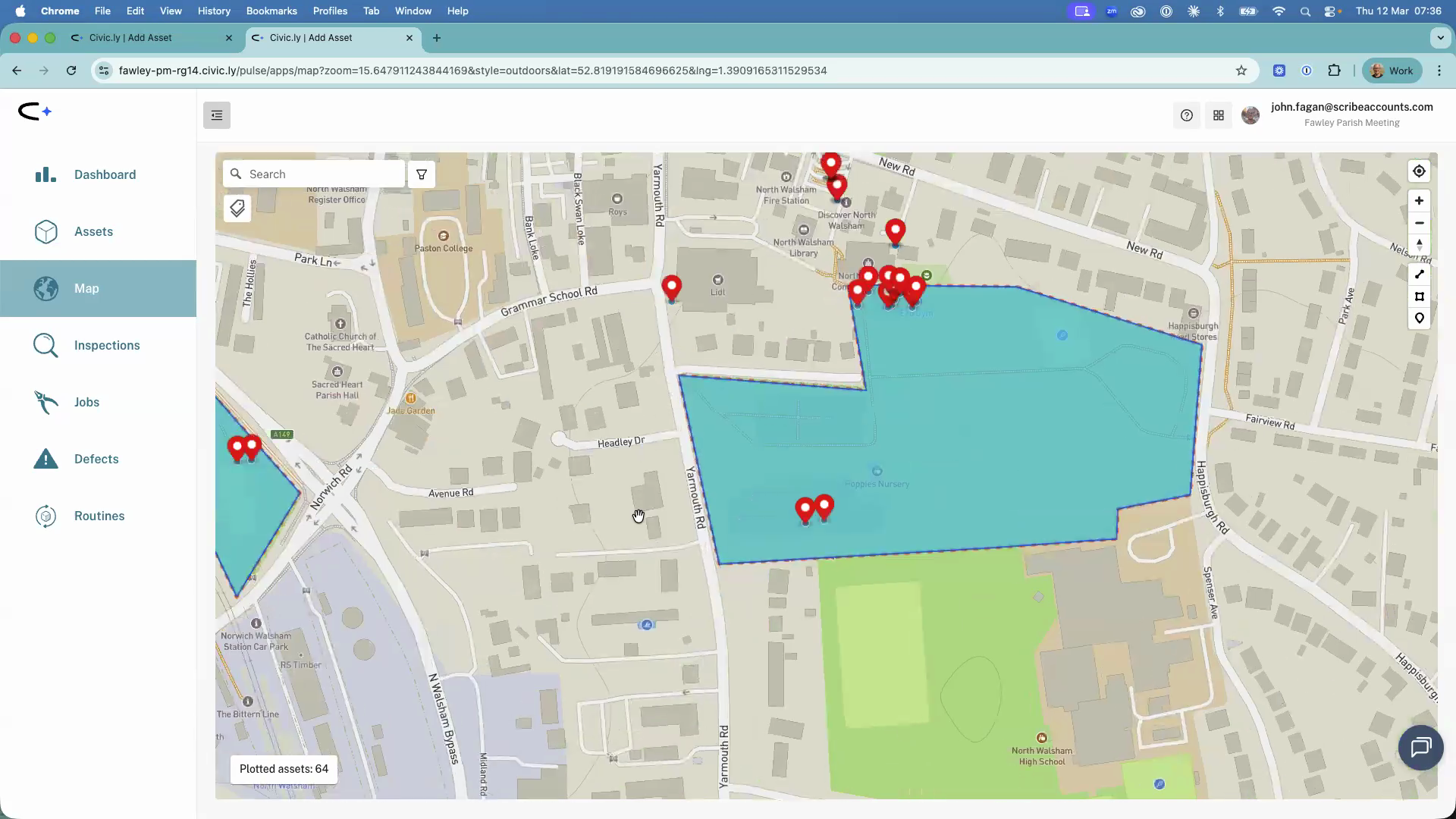
Areas are assets that represent a boundary on the map — things like parks, playgrounds, tennis courts, bowling greens, woodlands, and building outlines. This article shows you how to draw areas, fill in their details, and organise them on the map. It's aimed at clerks and grounds staff setting up Civic.ly for the first time.
Why Create Areas?
There are two reasons to create areas in Civic.ly.
Areas are assets in their own right. Not everything you maintain is a single point on the map. A park, a playground, or a tennis court is a space — and you need to assign inspections and jobs to it just like any other asset.
Areas group individual assets together. When you draw an area on the map, any assets you add later (by uploading photos) that fall inside that boundary are automatically tagged with the area name. This makes it easy to filter your asset register and find everything in, say, "Memorial Park" in one go.
Because of this automatic grouping, it is best practice to create your areas before you go out and photograph individual assets. That way, every bench, bin, and piece of play equipment you photograph gets assigned to the right area straight away. You can do it afterwards, but doing it first saves time.
Step-by-Step: Drawing an Area
- Open the Map from the left-hand menu in the web app. If you are new to the map, see Overview of Using the Map for a tour of the interface.
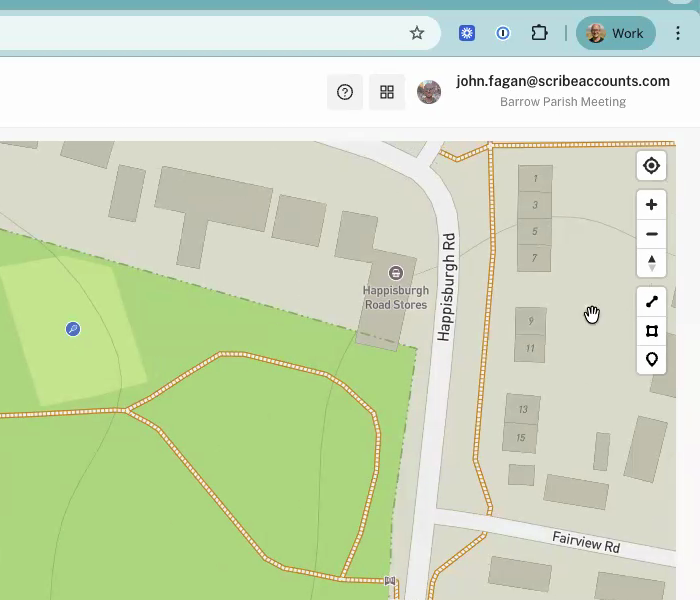
- Navigate to the location where you want to draw your area. You can zoom in and out using the scroll wheel or the zoom tools on the right. Switching to Satellite or Ordnance Survey view can help you trace boundaries more accurately.
- On the right-hand side of the map, find the drawing tools. Click the area (polygon) tool — it looks like a shape icon.
- Click on the map to place your first corner point. Then keep clicking to place each additional corner point, tracing around the boundary of the area. You can zoom in and drag the map while drawing — it will not drop extra points when you drag.
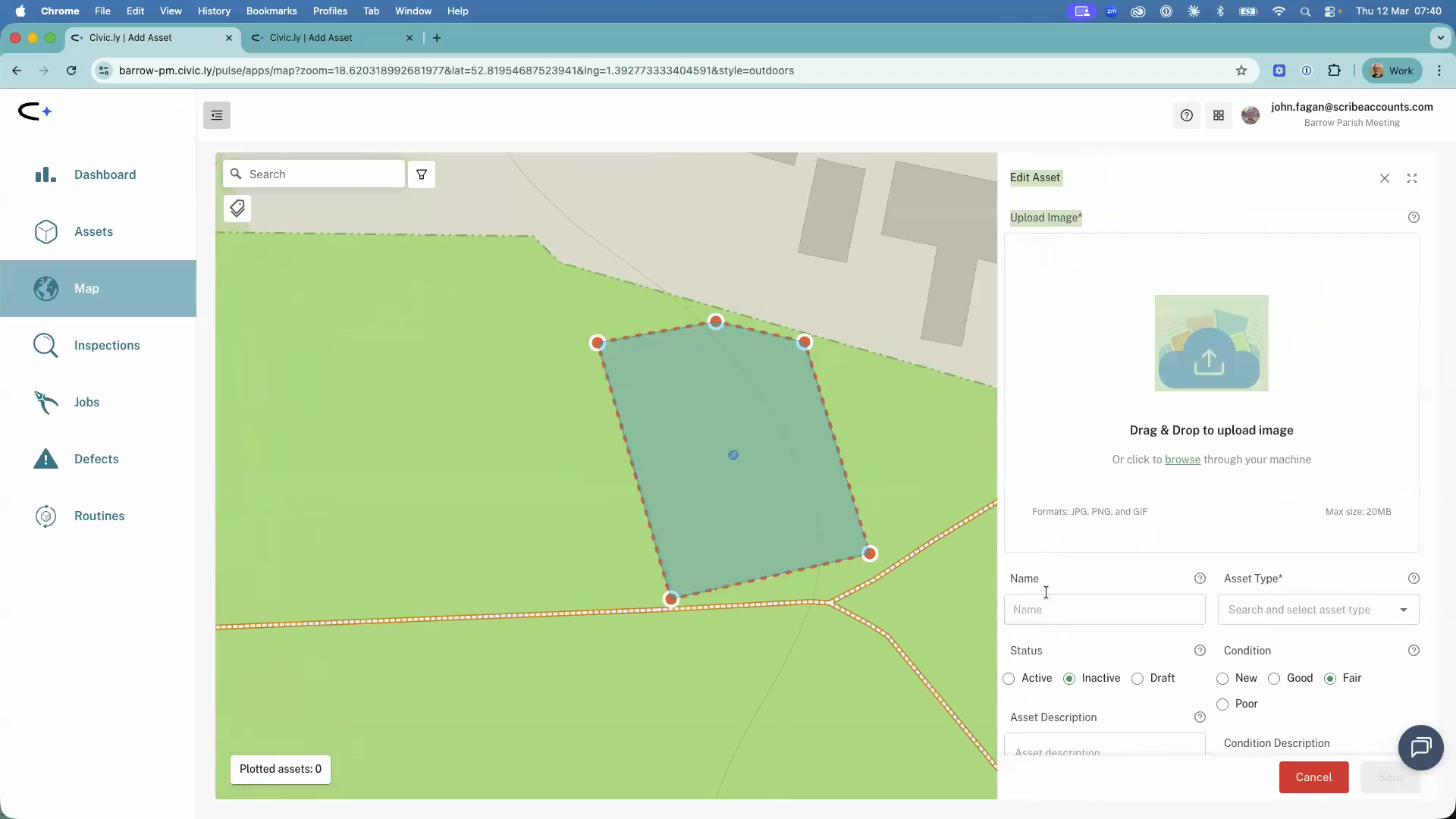
- When you reach your last point, double-click to close the shape. The side drawer will open automatically on the right.
Step-by-Step: Filling in the Details
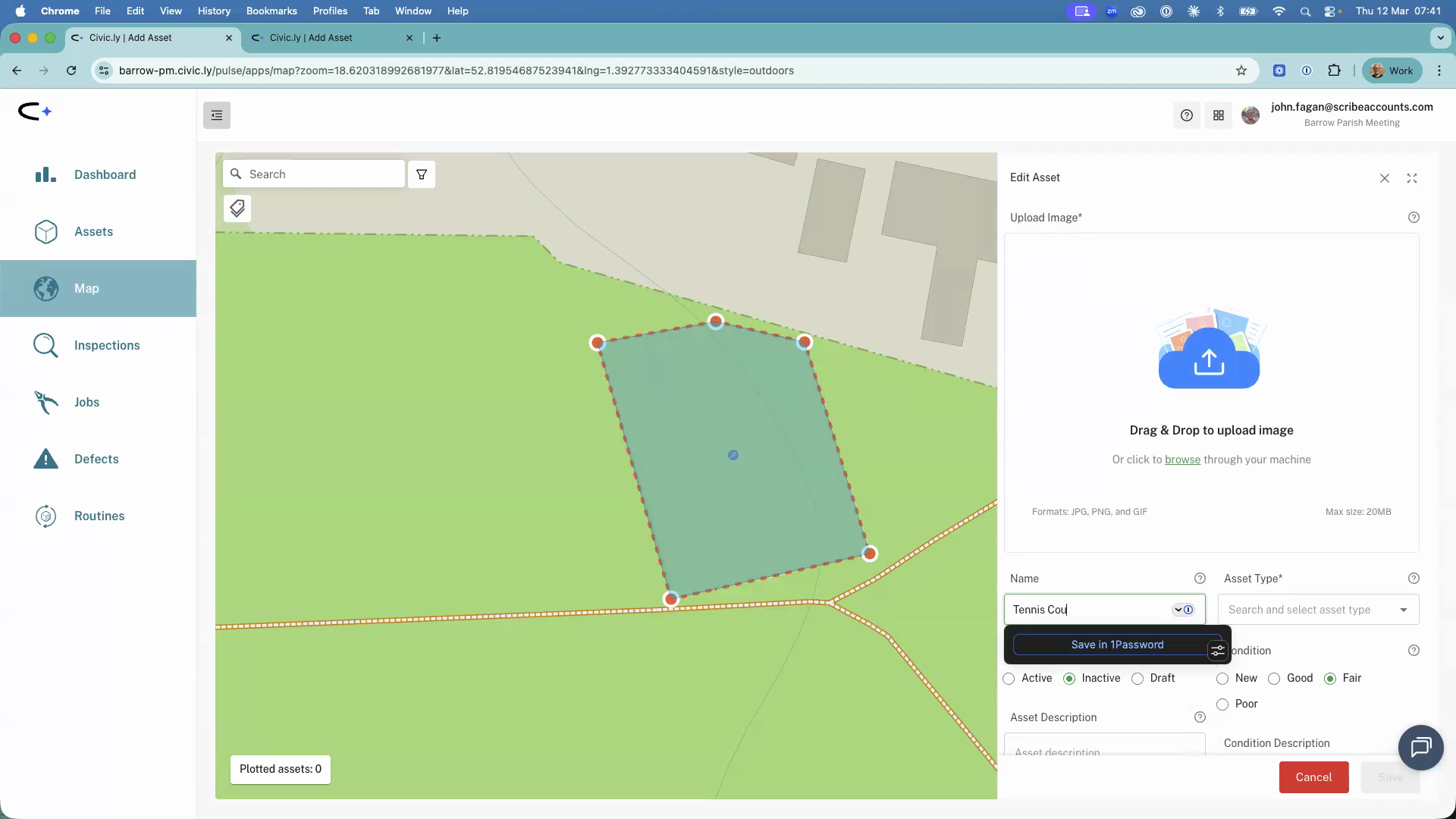
- In the side drawer, type a Name for the area (for example, "Memorial Park Tennis Court").
- Choose an Asset Type by typing a keyword and selecting from the list. This is the only time you need to set the asset type manually — when you add assets by uploading photos, the AI does this for you.
- Set the Status to Active.
- Important — set the location tag. Copy the area name you just typed, scroll down to the Location Tag field at the bottom of the side drawer, and paste it in. This is what links future assets to this area. Do not skip this step.
- Click Save.
Step-by-Step: Editing and Organising Areas
Once your area is saved, you can click on it at any time to adjust its shape. When you make a change, Save and Cancel buttons appear next to the search bar at the top of the map.
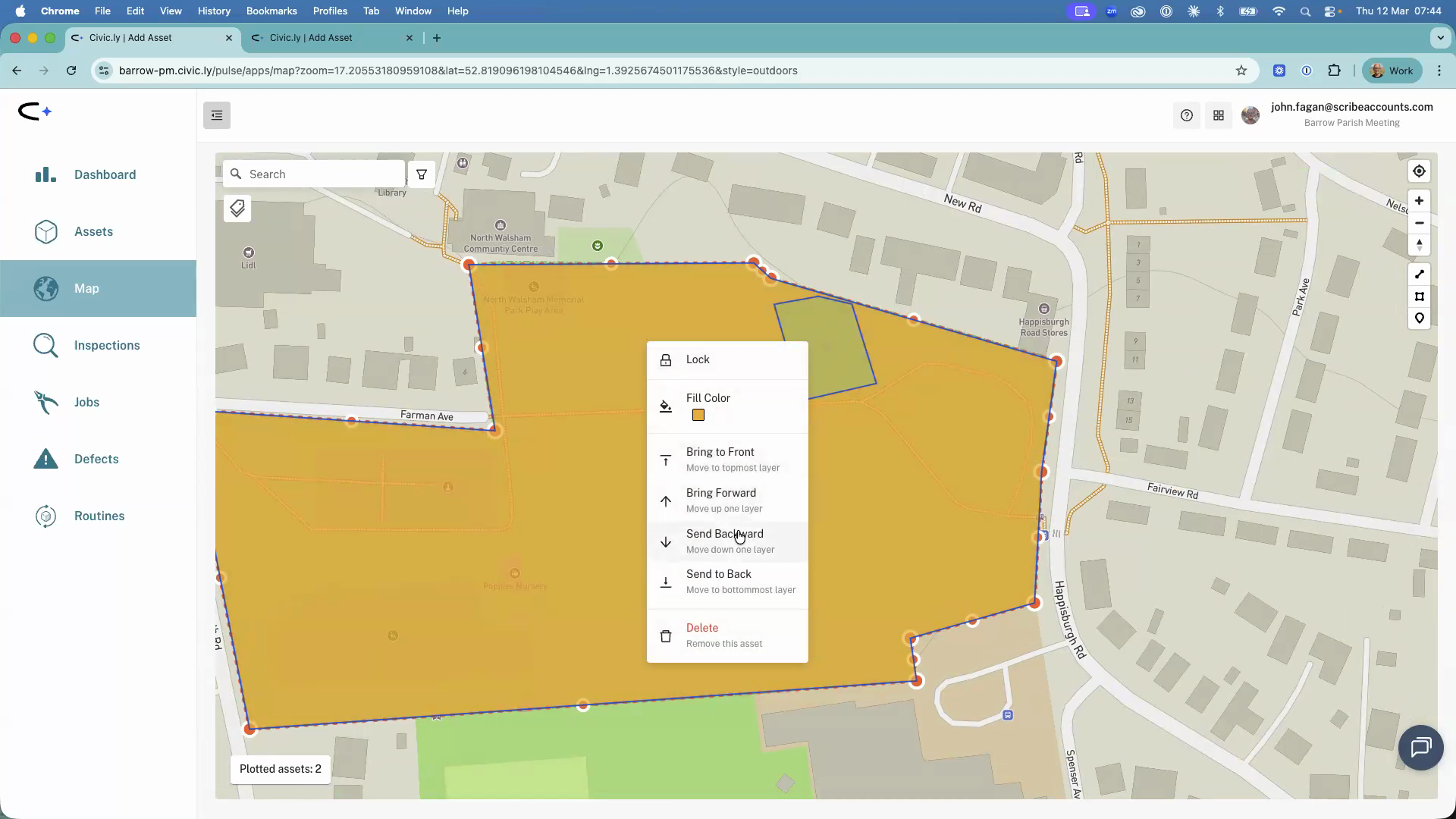
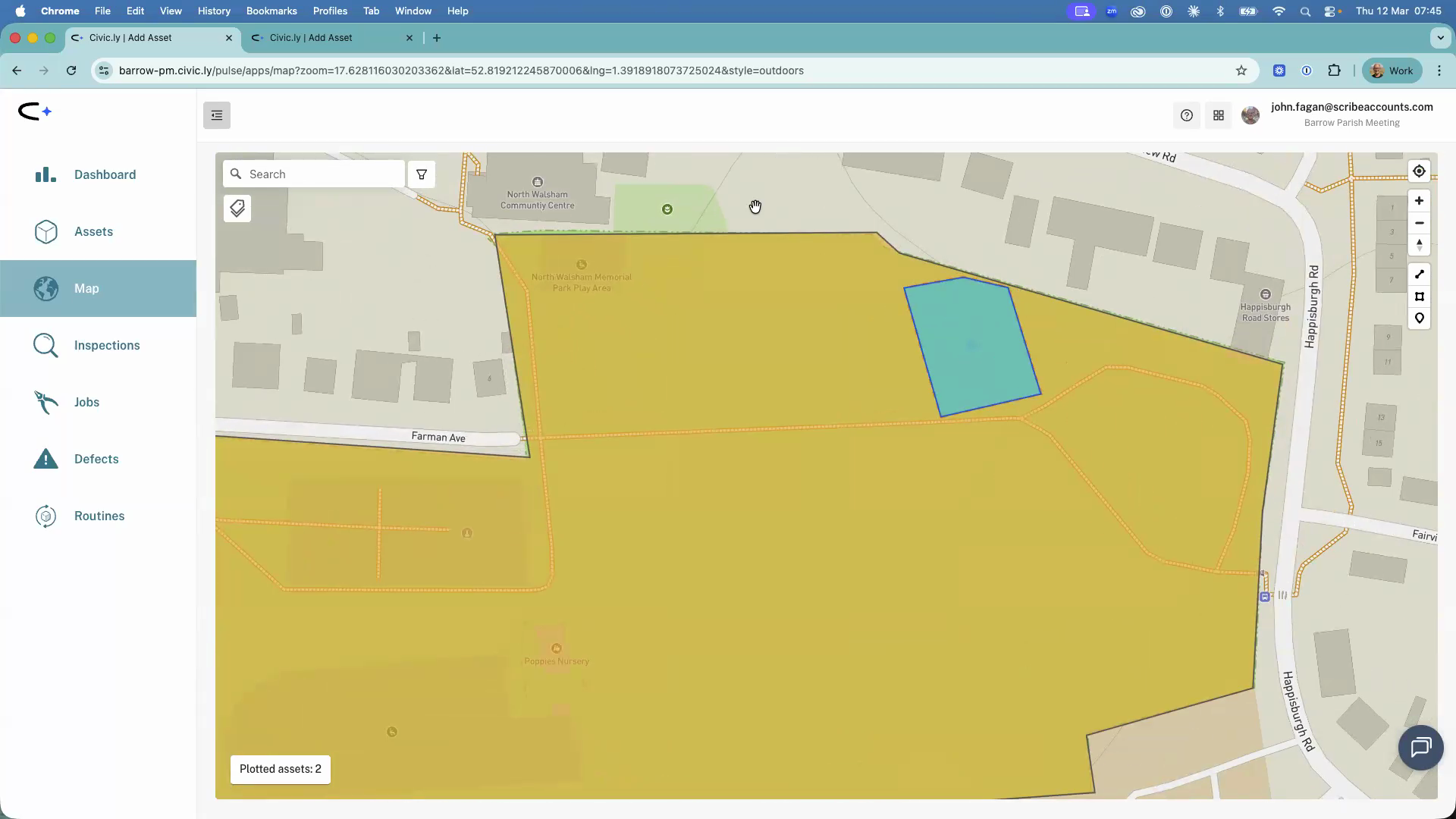
If you have a smaller area inside a larger one (for example, a tennis court inside a park), draw the smaller areas first. When you add the larger area, it may sit on top of the smaller ones. To fix this:
- Right-click on the larger area to open the context menu.
- Choose Send to Back to move it behind the smaller areas.
- You can also change the colour of any area to make it easier to tell them apart.
- Once you are happy with an area, select Lock from the right-click menu to prevent accidental edits.
- Create areas before photographing assets. If the areas are already drawn when you upload photos, the AI automatically assigns each asset to the correct area.
- Think about how your team refers to places. If your grounds staff talk about "the children's play park" and "the memorial gardens" as separate spaces, draw them as separate areas — even if they are inside the same park.
- Draw sub-areas first, then the main area. This keeps smaller areas selectable on top.
- Lock areas you are happy with to stop yourself accidentally moving them during other map edits.
- You can upload a photo later. Areas do not come with a photo by default, but you can add one at any time — try taking a wide shot that shows the whole space.
Common Questions
No, but it is strongly recommended. If your areas are already on the map when you upload photos, the AI will automatically tag each asset with the correct area name. If you create areas afterwards, you would need to assign existing assets to them manually.
Yes. For example, you could draw a "Memorial Park" area for the whole park, and also draw smaller areas for the tennis courts, play park, and memorial gardens within it. Draw the smaller areas first, then send the larger area to the back so you can still click on the smaller ones.
The location tag is a label that connects assets to an area. When you create an area, you must copy the area name into the Location Tag field. This is how Civic.ly knows to group assets that fall inside that boundary under the area name. Without it, the automatic grouping will not work.
Yes. Click on the area to select it, then drag the corner points to adjust the shape. You will see Save and Cancel buttons appear at the top of the map. If you have locked the area, right-click and choose Unlock first.
Right-click on the area and choose Delete to remove it, then draw it again. Or simply click on it and drag the corner points to reshape it.