Make sure you've set up your mobile device and are logged in to the Civic.ly app.
If a task is showing in the wrong place on the map, you can move it yourself from the phone. This is for grounds staff and clerks who find that a task is sitting beside the road, in the wrong park, or on top of other tasks.
Step-by-step
- Open the task from your task list.
- Scroll down to the Location section and tap it to open it. You will see three buttons: Show on Maps, Directions in Maps and Change Location.
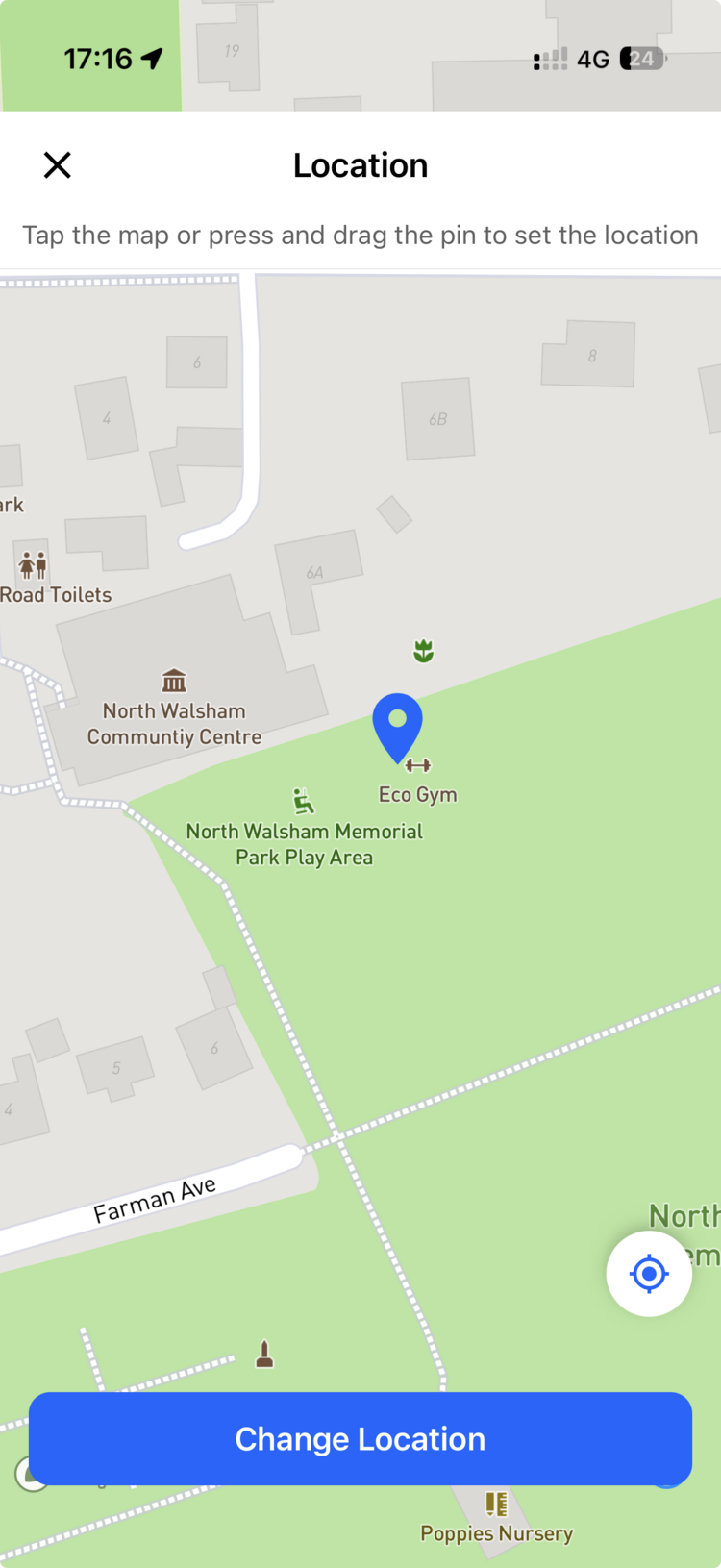
- Tap Change Location. A full-screen map opens with a blue pin.
- Put the pin where the task should be. Either tap the map where you want it, or press and drag the pin.
- Tap the blue Change Location button at the bottom of the screen to save.
To leave without changing anything, tap the X at the top left of the map.
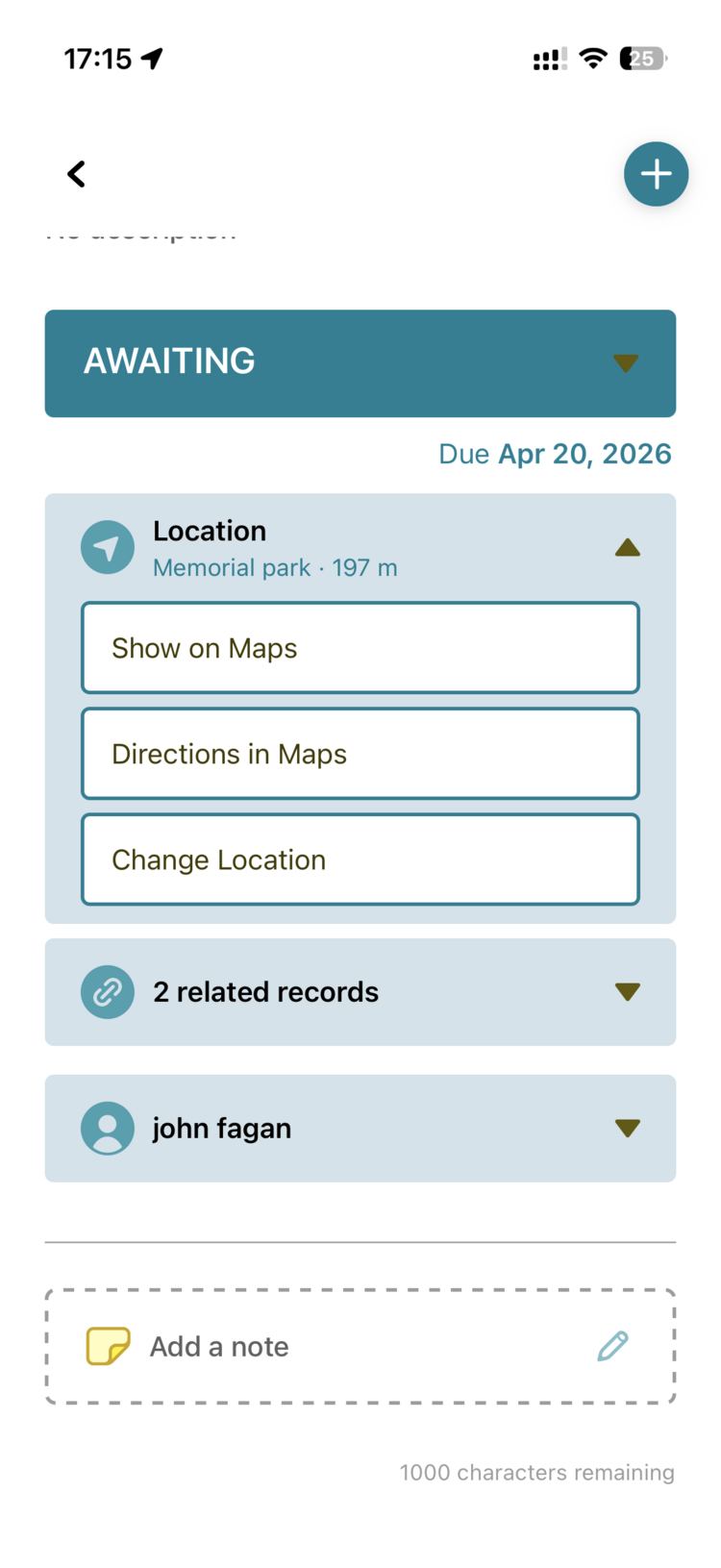
Why a task is in the wrong place
A task normally takes its location from its asset. A task with no asset, such as a general issue or a one-off job, takes its location from where you were standing, or from the location stored in a photo you added. Phone GPS is only as good as the signal. Heavy tree cover, cloud, and older or cheaper phones can all put it out. Change Location lets you correct it by hand.
- A task in the right place helps your whole round. Show on Maps and the sort by nearest-to-me on your task list both use the task's location, so a pin in the wrong place sends people to the wrong spot or pushes the task down the list.
Common Questions
No. It changes where this task is shown, not where the asset is.
Not yet. For now, move the asset on the map in the web app: open the map, drag the pin to the right place and click Save. See Overview of the Map.
Something not working?
If a task isn't appearing in your list at all, see Why aren't my tasks showing on the mobile app?.