Make sure each person has their own Civic.ly login with the right email address. The email goes to the address on their account.
When someone creates a one-off job, inspection or defect and assigns it to you, Civic.ly sends you an email so you know there's work waiting. The obvious case is a job raised to fix a defect: the person who has to do the work finds out without anyone having to phone them. This article explains exactly which tasks send an email, what it looks like, and how each person can turn the emails off.
When an email is sent
An email goes to each person assigned when a one-off task is created with them in the Assignees box. A one-off task is any job, inspection or defect that isn't part of a routine or a repeating schedule. For example:
- A clerk reviews a new defect and creates a job to fix it, assigned to the grounds team.
- Someone in the field reports a defect and assigns it to the supervisor.
- A one-off inspection is booked for a particular person.
There's nothing to switch on. Emails are on for everyone unless they turn them off.
No email is sent for:
- Routines and repeating tasks. These are created in bulk, often months ahead, so an email for each one would bury the ones that matter. Routine work appears in each person's task list on the app as normal.
- Completed or updated tasks. You aren't emailed when someone finishes a job you raised, or when a status changes. To check what's been done, open Jobs, Inspections or Defects and set the quick filter to Show Completed.
- Push alerts. The email doesn't pop up as a notification from the Civic.ly app. It arrives in your normal email inbox, so your phone shows it like any other email.
What the email looks like
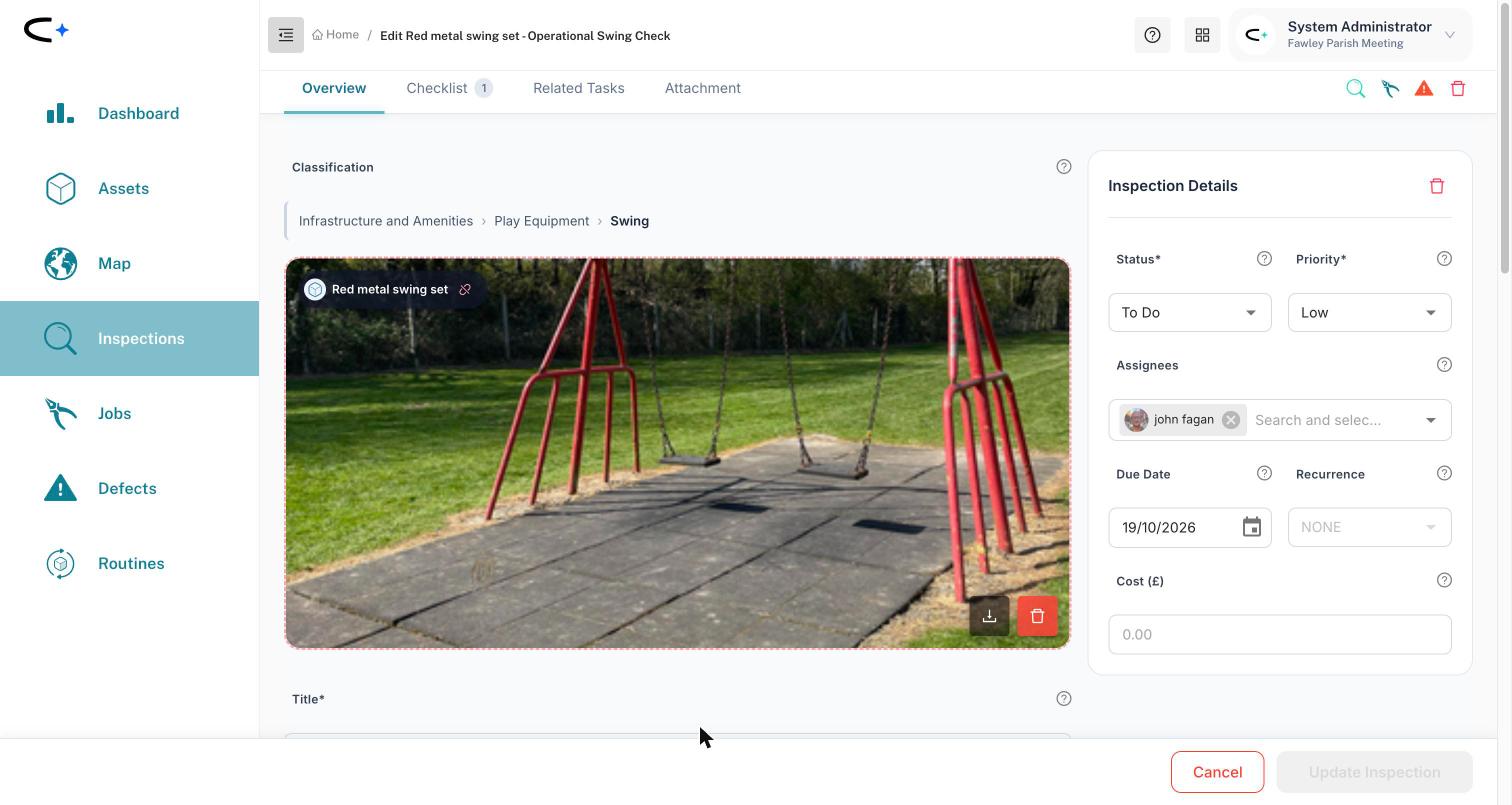
The email comes from no-reply@notifications.civic.ly. The subject line reads "[name] assigned you a task: [task title]", for example "john fagan assigned you a task: Park - remove fly tip".
Inside, it says who assigned the task and in which council, then shows:
- the task type and number, for example Jobs #2213
- the task title
- the due date
To act on it, open the task in the Civic.ly app or web app. You can find it by its number or title in your task list.
The footer explains how to stop the emails, which is covered below.
How to turn task emails off or on
Each person controls their own emails. You don't need an administrator.
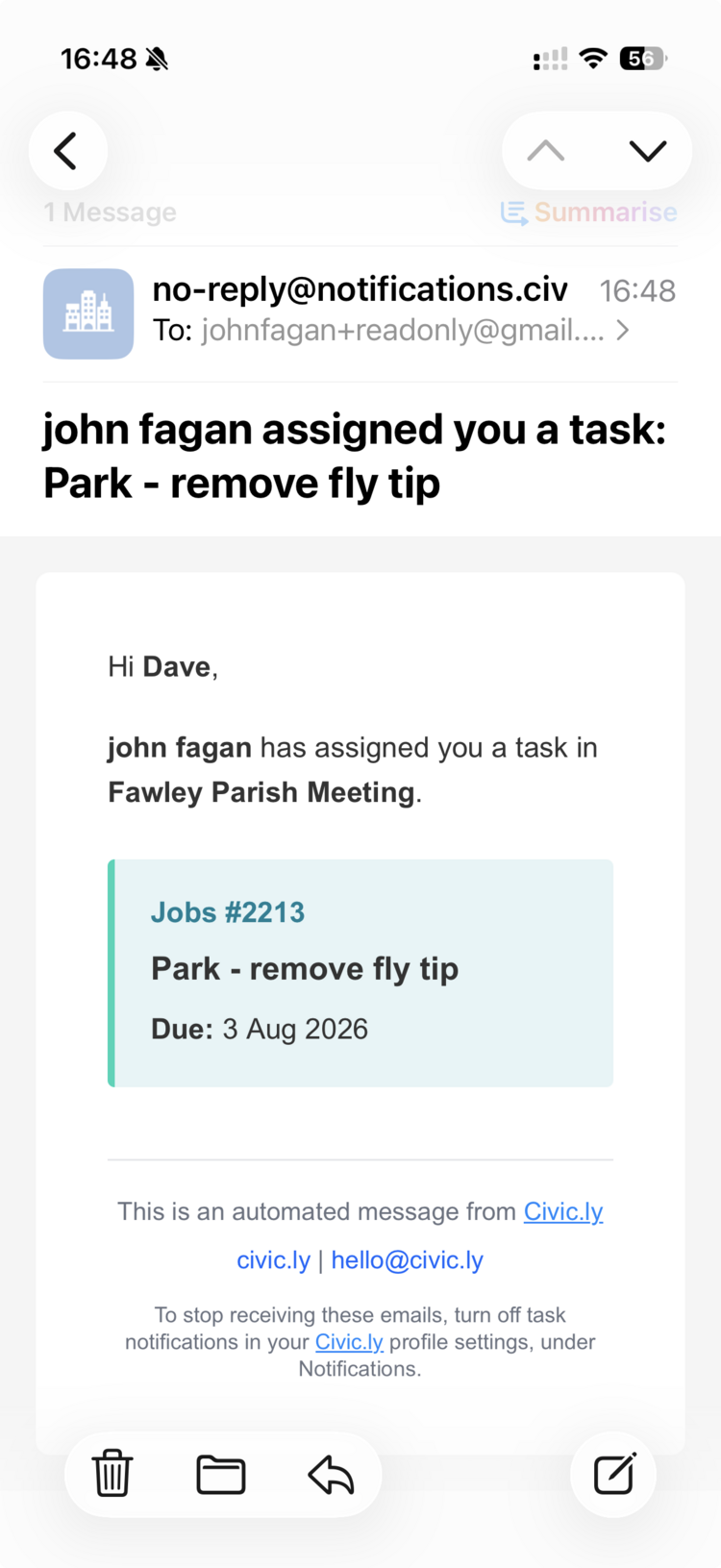
- In the web app, select your name at the top right.
- Select Edit profile. The Settings window opens.
- Select Notifications on the left.
- Turn the Task assignment emails switch off. The line under it changes to confirm you won't receive them.
- Select Done.
To start receiving them again, follow the same steps and turn the switch back on.
The setting is per council. If you work for more than one council in Civic.ly, set it in each one: switch to that council with Switch organisation, then repeat the steps. Turning your emails off doesn't affect anyone else.
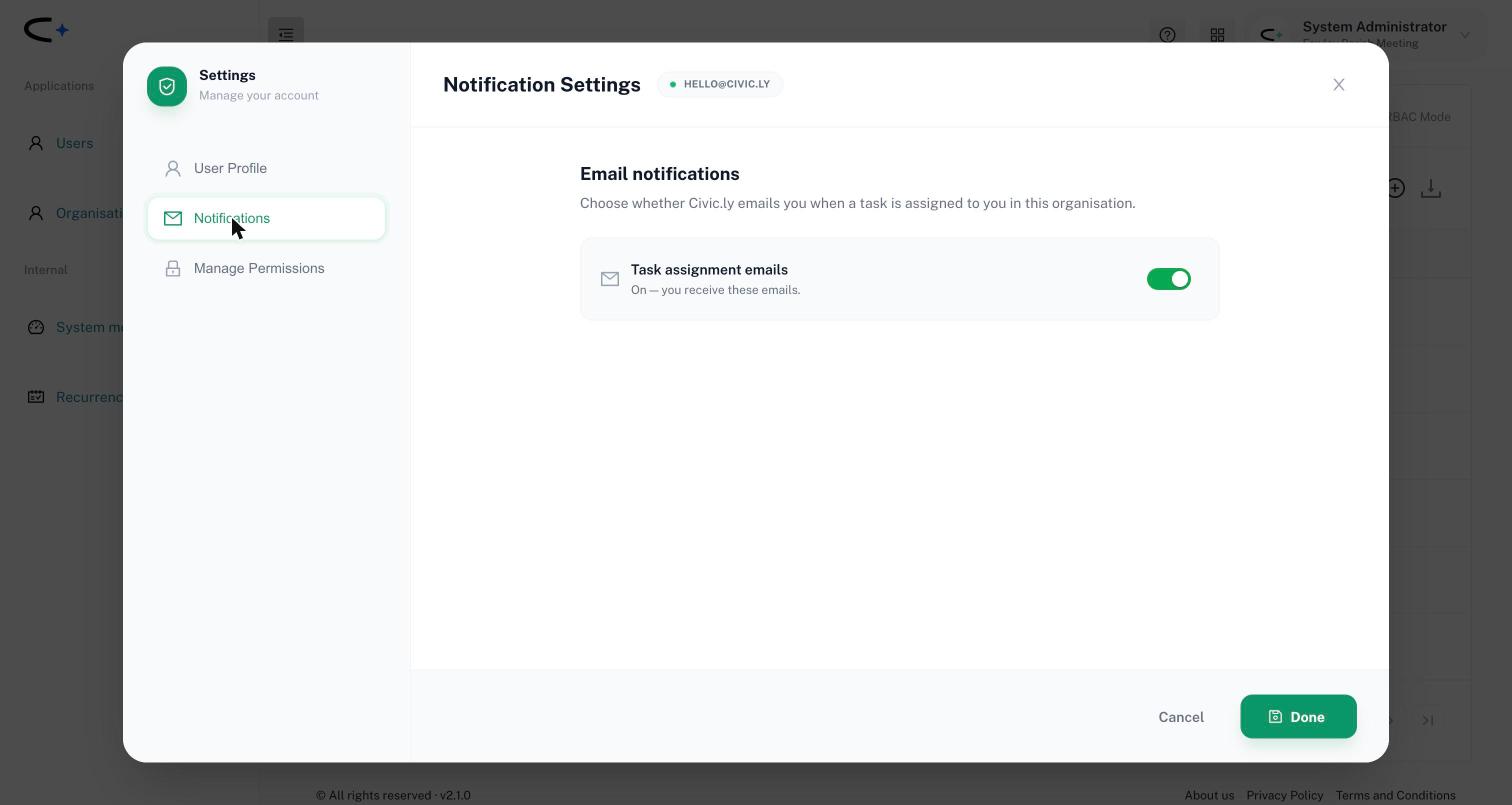
- Assign the task when you create it. The email is sent at creation, to whoever is in Assignees at that moment. On the mobile app, you may be added as the assignee automatically when you raise something. Remove yourself and add the person who'll do the work before you save.
- One login per person. If a team shares one login, only that one account's email address gets the message. Give each person their own login so the right person is told. See How to Add Team Members.
- Supervisors: raise a job, keep the defect. A common pattern is for defects to be assigned to the supervisor, who reviews them and creates a job for the person doing the repair. The job's assignee gets the email; the defect stays with the supervisor.
- Don't rely on email alone for routine work. Field staff should still open their task list on the app each day, because routine tasks never send an email.
Common Questions
Check four things. Was it a one-off task, not part of a routine? Were they in Assignees when it was created? Is the email address on their Civic.ly account correct? Have they turned task emails off? If all four are fine, ask them to check their spam or junk folder for no-reply@notifications.civic.ly.
No. Routine and repeating tasks don't send emails, by design, because they're generated in bulk. They appear in each person's task list on the mobile app, sorted by due date.
Not by email. On a busy day that could be hundreds of messages. Use the Show Completed quick filter on the Jobs, Inspections or Defects list, filtered by date if you need to, to see what's been done.
Only as an ordinary email, if your phone shows email notifications. The Civic.ly app doesn't send its own push alerts.
No. Each person turns their own emails on or off from Edit profile, under Notifications.
No. Task assignment emails are on for every user unless they choose to turn them off.