You can link assets to the larger asset they sit inside. Link the fire extinguishers, boiler, alarm panel and defibrillator to the community centre, and they belong to it. Open the building and you see every inspection, job and defect for the building and everything in it, in one place. This article covers how to link assets in the web app, what changes once you do, and the rules that keep it simple.
What linking is for
Linking shows that one asset is inside another. The asset that holds things is the container: usually a building, a park or open space, or a vehicle.
- A building: the extinguishers, fire alarm panel, emergency lights, radiators, kitchen equipment and civic regalia inside it.
- A park or open space: the benches, bins, play equipment, gates and signs within it.
- A vehicle: the fire extinguisher and first aid kit it carries.
Draw the container as an area. Draw the building footprint or the park boundary on the map, then link what sits inside it. The area shows on the map exactly what the container covers, so it's clear which assets belong to it. If your building or park is only a pin, draw its boundary first: see How to Create and Edit Areas on the Map.
Linked assets are still separate assets. Each keeps its own photo, details, location tag and task history. Linking just records where they belong, so you can see them together.
Linking is not for grouping similar things. Don't link your bins to each other, or two verges either side of a path. Use the asset type, a naming convention or the location tag for that. And don't link parts of the same thing: a defibrillator cabinet is checked as part of the Defibrillator Check, so it doesn't need to be its own asset.
How to link assets
- Open Assets in the web app.
- Find the container (the building, park or vehicle). Use the search box if your list is long. Buildings and parks should already be drawn as areas.
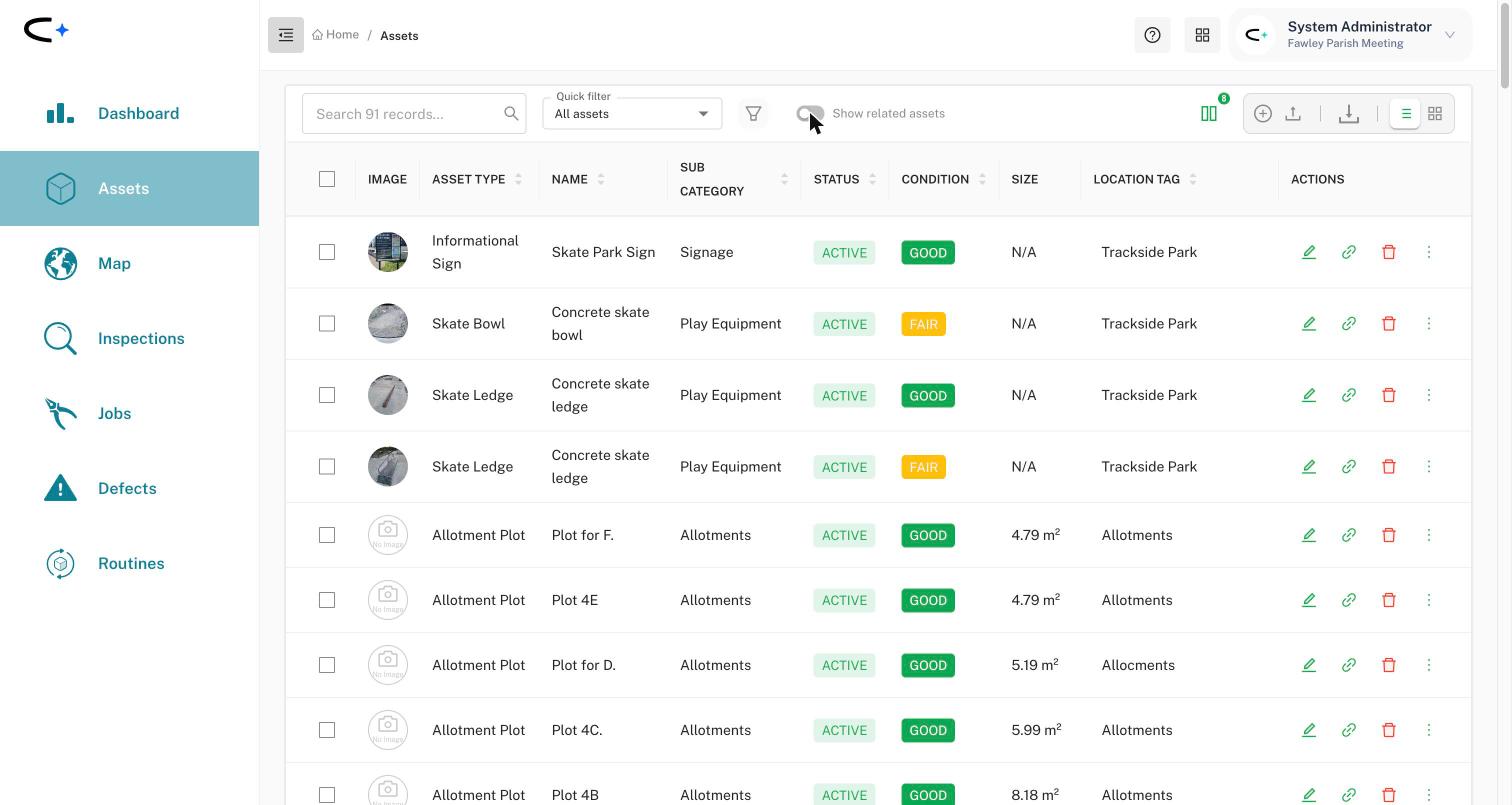
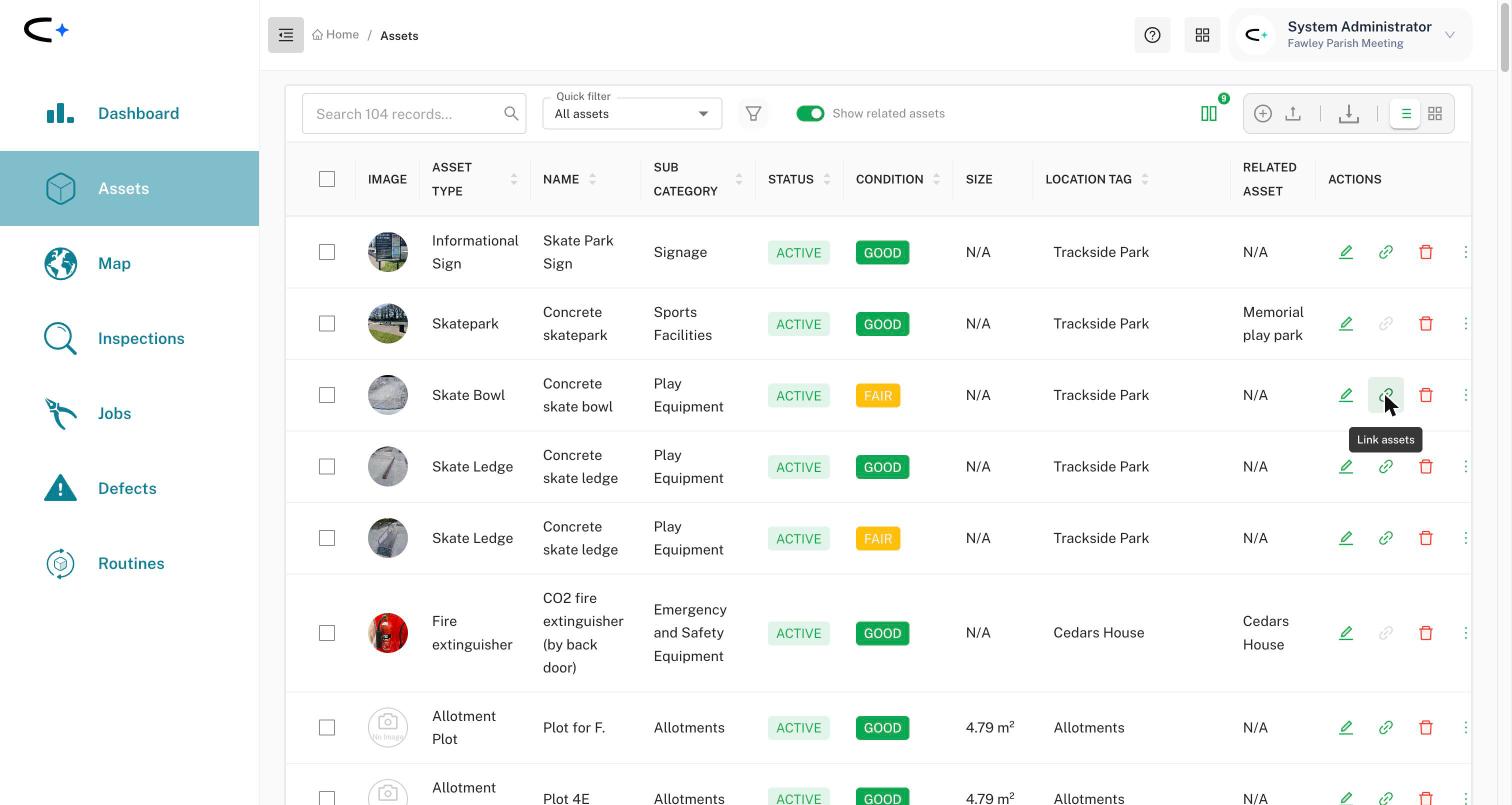
- In that row's Actions column, select the green chain icon, Link assets.
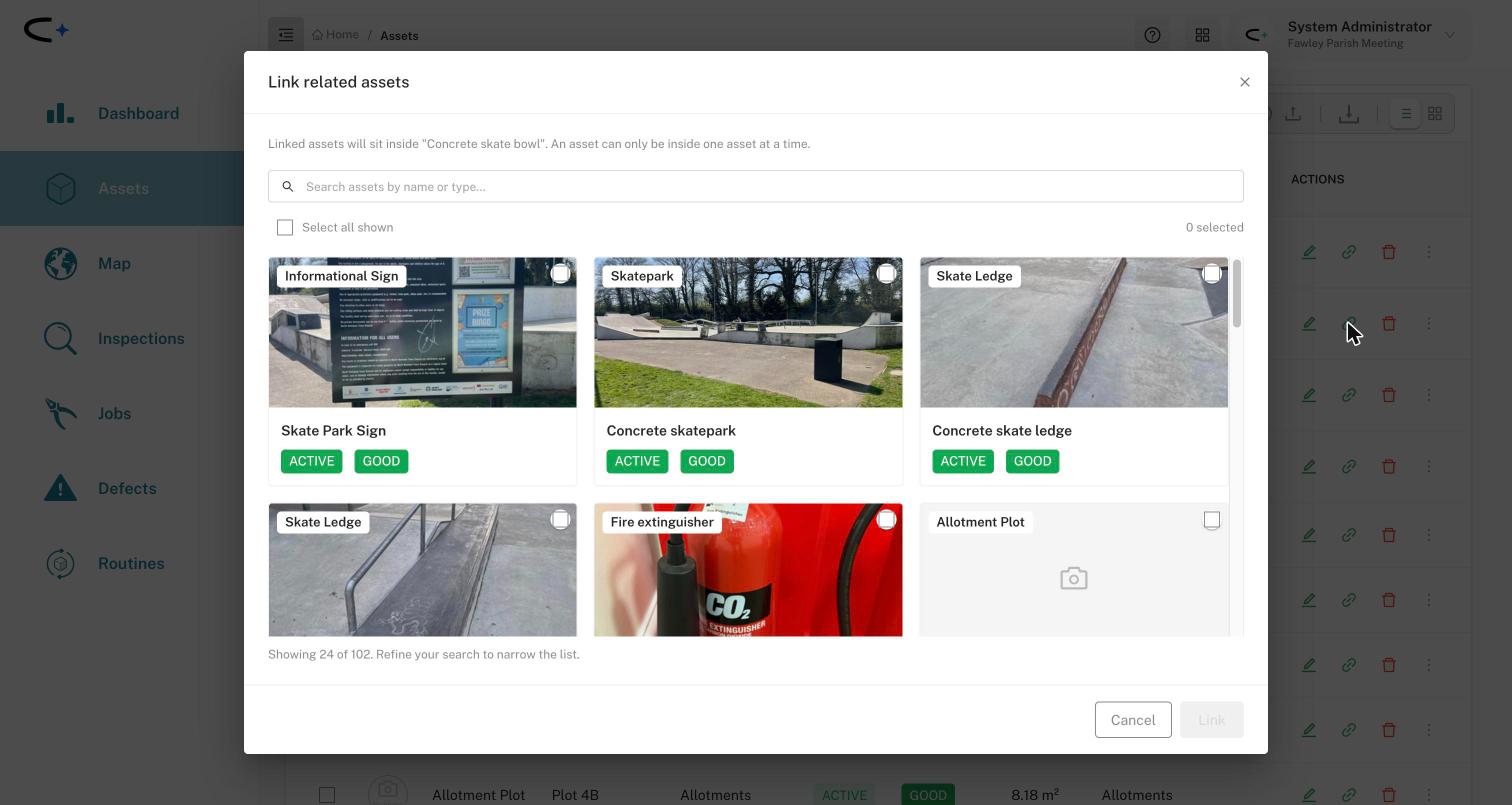
- The Link related assets window opens. It explains that linked assets will sit inside the asset you chose, and that an asset can only be inside one asset at a time.
- Search by name or type for the assets that sit inside, for example "extinguisher" or "bench". The window shows 24 assets at a time, so searching is quicker than scrolling.
- Tick each asset you want to link. Select all shown ticks everything in the current results. The counter at the top right shows how many you've chosen.
- Select Link.
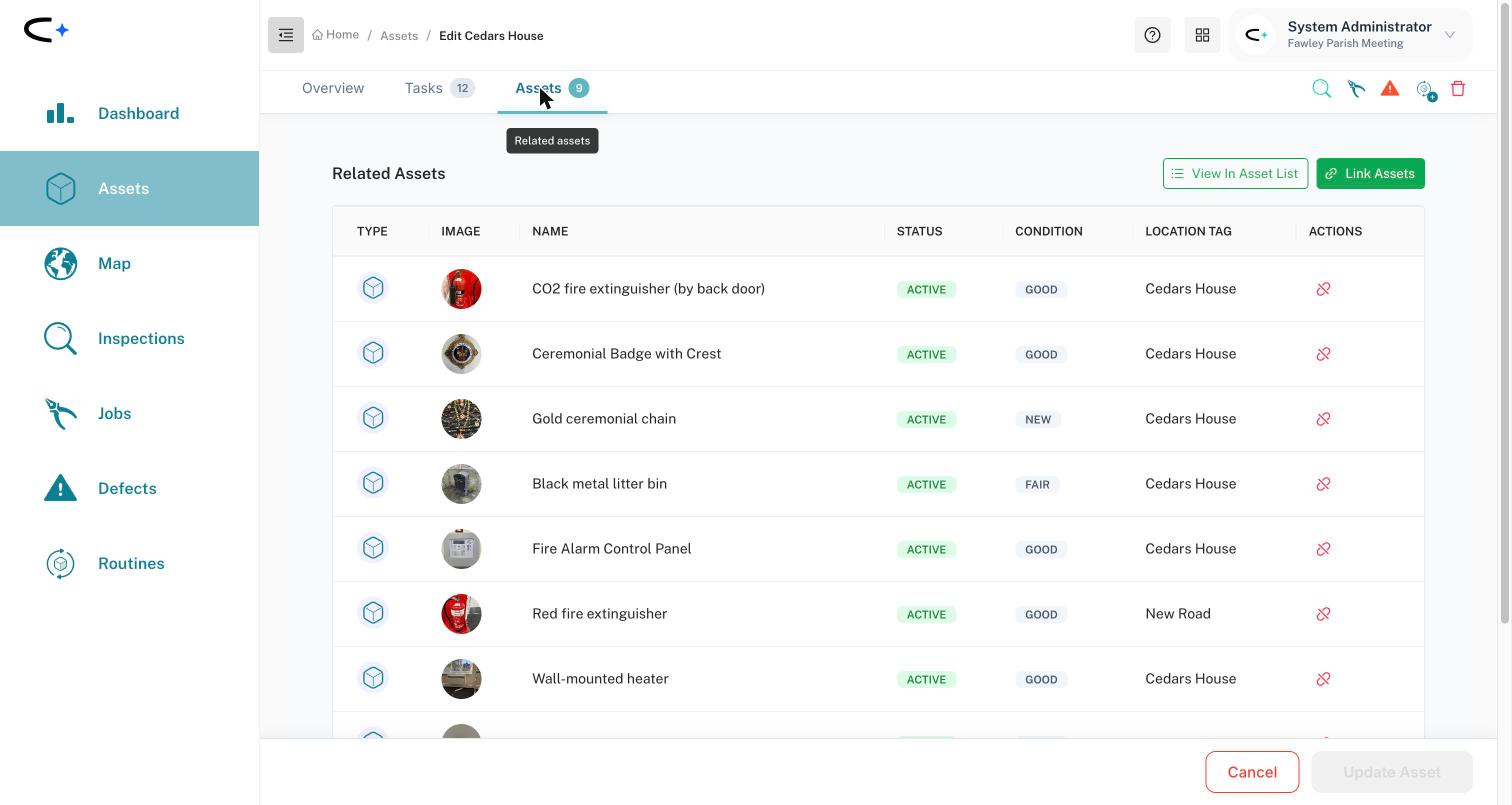
You can also link from inside the container. Open the building, go to its Assets tab and select Link Assets. The same window opens.
Tip: the window doesn't yet show where each asset is, so you're choosing by name and photo. Clear, specific asset names ("CO2 fire extinguisher (by back door)") make this much easier.
What you see once assets are linked
On the container's Assets tab. The tab heading shows a count, for example Assets 9. The Related Assets table lists each linked asset with its type, photo, status, condition and location tag. The red icon on each row unlinks that asset. View In Asset List opens your main asset list filtered to just this container's contents, where you can sort, filter and export them in the usual way.
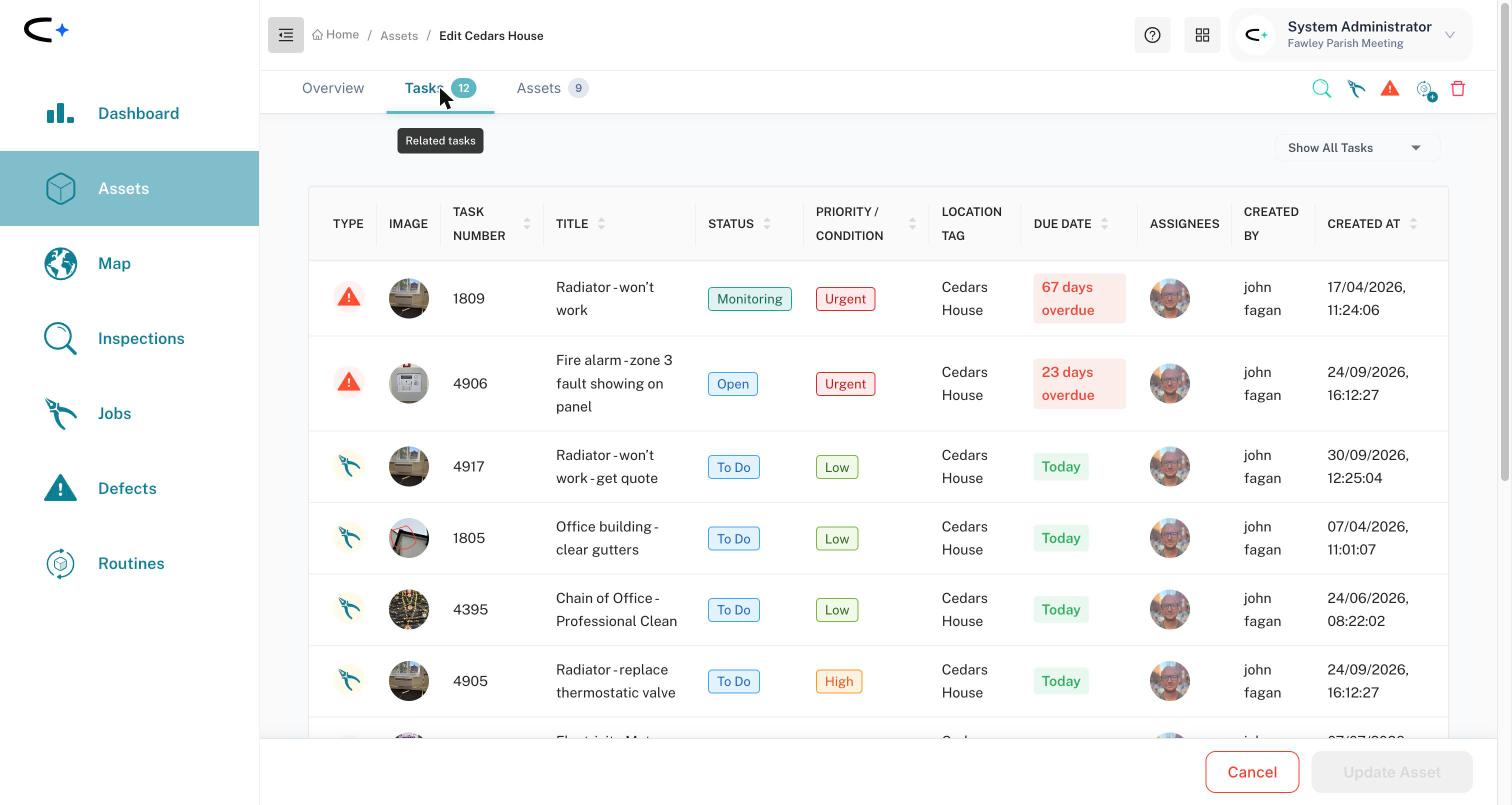
On the container's Tasks tab. This is the main reason to link. A building's Tasks tab lists the tasks raised against the building plus the tasks on every asset inside it: every inspection, job and defect, newest problems alongside routine checks. Use the Show All Tasks filter at the top to hide completed work. A council officer can open the town hall and see at a glance what's overdue anywhere in the building.
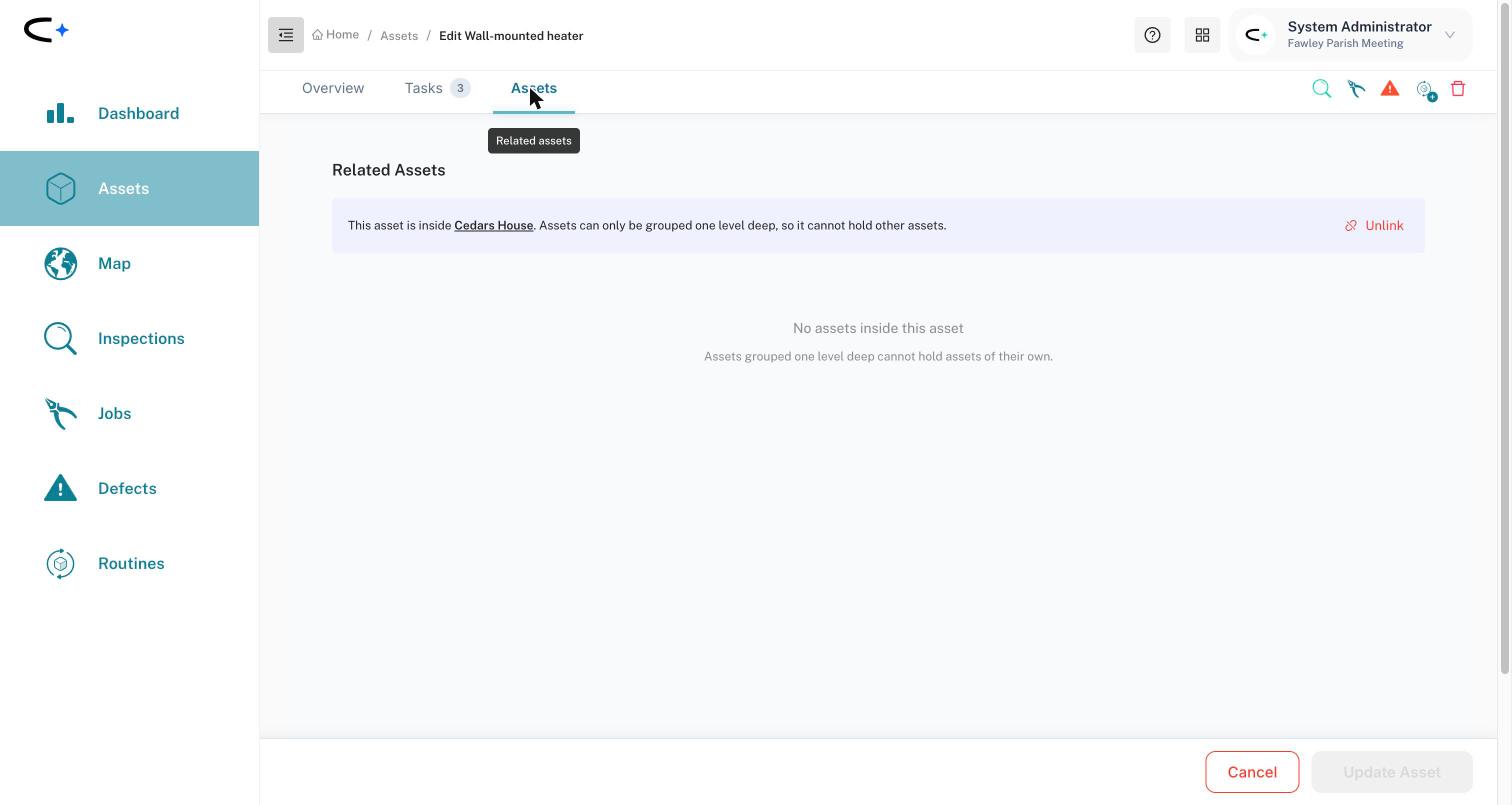
On an asset that's inside something. Its Assets tab shows a banner: "This asset is inside Cedars House. Assets can only be grouped one level deep, so it cannot hold other assets." The building's name is a link back to it, and Unlink removes the asset from the building. The asset's own Tasks tab still shows only its own tasks. A fire extinguisher doesn't show the building's roof survey.
Finding linked assets in your asset list
Once an asset is linked inside another, it's hidden from your main asset list by default. Only assets that stand on their own are listed, which keeps a long register tidy: you see "Town Hall", not the Town Hall plus 40 things inside it. The count in the search box drops to match.
To see everything again, switch on Show related assets at the top of the asset list. Every asset is listed, with a Related Asset column naming the container each one sits in. The switch remembers your choice, so if assets seem to be missing, check it first.
Linked assets still appear on the map in their own positions.
The rules
- One level deep. An asset can be a container or sit inside one, never both. You can put a bench in a park, but you can't then put anything inside the bench. A park can't sit inside another park.
- One container per asset. An asset can only be inside one asset at a time. To move it somewhere else, unlink it first, then link it to the new container. Its tasks move with it, so the history goes where the asset goes.
- The chain icon is greyed out on any asset that is already inside something, because it can't hold assets of its own.
- Location tags are separate. Linking doesn't change an asset's location tag, and a location tag doesn't link anything. Many councils use both: the location tag says where an asset is, and the link says what it belongs to.
Common Questions
Not as three levels. Linking is deliberately one level deep. Most councils link the building's contents straight to the building and put the room in each asset's name or location tag ("Fire extinguisher, main hall"). If you clean or sweep rooms, you can add each room as its own asset (there's a Room asset type) and link it to the building, but a room linked that way can't hold assets of its own.
No. Every task stays on the asset it was raised against, and your Inspections, Jobs and Defects lists don't change. Linking adds a combined view on the container's Tasks tab.
They're hidden because they're inside another asset. Switch on Show related assets at the top of the asset list, or open the building, park or vehicle and look at its Assets tab.
Yes. Parks, open spaces, cemeteries and allotment sites all make good containers. Draw the boundary as an area on the map first, then link the benches, bins, play equipment and so on that sit inside it.
They stay. Deleting a building, park or vehicle unlinks everything inside it, and those assets keep their own tasks. Civic.ly warns you first, telling you how many assets are inside. The building's own open tasks are deleted with it; its finished tasks (done, failed or cancelled) are kept as history.
Any user whose permissions let them edit assets. You don't need to be an administrator.