get each verge onto the map as an asset first. Good asset names and location tags are what make the round easy to run later — see How to Create and Edit Areas and the Overview of the Map. Once the verges are in, the round itself is just a routine.
Grass and verge cutting is one of the most common rounds councils run in Civic.ly. Instead of a fixed weekly inspection, you set it up as a round of jobs — one per verge — that the team (or a contractor) ticks off as each verge is cut. This guide covers the whole set-up: getting the verges onto the map, naming them so they're easy to work with, building the cutting round, and an optional one-tap check that tells you which verges grow fastest. It's the same template that works whether you cut in-house or put the work out to a contractor.
Step 1 — Draw the verge on the map and set it up
Every verge you want cut needs to exist as an asset, drawn on the map. Work through it in this order:
- Go to the map view.
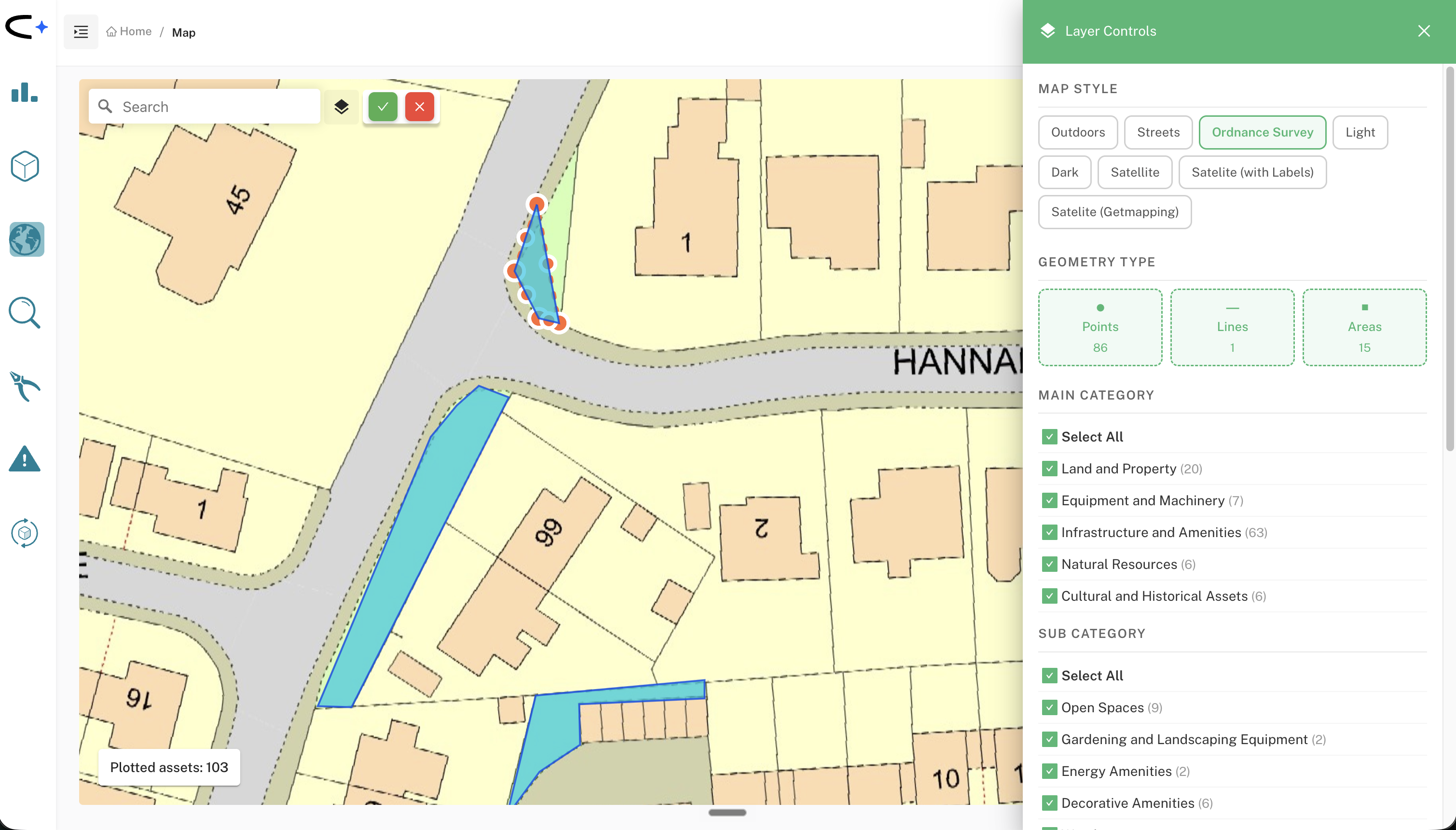
- Optionally, change the base layer using the layer control — you can switch to Satellite or Ordnance Survey. Where there are lots of little "bitty" verges that are hard to make out on the default map, a different layer makes the smaller ones easier to see and place accurately.
- Draw the grass verge on the map.
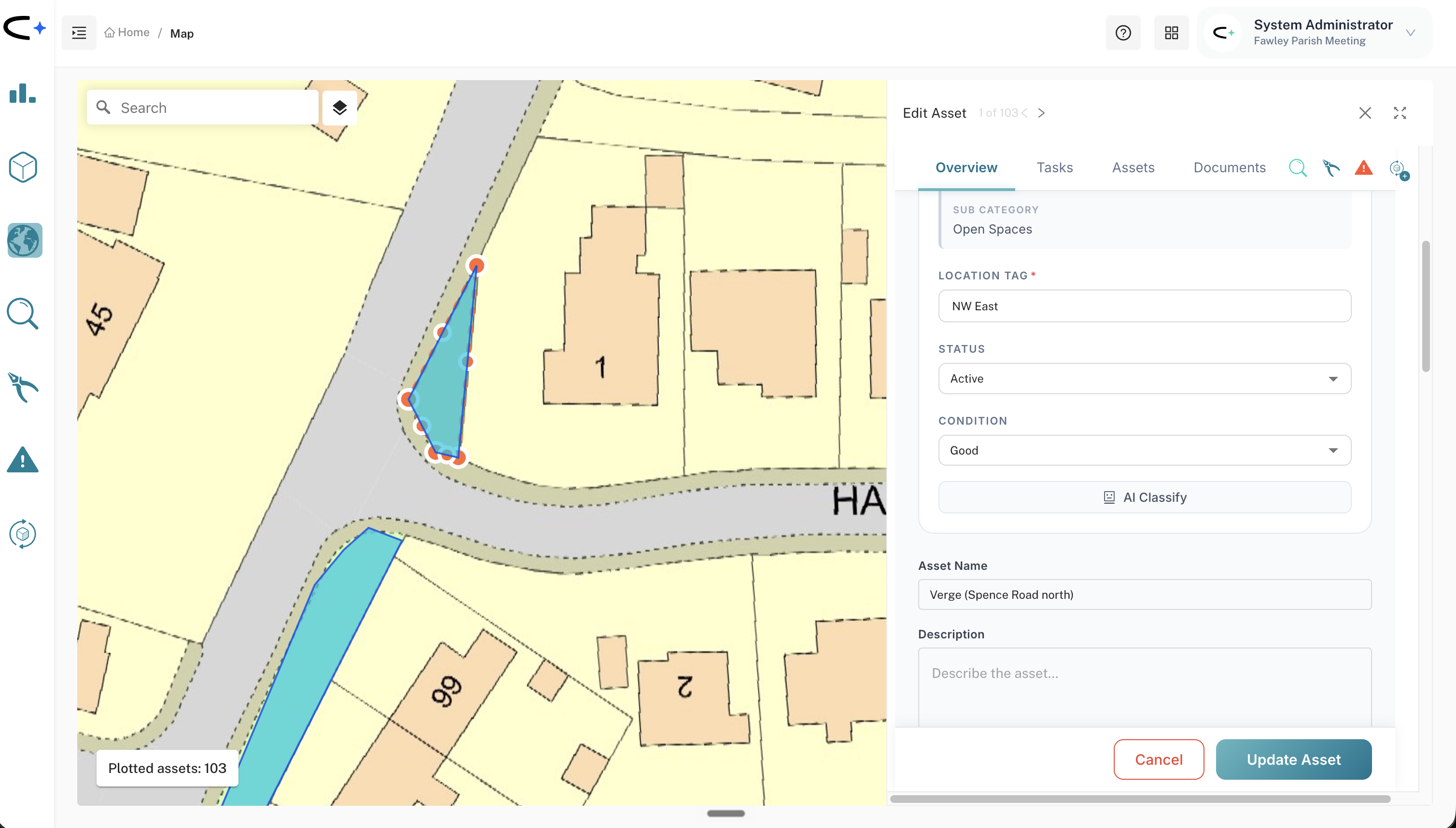
- Once it's drawn, set the asset type to Grass Verge. This is what lets you filter and report on all your verges together later.
- Set the asset name using a clear pattern — name each verge after its street, e.g. Chapel Street North West — Grass Verge or Mill Lane 1–8 plus the Roundabout. This matters because the asset name feeds through to the task: when you create a job, Civic.ly pre-fills the task title with the asset name.
- Set the location tag to the estate or area, e.g. Brackenhill, and give every verge on that estate the same tag.
Do that and, in the mobile app, the operative sees something like "Verge — Chapel Street North West / Brackenhill" — clear enough to find and cut the right patch without any guesswork. Getting the location accurate on the map and the name right up front helps you loads downstream, so it's worth doing carefully before you build the round. Put the old descriptive name in the asset's description for reference.
Step 2 — Give the verge a recognisable photo
A brand-new verge asset has no photo, so add one yourself — a screenshot of the verge on the map. In the field the operative then sees a little picture of exactly which verge they're looking at, which makes a big difference when you have lots of small, similar verges.
- Get the verge on screen in the map view, zoomed so it's clearly framed.
- Take a screenshot using your computer's normal screen-capture tool. Make sure some street names are visible in the shot so it's obvious which verge it is.
- Save it and add it as the asset's photo.
Step 3 — Build the cutting round as a routine of jobs
Once the verges are in, create the round from the asset list:
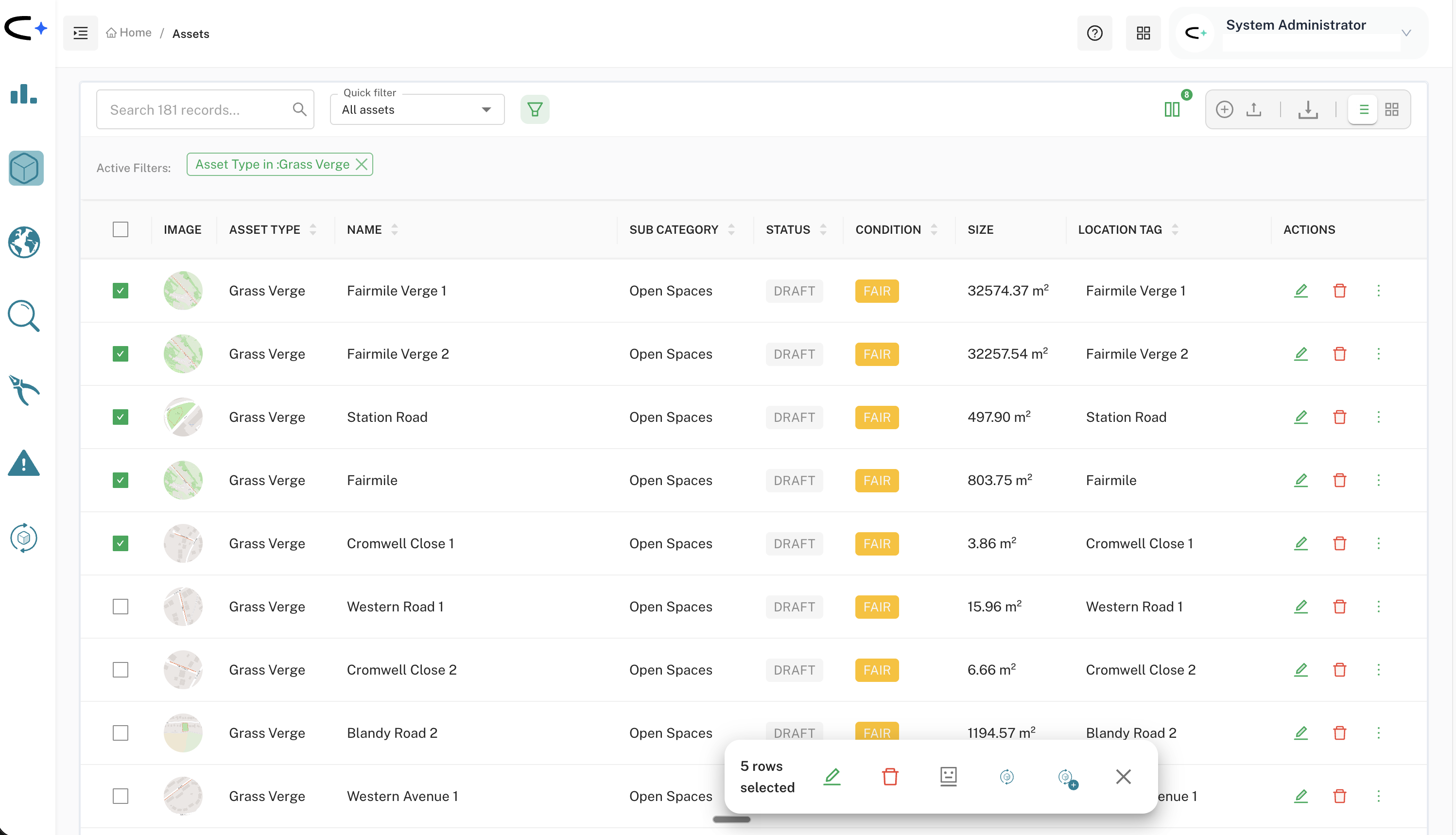
- Open the Asset List and filter to your verges (by asset type Grass Verge, or by the estate's location tag).
- Select the verges you want in the round.
- Click Create Routine in the action bar.
- Give it a name — e.g. Grass cutting — May.
- In the Related Tasks grid, set each row's Task Type to Job, not Inspection. This generates a straightforward job per verge that the team just ticks off as it's cut (rather than a checklist inspection).
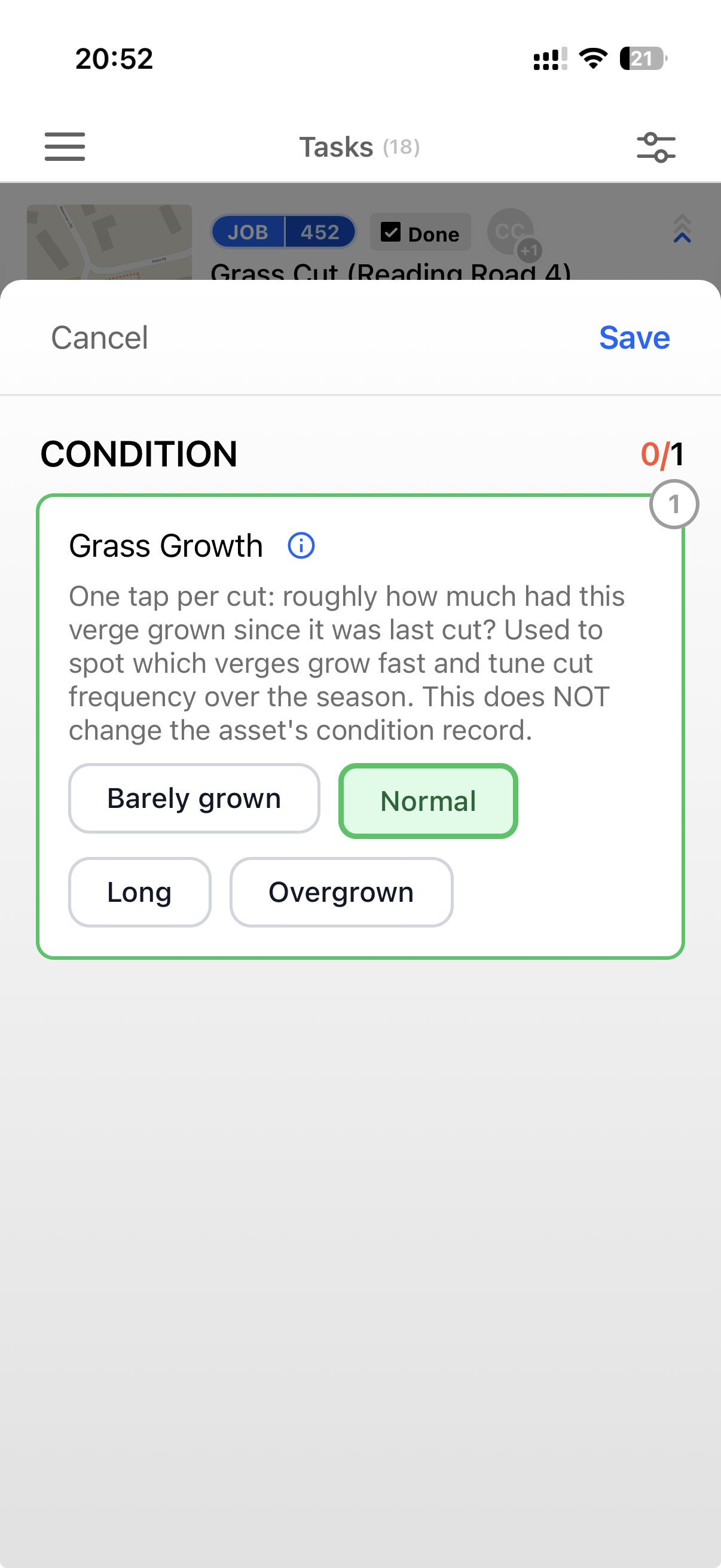
- Add the checklist here if you want it. This is also where you attach a checklist to the jobs — it has to be done as you set up the routine and its related tasks, not afterwards. Pick the Grass Cutting checklist, which carries a one-tap Grass Growth question — Barely grown / Normal / Long / Overgrown — asking roughly how much the verge had grown since it was last cut. It's optional and the jobs work fine without it, but capture it over the season and it shows which verges grow fastest, so you can tune your cut frequency to what's actually happening on the ground rather than cutting everything on the same fixed cycle.
- Assign the jobs to whoever does the work — your in-house team or your contractor's users. You can assign more than one person, so the jobs show up for whoever's on shift that day.
Two ways to schedule it, depending on how you cut:
- Regular cycle (in-house). If you cut on a fixed cycle — weekly or fortnightly — set a recurrence on the routine so the jobs regenerate automatically. Turn on hide completed so the list shrinks as the team works through it. See Scheduling Recurring Tasks.
- Variable seasonal cutting (e.g. a tendered contract). If your cutting is variable across the year — say six cuts, a couple early, fewer in high summer, more again later — don't set a recurrence. Set up each cut as a single-instance round with its own due date (Grass cutting — May, Grass cutting — June, and so on). You'd have six or seven of these across the season — a good fit when the work is going out to tender.
Step 4 — What it looks like in the field
When the round is running, whoever's assigned opens the mobile app and:
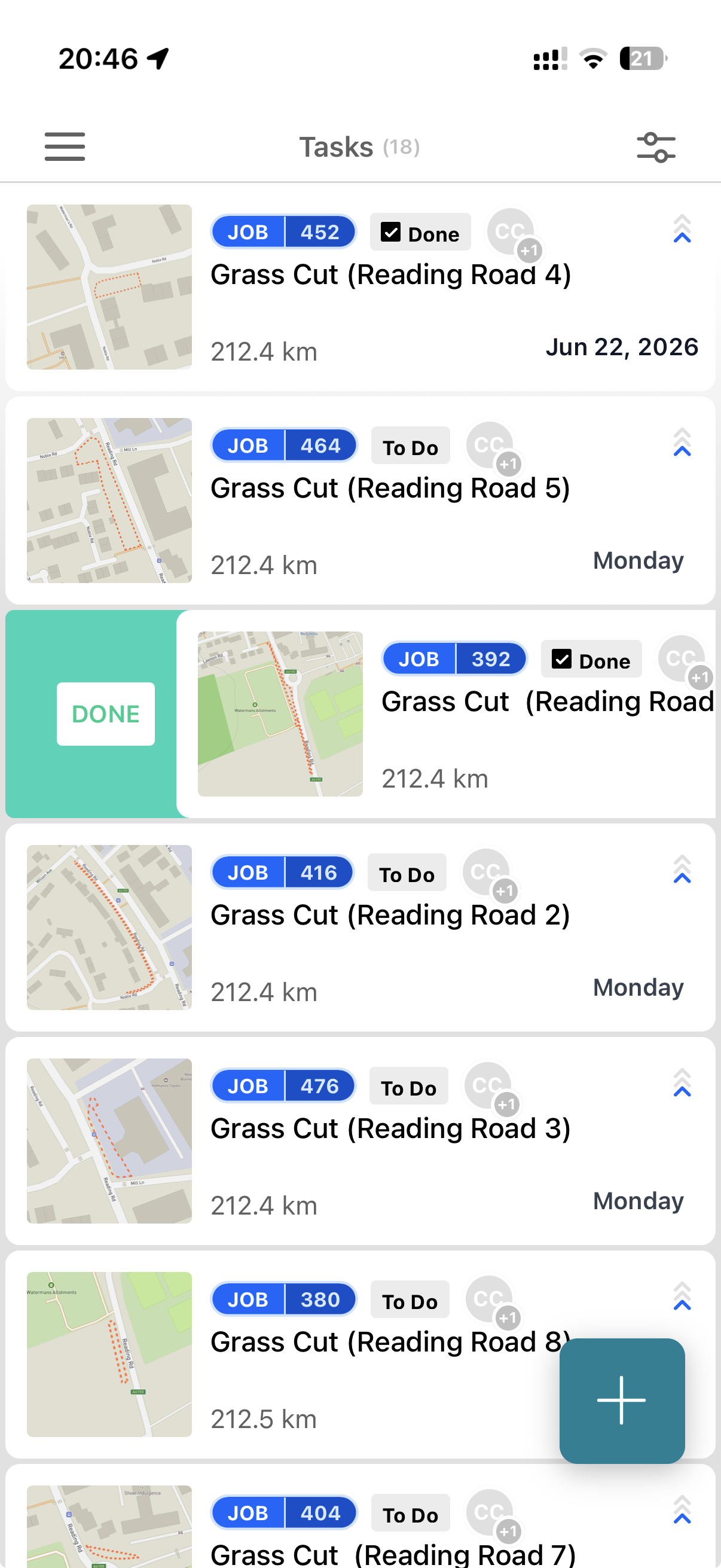
- Sees one job per verge, each with its map-photo thumbnail, so the right patch is easy to recognise.
- Ticks each job off as the verge is cut; with hide completed on, the list shrinks as they go.
- Can get directions — the location pops out to Google or Apple Maps.
- Optionally records the grass-height tap from the Grass Cutting checklist (Step 3), if you added it.
- Can raise a defect on the spot for anything they spot while cutting — fly-tipping, a broken fence — with a photo. See How to Raise and Manage a Defect.
Because every cut is signed off in the app, you can see live what's been done — no waiting on an end-of-week report.
Using it with a contractor
If a contractor does your cutting, the round works exactly the same — the contractor's staff are just users in Civic.ly and get the jobs on their phones. The value is that you can see what's been done without chasing anyone.
The practical tip: if you're re-tendering, write into the contract that the contractor must use the Civic.ly app to sign off each job (and, if you want to be strict, take a photo as proof). It makes their life easier too — they don't have to get back to the office and write up a report — and it gives you dated, evidenced proof of every cut. It's easier to build this in as part of a new tender than to persuade an existing contractor mid-contract.
Reporting on your verges (and sizes for a tender)
Because every verge is an asset of type Grass Verge, you can pull the whole set together in one view:
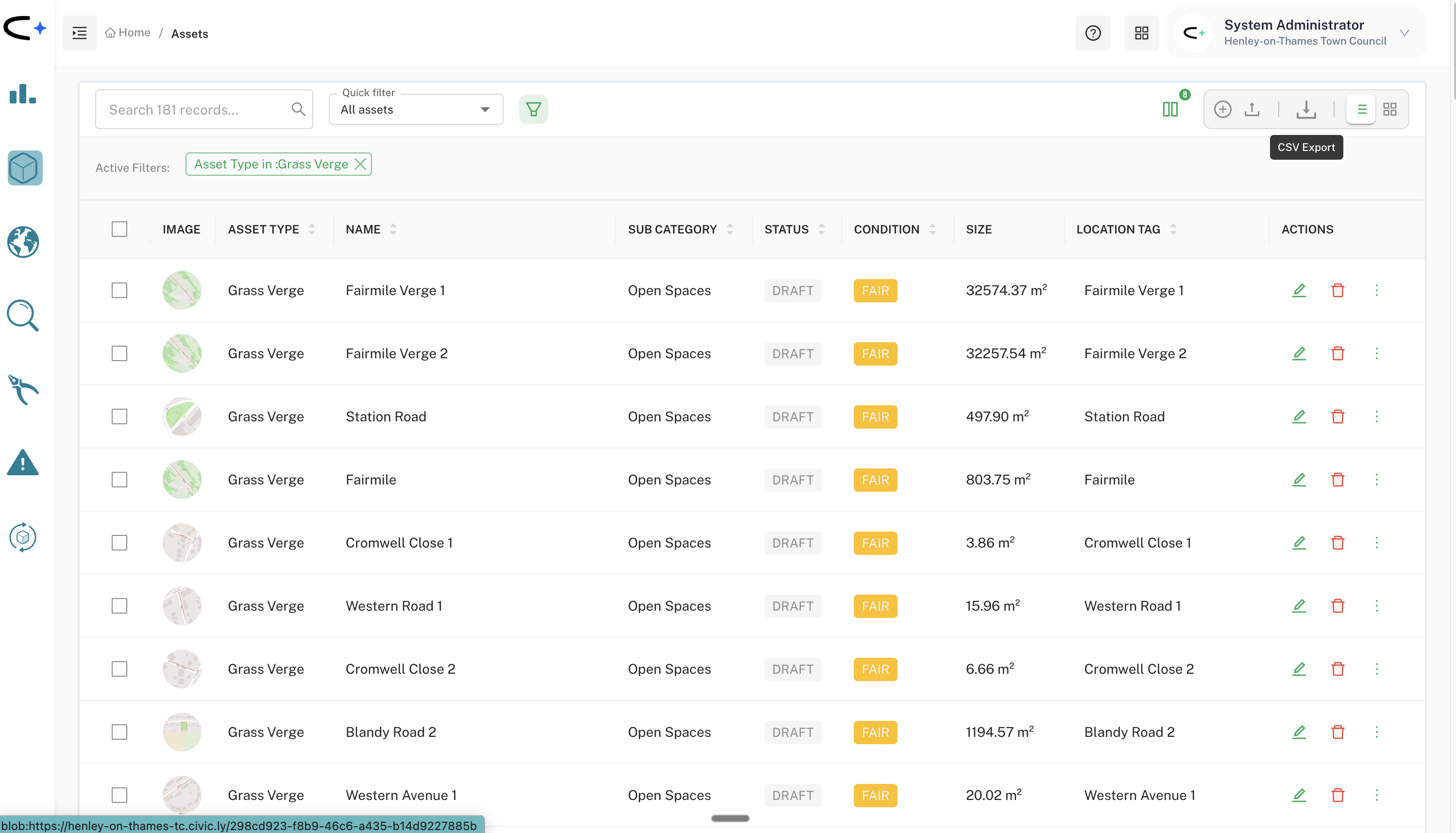
- In the Asset List, use the advanced filter and set Asset Type = Grass Verge.
- You'll see every verge, including its size — the square meterage a cutting contractor cares about.
- Export the list to CSV to share with potential contractors or to build the schedule of verges for a tender pack.
- Do the naming and mapping up front. It's the biggest job — for a town with lots of verges it can take a few days — but accurate locations and consistent names make everything downstream easy. Decide your naming and grouping (street name for the asset, estate for the location tag) before you start adding.
- One round per cut for variable schedules. Single-instance rounds with due dates are simpler than fighting a recurrence when your cutting cycle changes through the season.
- Set the first row, then copy down. The job assignees are what get the work onto people's phones, and an assignee is required on every row, so set the task type and assignee on row one and copy them down rather than filling in a long verge list by hand. Assign more than one person if you're not sure who'll be on shift.
- Capture grass height from day one if you can. It costs the operative one tap and, a season later, tells you which verges you're over- or under-cutting.
Common Questions
A job. Cutting is a task to be done and ticked off, not a checklist of things to assess. Set each related task's type to Job when you build the round. (You can still add the optional one-tap grass-height check.)
Don't use a recurrence. Create a separate single-instance round for each cut (Grass cutting — May, Grass cutting — June, …) with its own due date. That handles a variable 4-to-6-cuts-a-year pattern cleanly.
So the operative can recognise the exact verge at a glance in the app, especially where you have lots of small, similar verges. It's a small step that saves confusion in the field.
Yes. Add the contractor's staff as users and assign them the verge jobs. If you're re-tendering, make app sign-off (and optionally photo evidence) a contract requirement — you then see every cut as it's completed.
Filter the Asset List by Asset Type = Grass Verge and read off the sizes, then export to CSV. It's a ready-made schedule of verges and areas for a tender.